.jpg)


Restaurant Role-Based Access Control: Who Can Do What Across Sites

What Role-Based Access Control Does Across Your Sites
Role-based access control lets a restaurant group decide what each person can do at every site, from creating items to placing orders. Supy checks two things before anyone acts: the role the user holds, and whether the module is switched on for their account and branch. This article shows how to set those roles up, cap what staff can order, keep an audit trail, and add single sign-on.
- One shared login. Most groups start with one shared login and loosen up from there, which is how a line cook ends up able to edit recipes or add a supplier. The fix is to give each person a role that matches their job. A role is a named set of permissions, and Supy carries 200+ of them, so you can allow a stock count and block an item edit on the same screen.
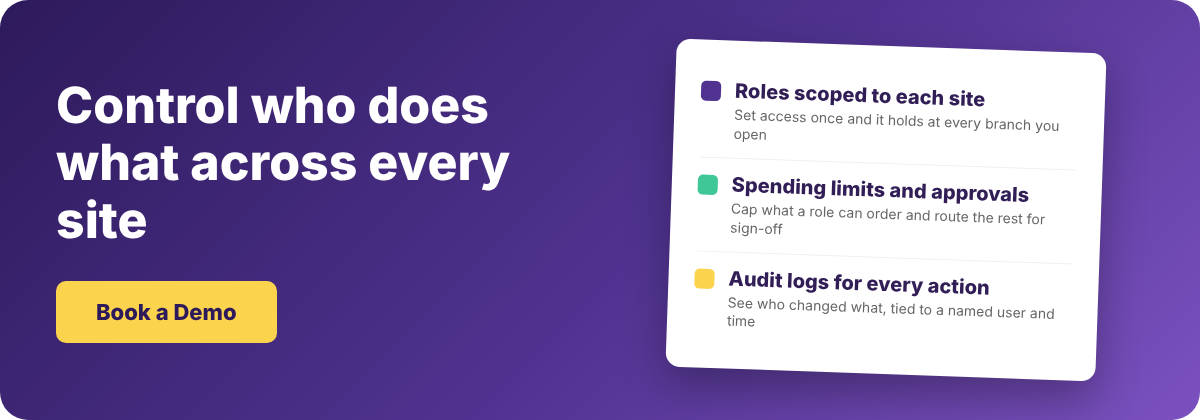
- Role and module. Two checks sit behind every action. The first is the role: it filters which of 100+ platform features a user can see or act on. The second is feature activation: it controls which modules are switched on for that account and branch. A user reaches a screen only when the role allows it and the module is on for their site. Branch-level users are kept out of areas like the recipe repository by default, so you do not exclude each one by hand. A role is scoped to the outlet a person works in, so you set the rule once and it holds at every branch you open next.
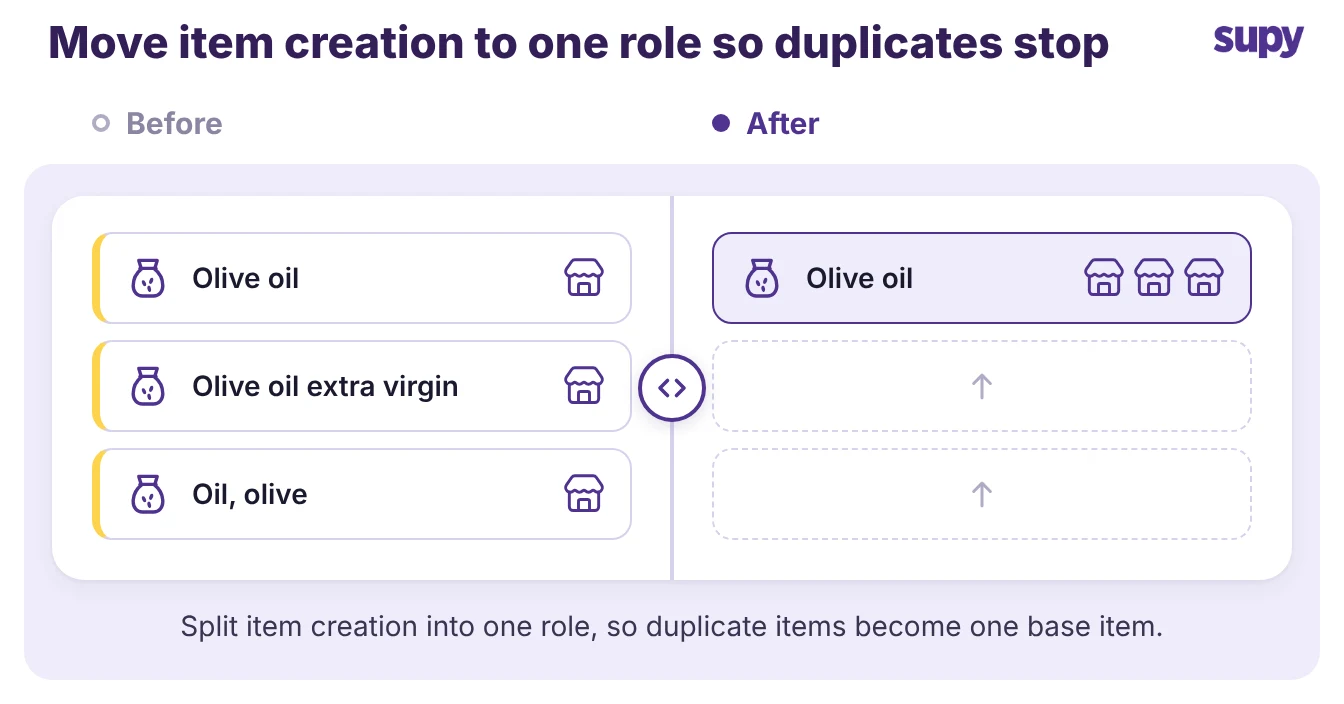
- Lock down creation. Lock down who can create items and change settings first, because this is where multi-site data breaks. When several branches can each add a supplier or a new item, you get duplicate items, mismatched units, and branches running on different settings. One group's IT manager named this directly: without tight roles, duplicate items spread and people change configuration they should not touch.
Give most staff a role that can count stock, receive deliveries and raise requisitions. That role cannot create items, add suppliers or change integrations. Keep item creation, supplier setup and settings with a small group role.
Supy's default roles are a starting point, not a finished answer. One operations manager found the defaults let staff create suppliers and items, wider than the business wanted. The fix is a custom role: copy a default template and remove the permissions you do not want, without rebuilding from scratch.
- Count and receive, nothing else. Branch staff count stock, receive goods and raise requisitions. They cannot create items or edit suppliers.
- One owner for the catalogue. A single group role creates items, maps units and links suppliers, so the catalogue stays clean across every site.
- Settings sit with the group. Integrations, tax setup and account settings stay with a group administrator, not a branch login.
Control Who Can Order and Cap What They Spend
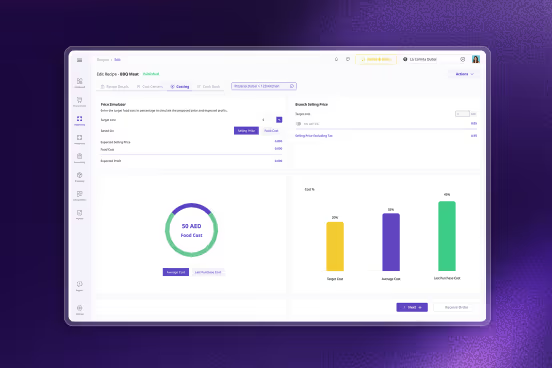
Decide who can place an order and how much they can commit before a person has to check it. Staff adoption gets simpler and safer when a line cook can raise a purchase order but cannot approve a large one. One prospect wanted exactly this: let staff create purchase orders only, and route the rest through an approver.
- Permissions and limits. Supy's Permissions and Limits control the money side of each role. You can set a purchase order value limit by supplier, branch, category, user or par. A role then orders day-to-day stock but cannot commit beyond that figure. Larger orders route through sequential approvals to up to 5 approvers, triggered by the branch and the order value. You can apply the rules by day, week, month or quarter, so a role can order over the period you choose but cannot go beyond its limit. Supy's restaurant procurement software runs these approvals across every site from one place.
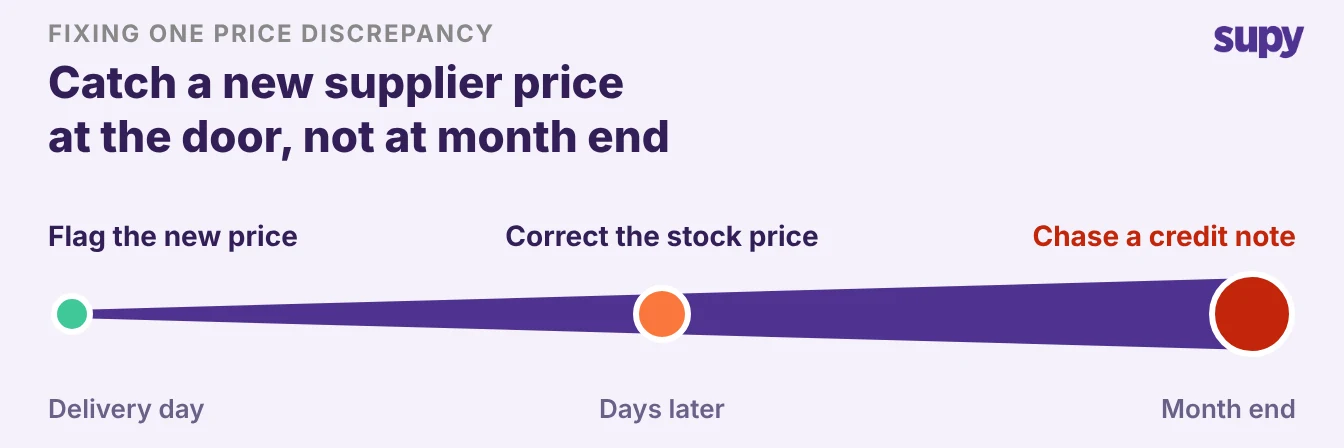
- Price controls. Prices need the same control at the door. Keep the right to change a supplier price or price list with a small group role, so staff cannot quietly edit what you pay. Then set an invoice-receiving variance threshold. When a received price differs from the agreed price by more than you allow, Supy flags it before it updates stock and accounts. You catch a new price at the door, not at month end. For a fuller walk through approval routing, see how multi-site groups lock down procurement spending controls.
A Role Permission Matrix for a Multi-Site Team
Start from a simple matrix and adjust it to your group, rather than tuning permissions one by one. Four roles cover most restaurant groups, and the table below is a working baseline. Set the roles once, scope each to its outlet, and add exceptions only where a person genuinely needs them.
| Role | Typically can | Typically cannot |
|---|---|---|
| Branch staff | Count stock, receive goods, raise requisitions | Create items, edit suppliers, approve orders |
| Branch manager | Approve small orders, submit counts, view branch reports | Change prices, edit integrations, see other branches |
| Group operations | Approve larger orders, set spend limits, view every branch | Edit account settings, change user roles |
| Group administrator | Create items, manage suppliers, set roles and settings | Keep this role to one or two people |
The matrix shows how far you trust each role. Most of your team sits in the top two rows, where a mistake stays small. The bottom row has full access, so keep it to one or two people and give everyone else the narrowest role that still lets them work.
Audit Trails and Single Sign-On for Bigger Groups
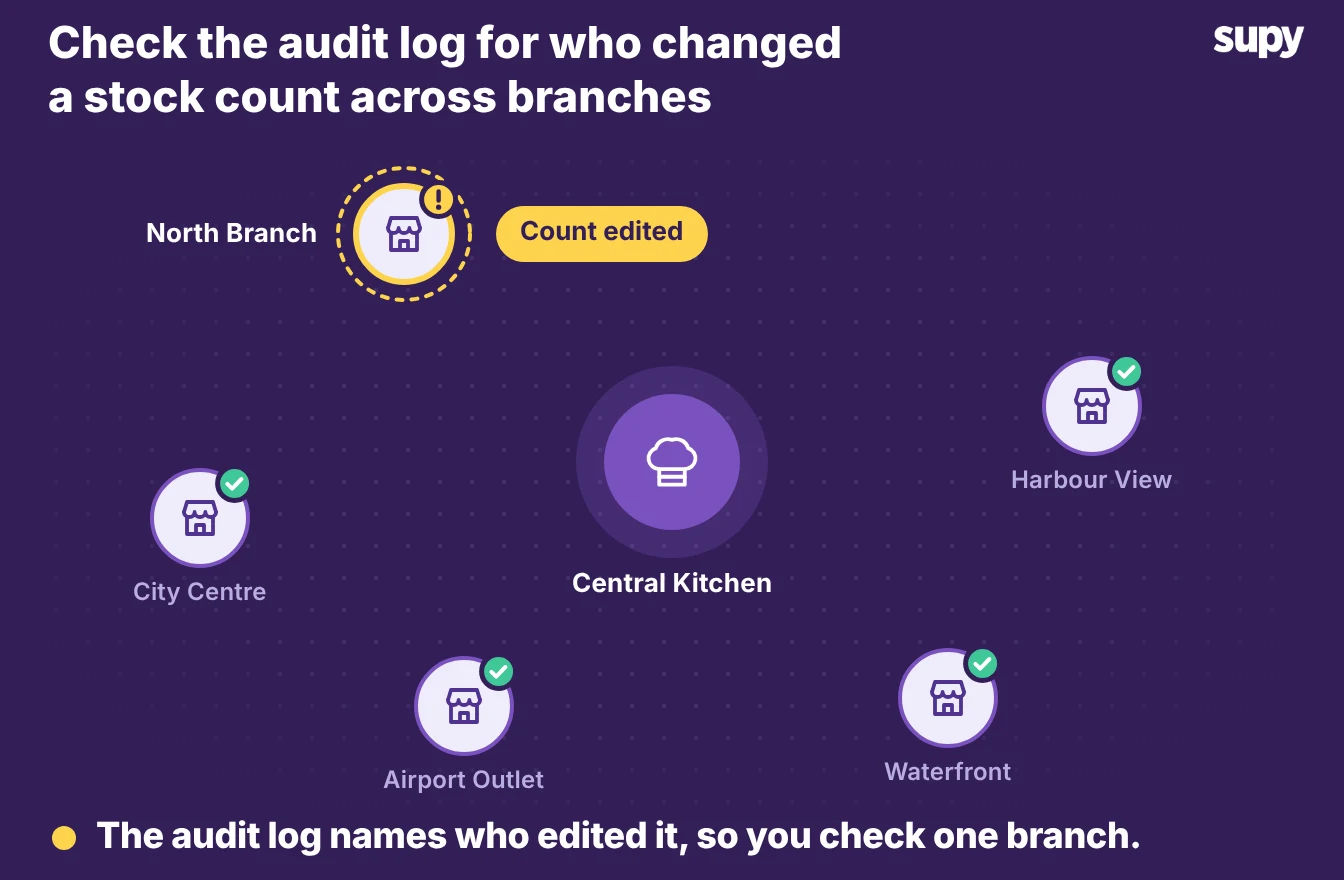
Turn on audit logs so you can see who did what, which is what access control is for once a group grows past a few sites. Supy's Audit Logs record every action across modules, tied to a named user and a timestamp, with the before and after where it applies.
You can filter by user, branch, action or date, and export the result. Nobody can edit or delete an entry.
When a count looks wrong or a price changed, you check who entered it instead of guessing. The same feature records a group's inventory audit trail across branches.
Single sign-on helps once you manage many staff across many sites. Supy supports single sign-on for groups that set it up.
A group configures its own connector, and staff then sign in through that provider on web, mobile and admin. You can also enforce it.
Once single sign-on covers an email domain, those users sign in through the provider, not a separate password. Single sign-on is available for groups that configure it, so check that it fits your plan before you rely on it.
Access control, spending limits and audit logs work as one system. The role decides what a person can reach, the limits decide how far they can go, and the log records what they did. Set them together and you can open the next branch without opening a new hole.
Start with the two roles that cause most of the damage: item creation and supplier setup. Move those permissions to a single group role this week, and give branch staff a count-and-receive role.
A fortnight later, check the audit log to see what each role actually touched. If a role reached something it should not, tighten it and move on.