Restaurant Recurring Supplier Orders: Automate Multi-Site Reordering
Set a Supplier Order Once and Let It Repeat
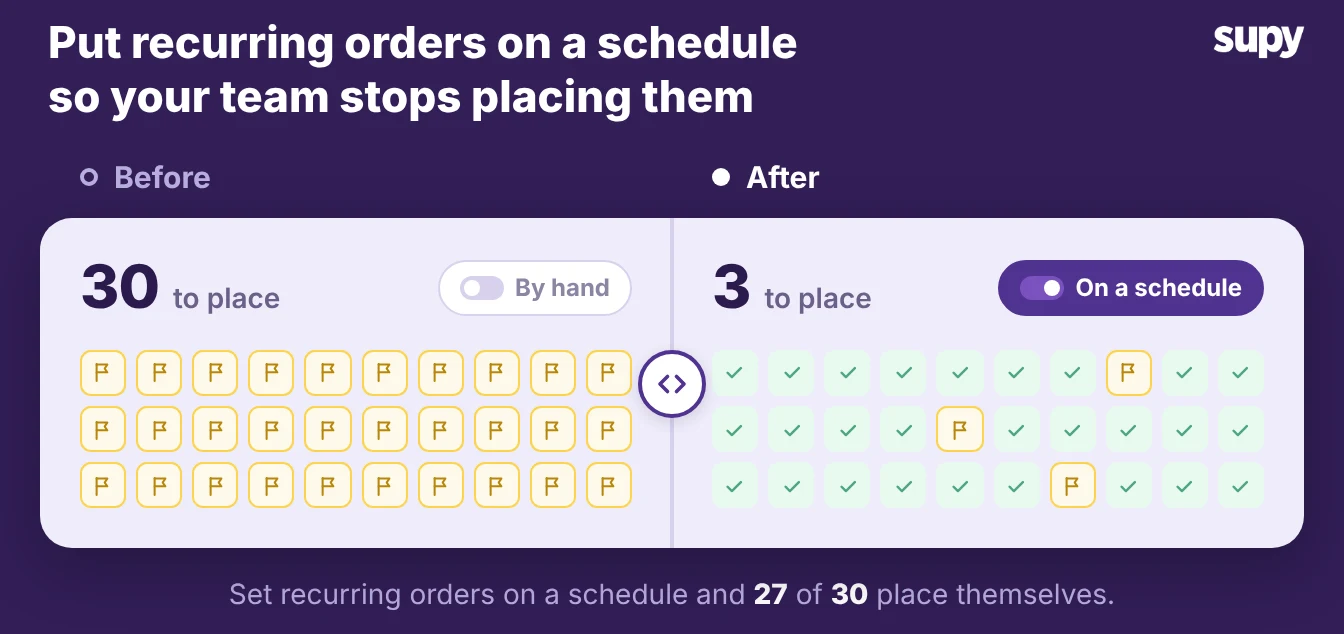
A recurring supplier order places the same order on a schedule, set up once, so nobody re-keys it each week. A multi-site restaurant group can run 30 a week, and each one is a chance for a busy manager to miss it. Supy runs the automation on standing-order templates, and you keep the controls to pause or stop any order. This article shows how to set the quantity, how the schedule handles real calendars, and how to stay in control.
- Reordering from memory. Most reordering still runs on memory. A manager places the dairy order every Monday and the dry-goods order every Thursday, and the whole rhythm depends on that one person being in and not rushed. One operator stopped placing supplier orders in their system because each order took too many steps by hand, so the team went back to their old method. Another group kept falling behind on ordering whenever staff were on leave, and deliveries slipped. Placing orders by hand slows food-service procurement more than anything else.
- The standing order. A standing order fixes the rhythm in the system instead of in someone's head. You build the template once for a supplier and a site, set the cadence, and the order submits itself on time. It is part of Supy's restaurant procurement software, and any operator with the right permission can set one up, because there is no extra feature flag to unlock first.
Fill to Par or Fixed Quantity: Two Ways to Set the Amount
Supy offers two modes for a standing order, and the choice decides whether the order thinks about your stock or just repeats a number. A fixed-quantity order sends the same amount every cycle.
A fill-to-par order reads your current stock at each branch and orders only the gap up to your par level. A quiet week orders less, a busy week more.
- Pick per line. Pick the mode per line, not per supplier. Staples with steady use, like napkins or standard packaging, suit a fixed quantity. Anything whose use swings with covers, like fresh produce or proteins, suits fill to par. A fixed number either leaves you short or piles up stock you then count and waste.
- The par calculator. If you'd rather not work par out by hand, the free par level calculator does it for every item on your sheet from your usage, delivery days and supplier lead times.
| What to compare | Fixed-quantity order | Fill-to-par order |
|---|---|---|
| How it sets the amount | Same amount every cycle | Orders the gap up to your par level |
| Reads current stock | No | Yes, at each branch before it submits |
| Best for | Steady-use staples and packaging | Items whose use swings with covers |
| Risk it removes | Forgetting to place the order | Over-ordering in a quiet week |
How the Schedule Handles Real Supplier Calendars
A simple repeat order fails the first time a date does not fit the calendar, so Supy works the dates out for you.
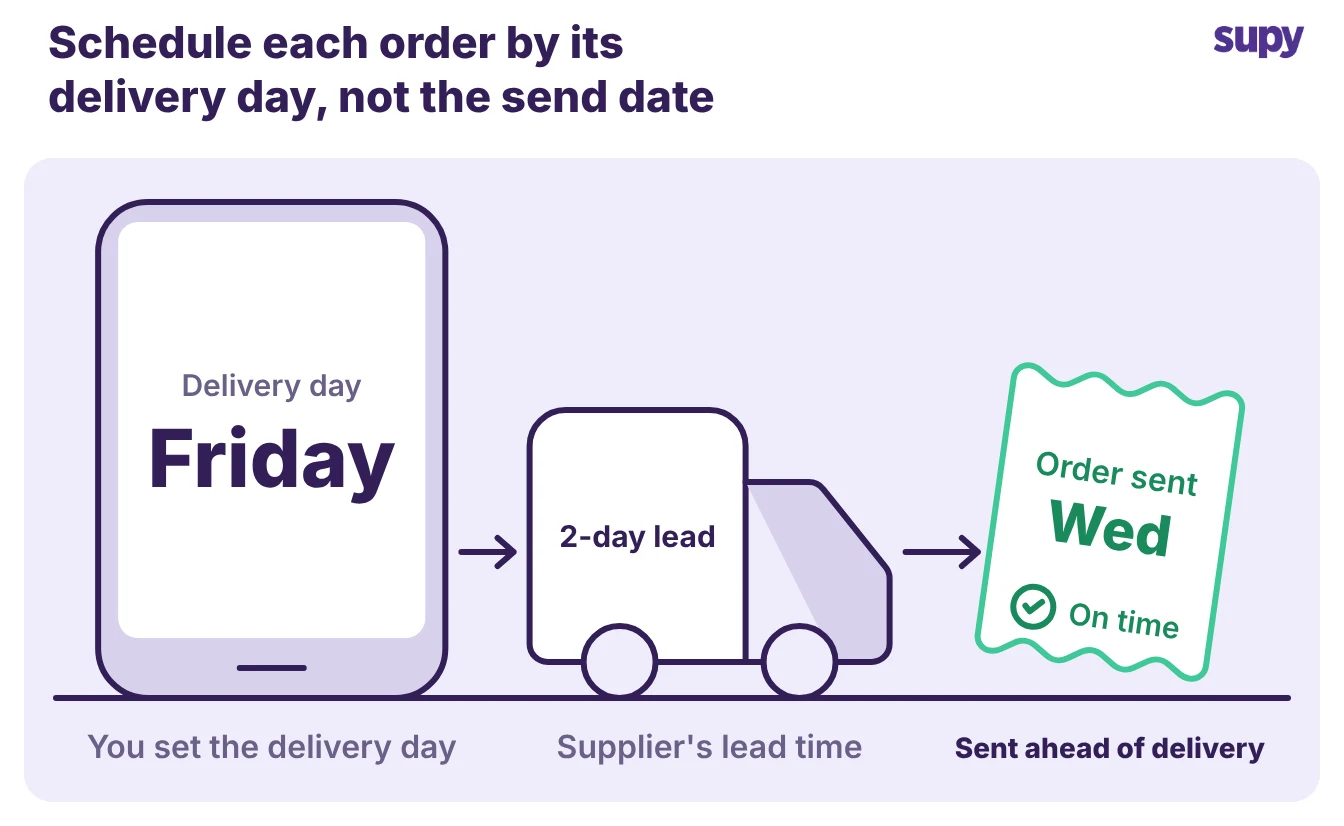
- Backward from delivery date. It sets the submission time by working backward from the delivery date you want, using each supplier's lead time.
- Friday delivery, Wednesday order. Set a delivery for Friday with a 2-day lead time, and the order goes out on Wednesday without anyone watching the clock.
The schedule also handles the calendar gaps that trip up a plain recurring order:
- Supplier non-delivery days. If an order's delivery day is one the supplier does not run, Supy moves it to the next active delivery day, so no cycle is skipped.
- Month-end dates. A monthly order set for the 29th, 30th, or 31st rolls to the last day of a shorter month, so February does not break the cadence.
- Monthly anchoring. A monthly order anchors to the first eligible month, so the delivery rhythm stays predictable no matter when you set it up.
Before you save, the setup screen shows a two-month preview of the upcoming delivery dates, starting from today or your chosen start date. You read the real dates and confirm the rhythm is right before a single order fires.
Stay in Control: Preview, Pause, and Blocked Orders
Automation earns trust when you can stop it. Operators ask for exactly this before they hand reordering to a system: the power to adjust or pause a scheduled order before it submits. A standing order in Supy carries those controls, so you are not choosing between manual work and blind automation.
| Control | What it does for you |
|---|---|
| Pause and resume | Pause with a single permission and resume later without rebuilding the order; resume recalculates a fresh schedule from that point |
| Blocked orders | A blocked order cannot resume until you resolve the issue, so nothing goes out in error while a problem is open |
| Immediate-submission warning | Warns you if the first date has already passed when you save, and only when you change the start date |
| Full audit trail | Logs every standing order across 23 event types, grouped and sortable, so a manager can trace what changed and when |
Archiving keeps that history. Archiving a standing order deactivates it without deleting it, and the delete button is then hidden, so you cannot wipe the record of a recurring order you have retired.
To start, pick one supplier and one site where the same order goes out every week, and build a single standing order for it.
- Set par and quantity. Set fill to par for the lines whose use swings and a fixed quantity for the steady staples.
- Read the preview. Read the two-month preview before you save, confirm the first delivery date, and watch one cycle run.
- Roll the template out. Once that order submits itself on time, roll the same template out to the rest of your sites, and move the next predictable supplier onto a schedule.
The work you stop repeating every week is the point.