.jpg)


Restaurant Standing Orders: 6 Reasons a Recurring Order Stops
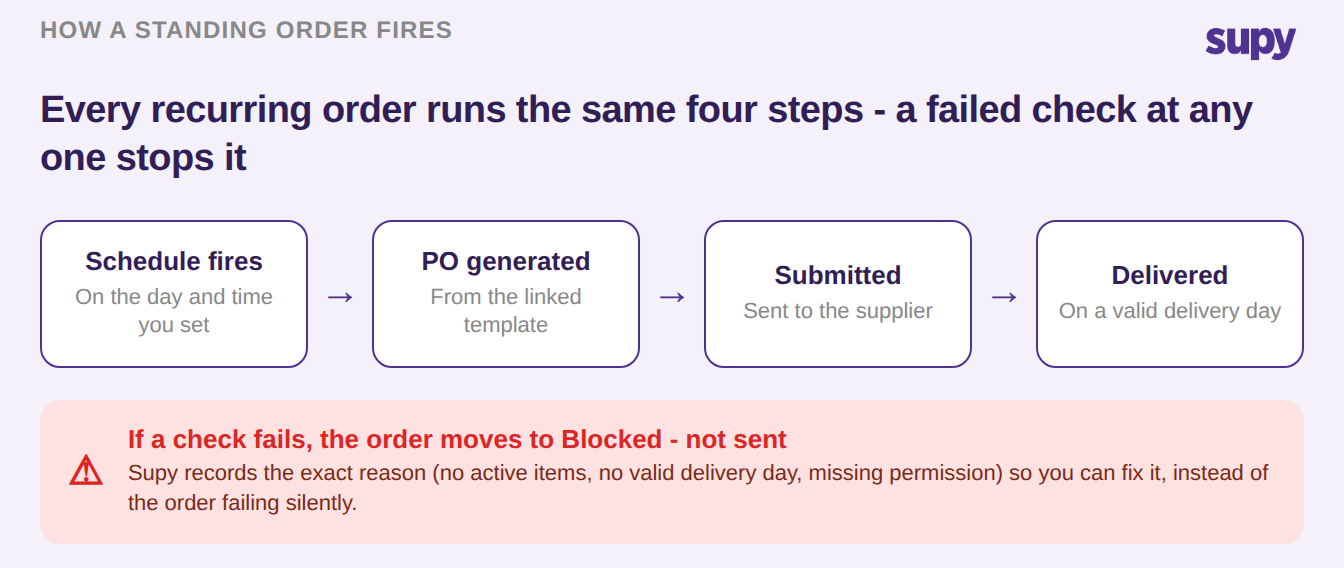
How a standing order fires - and where it silently stops
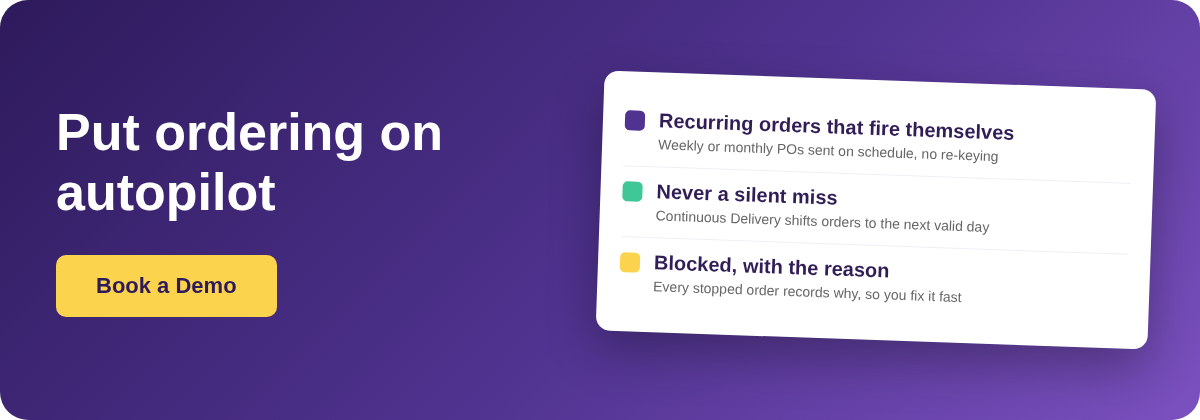
A standing order is a recurring purchase order that Supy generates and sends on a schedule you set - weekly, monthly, or every few days - built from a saved order template. It runs the same four steps every time: the schedule fires, a purchase order is generated from the template, it is submitted to the supplier, and it arrives on a valid delivery day. When a check along the way fails, the order does not vanish - it moves to a Blocked state with the reason recorded.
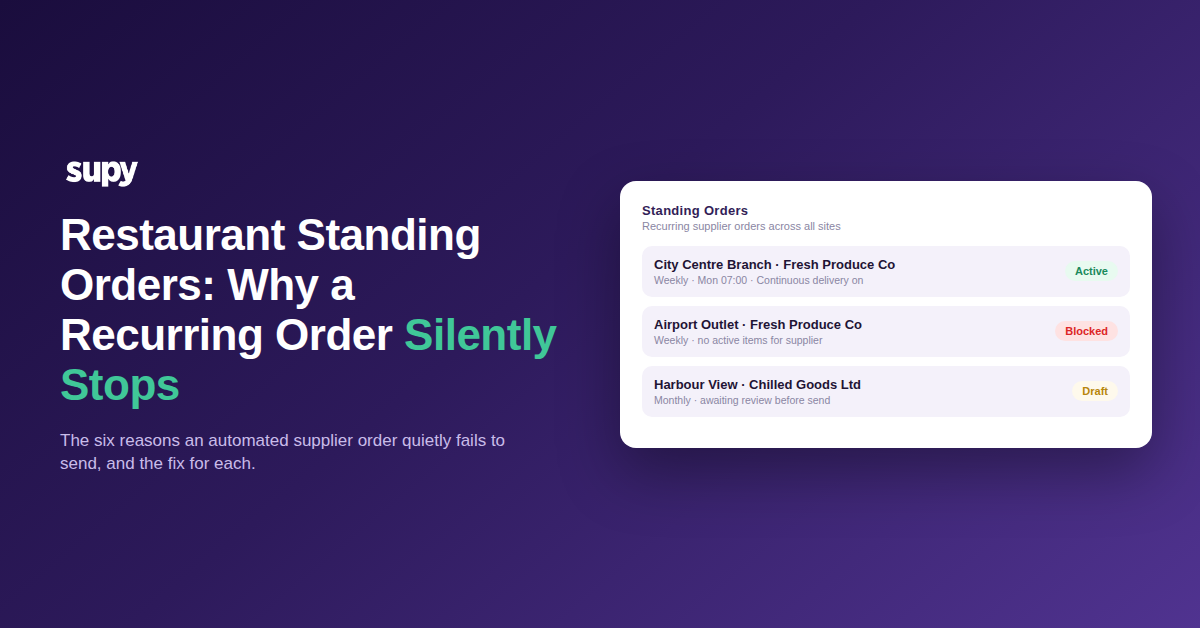
That last point separates a reliable recurring order from a silent one. Every standing order sits in one of four states - Active, Paused, Blocked, or Archived - so you can see at a glance which recurring orders are firing and which have stalled. The trouble starts when nobody watches the Blocked list: a weekly produce order set up months ago quietly stops, and the gap only surfaces when a branch runs short mid-service. The six reasons below are the checks that most often trip, each with the setting that prevents it.
6 reasons a recurring order stops sending
Most blocked standing orders come down to one of six causes. Four are setup choices you can lock in once; the other two are worth a quick look whenever you add or change an order. Here is what each one looks like, and the setting that clears it.
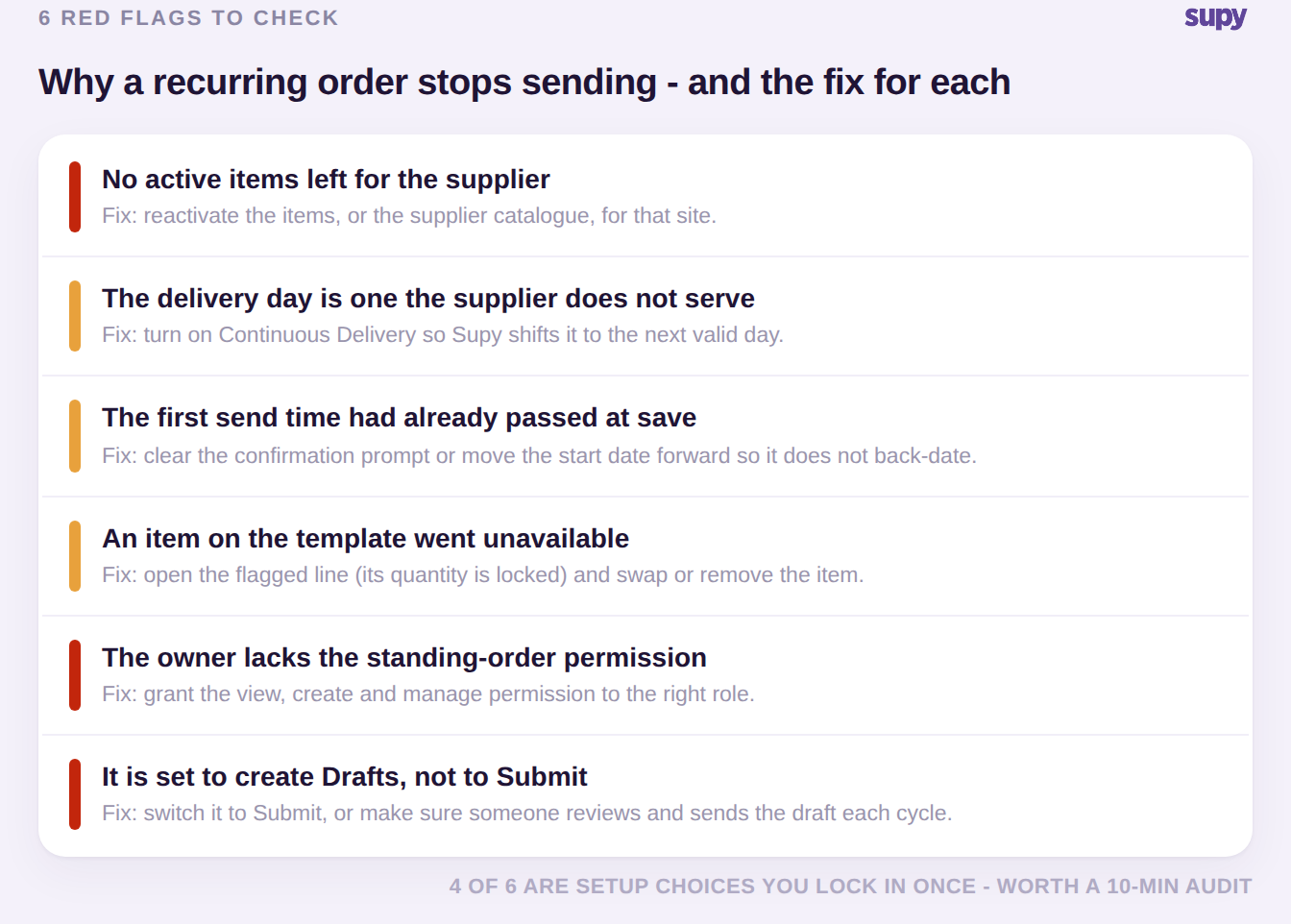
- No active items for the supplier. When the order fires, Supy builds the purchase order from the items active for that supplier at that site. If none are active, there is nothing to order, so the order moves to Blocked with the reason recorded. Reactivate the items, or the supplier catalogue, for that site so the next cycle has something to send.
- The delivery day falls on a day the supplier does not serve. A scheduled date that lands outside the supplier's delivery calendar cannot be fulfilled. Turn on Continuous Delivery and Supy advances the order to the supplier's next confirmed delivery day, so a recurring order never silently misses a delivery.
- The first send time had already passed when you saved. If the first submission time is in the past at the moment you save, Supy shows a confirmation prompt instead of firing an accidental immediate or back-dated order. Clear the prompt deliberately, or move the start date forward so the first cycle sends when you expect.
- An item on the template became unavailable. When a line on the saved template goes unavailable, Supy flags it with a distinct icon and locks its quantity so the order does not go out with a broken line. Open the flagged line and swap or remove the item.
- The owner lacks the standing-order permission. Viewing, creating, and archiving standing orders is permission-controlled, so an order managed by someone without the right role can quietly stall. Grant the standing-order permission to the role that owns replenishment for that site.
- It is set to create Drafts, not to Submit. A standing order can hold each purchase order as a Draft for review or Submit it straight to the supplier. Left on Draft with no one working the review queue, the order waits indefinitely. Switch it to Submit, or make sure someone reviews and sends the draft each cycle.
Keep every recurring order on schedule
The fastest way to stay ahead of a silent failure is to watch the state each standing order is in. Every recurring order sits in one of four states, and the state tells you at a glance whether it is firing, waiting, or stalled.
| Standing-order state | What it means and what to do |
|---|---|
| Active | The order is firing on schedule. No action needed. |
| Paused | You have temporarily stopped the order. Resume it when you want it firing again. |
| Blocked | A check failed, so the order did not send. Open it to read the recorded reason and fix that. |
| Archived | The order is retired and will not fire. Restore it only if you need the schedule back. |
Run a ten-minute audit across your sites: open the standing-orders list and sort by state. Anything in Blocked has its reason attached - work those first, starting with any produce or high-frequency staple where a missed delivery hits service the same day. Then confirm Continuous Delivery is on for every recurring order and that each one is set to Submit rather than Draft, unless you genuinely want a manual review step. Two settings and one habit - watching the Blocked list - close the gap that lets an automated order fail without anyone noticing.
Standing orders are meant to take routine replenishment off your team's plate; they only do that when a stalled order announces itself instead of hiding. If you run recurring orders across more than a handful of sites, a periodic look at the Blocked state is the difference between automation you trust and automation you double-check by hand. See how Supy handles recurring supplier orders, how it compares with predictive ordering, and where it fits in restaurant procurement software.