.jpg)


Posting Restaurant Invoices to Xero: Keep Multi-Entity Books Clean
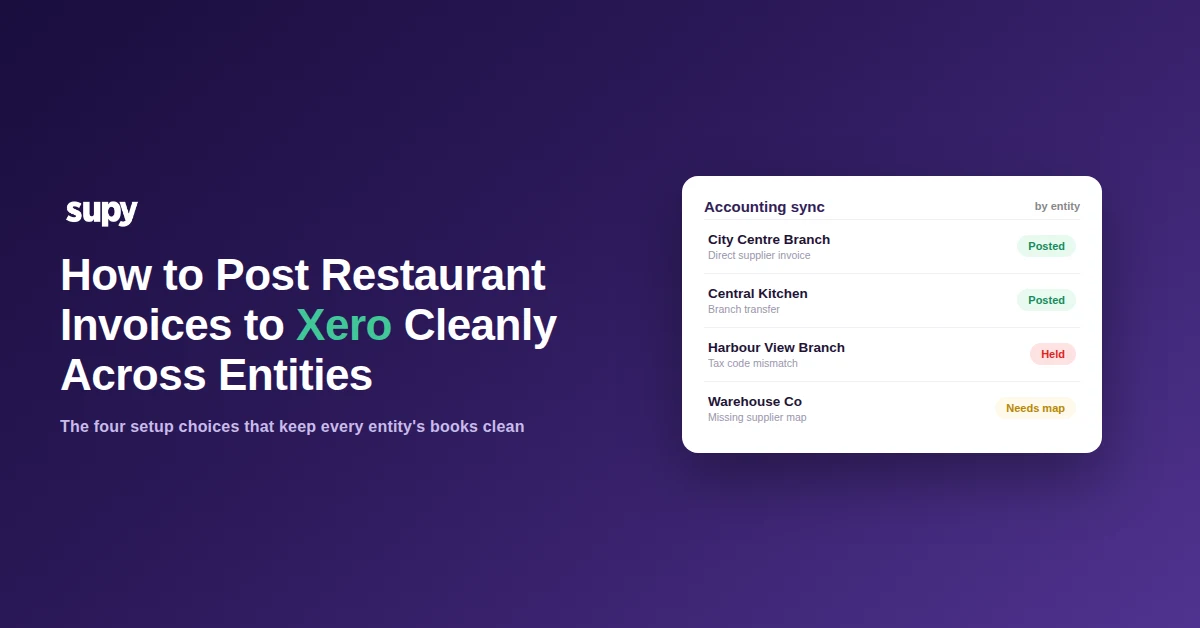
Once posting is set up right, every location's supplier costs land in the correct set of books automatically, your profit and loss is trustworthy per entity, and month-end reconciles in minutes instead of an afternoon of exports. This guide walks through how invoice posting to Xero works across a multi-entity restaurant group, the handful of setup choices that keep it clean, and the exact fix for each one if a post ever stalls.
How a Supplier Invoice Reaches Xero, Step by Step
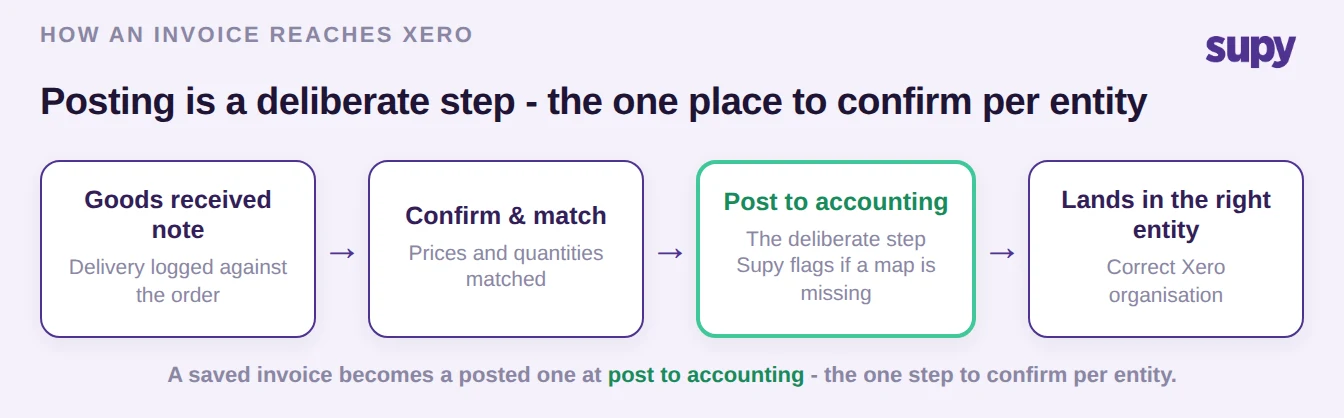
A supplier invoice reaches Xero in a defined sequence: the order is received against a goods received note, the received document is confirmed, and then it is posted to the connected accounting entity. Posting is a deliberate step, not an automatic side effect of receiving - which is what lets you review a document before it hits the books, and also why an invoice can sit "done" in your inventory platform until you post it.
In a group running one Supy account across several Xero organisations, a supplier invoice posts to whichever entity the receiving location is mapped to. When a required mapping is missing - a supplier, a tax code, or a due date the entity demands - the post is held rather than guessed at, so nothing wrong ever silently reaches your accounts. A well-built accounting integration surfaces exactly what is missing and re-presents the "post to accounting" action once you fix it, so the invoice is never lost, only waiting. To clear one, open the sync status on that document, read the reason it gives, correct the mapping it names, and post again.
The habit that keeps a multi-entity group clean is reconciling posted counts per entity, not per group, so a location whose mapping needs attention is caught the same day rather than at month-end. Get that rhythm right and a saved invoice and a posted one never drift apart.
Route Each Invoice to the Right Entity
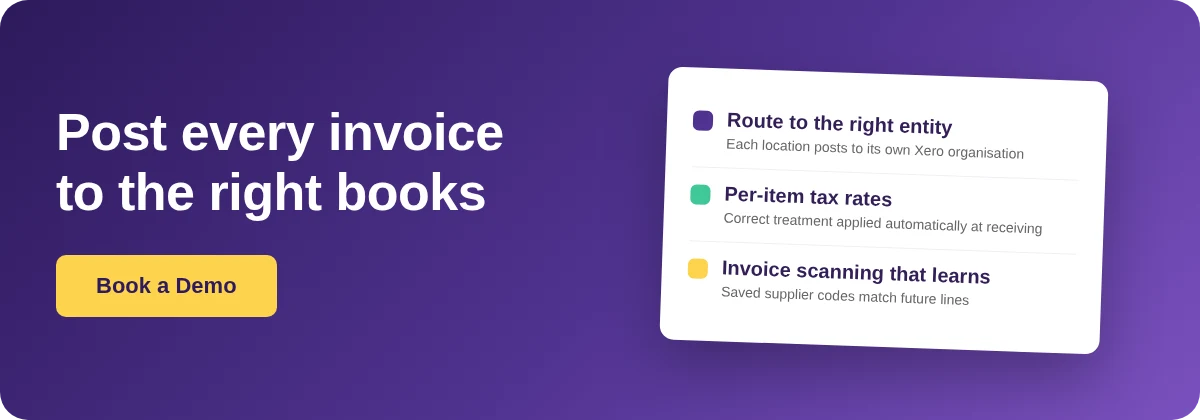
In a group, the first question about any invoice is not "did it post" but "where." Each entity connects its own accounting organisation, and each location maps to the entity that owns it, so purchasing at a branch posts to that branch's books and a central-kitchen transfer posts to the kitchen's. Get the location-to-entity map right once and routing stops being a daily decision.
The structures that cause confusion are the ones real groups actually run: a separate warehouse entity holding bulk stock, a central kitchen billing branches for what it ships, and branches that sometimes order direct from suppliers and sometimes through the kitchen. Each of those flows posts to a different set of books, and the routing has to reflect it. The table below shows how the mapping is meant to line up.
| Location or flow | Posts to entity | Ledger destination |
|---|---|---|
| Branch buying direct | That branch's company | Branch purchases account |
| Central kitchen production | Central kitchen entity | Kitchen purchases account |
| Warehouse bulk stock | Warehouse entity | Warehouse stock account |
| Kitchen-to-branch transfer | Both, as issue and receipt | Inter-entity transfer accounts |
Set this up during onboarding and confirm it per location before the first live post - it is the one setting worth verifying up front, because a correctly mapped branch then posts clean to the right company every time, and your per-entity profit and loss stays accurate without anyone policing it.
Set Each Item's Tax Rate Once so Every Invoice Posts
Tax treatment is set per item, and getting it right once is what lets a whole invoice post in a single click. If a packaging item - foil trays, cups, cleaning supplies - carries the standard tax rate but is mapped to your food default, the tax code Xero receives will not match the account it posts against. Line the item's rate up with the account and the document clears cleanly.
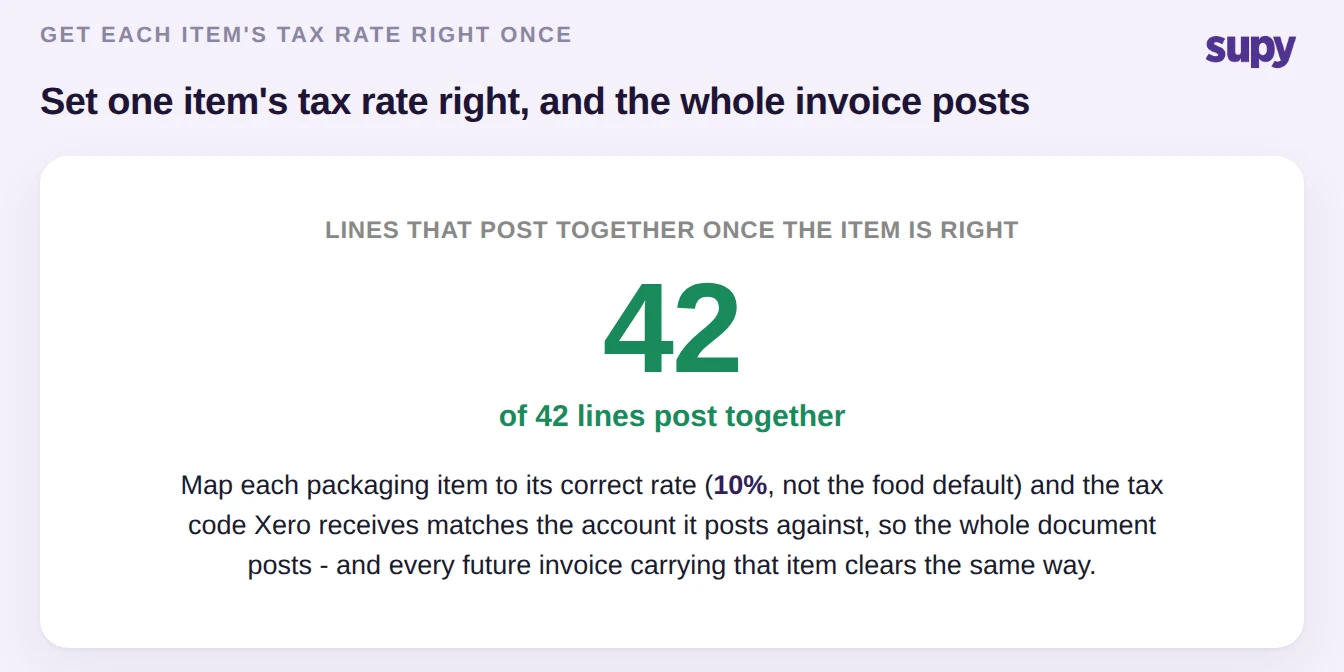
Because item configuration is shared across the group, fixing it once fixes it everywhere: set the item's tax mapping correctly at onboarding and every invoice that includes it, at every location that buys it, posts the same clean way. Configure named tax rates per entity - including any exempt or zero-rated flag - and map each item category to the correct rate so the right treatment is applied automatically at receiving. If a post is ever held on tax, the sync status names the exact code; correct it on the item and every future invoice carrying that item clears. A recurring tax-rate hold is simply telling you one item is set up wrong - fix the item and the pattern disappears.
Post Purchases as Clean Ledger Totals, Not Line Noise
Most groups do not want a line-by-line copy of each invoice in Xero. It is cleaner to see purchasing land as a small number of ledger totals - all food into one purchases account, packaging into another - and keep the itemised detail in the inventory platform where cost analysis actually happens. That keeps the ledger readable for your accountant and quick to reconcile.
This is a mapping choice you control, not a fixed behaviour. You decide how item categories, suppliers, and transaction types map to general ledger accounts and tax codes, so an invoice can post as one consolidated purchases line or as itemised detail - whichever your accountant reconciles against. The comparison below sets out the trade-off.
| Approach | What Xero receives | Best when |
|---|---|---|
| Consolidated | One purchases line per category | The accountant reconciles totals and the detail lives in the platform |
| Itemised | Every invoice line as its own entry | Line-level ledger detail is required for audit or reporting |
One operator we worked with was spending about an hour per cycle exporting reports to recreate the cost view their old tool could not post directly. Mapping categories to a clean set of ledger accounts removes that export step entirely: the books carry the totals the accountant needs, the detail stays one click away in the platform, and that hour goes back into the week. For the deeper structure behind this - how the accounts themselves should be organised across entities - see our guide to a restaurant chart of accounts for multi-entity groups, and for the mechanics of the mapping itself, how invoices and goods received notes map to the general ledger.
Teach Invoice Scanning Your Units Once, and It Sticks
Clean data posts as reliably as a clean mapping, and the scanner is where that data starts. Supplier invoices arrive in inconsistent formats, and the hardest fields for any scanner are unit conversions - grams versus kilograms, a case of a dozen versus a single unit, varying pack sizes. The value of a scanner that learns is that you correct each of these at most once.
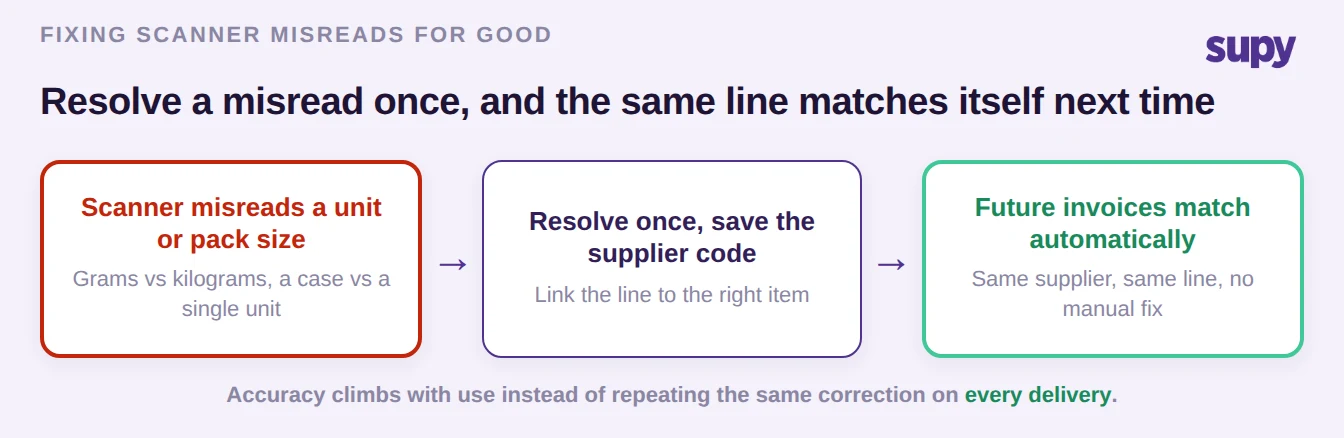
The durable fix is a system that learns rather than one you correct forever. When a scanned line cannot be matched confidently, you resolve it once - linking it to the right item and saving the supplier's product code against that item. From then on the same line on future invoices from that supplier matches automatically, so accuracy climbs with use instead of repeating the manual correction every delivery. Supy's invoice scanning and receiving runs this on a per-restaurant email inbox, and the same learning applies across a multi-location group. For how this scales across sites, see restaurant invoice scanning for multi-location groups.
A Fast Self-Check to Keep Every Invoice Posting
If you want every invoice to post first time, the quickest way to stay on top of it is to know the four things that matter and the one check for each. Almost every posting outcome in a multi-entity group comes down to one of these, and each has a specific check rather than a general "look at the integration."
| Symptom | Likely cause | First check |
|---|---|---|
| Invoice saved, not in the profit and loss | Post step not run, or a blocked sync | Open the document's sync status and read the reason |
| Costs landing in the wrong company | Location mapped to the wrong entity | Check the location-to-entity map |
| Whole invoice refuses to post | An item on a tax rate the account rejects | Find the flagged tax code and fix the item |
| Ledger cluttered with every line | Category-to-account mapping too granular | Remap categories to consolidated accounts |
| Wrong quantities or costs posting | Scanner misread a unit or pack size | Resolve the line once and save the supplier code |
Start with the entity map, because routing is the one setting that looks correct even when it is not. Then work down the list. Supy verifies claims here against the live product, and connects to Xero, QuickBooks, Zoho, MYOB, NetSuite and 75+ accounting and point-of-sale systems, so the same posting discipline gives you clean, per-entity books whichever system runs which ledger.