.jpg)


Negative Inventory in Restaurant Stock Reports: How to Fix It
What Negative Inventory on a Stock Report Really Means
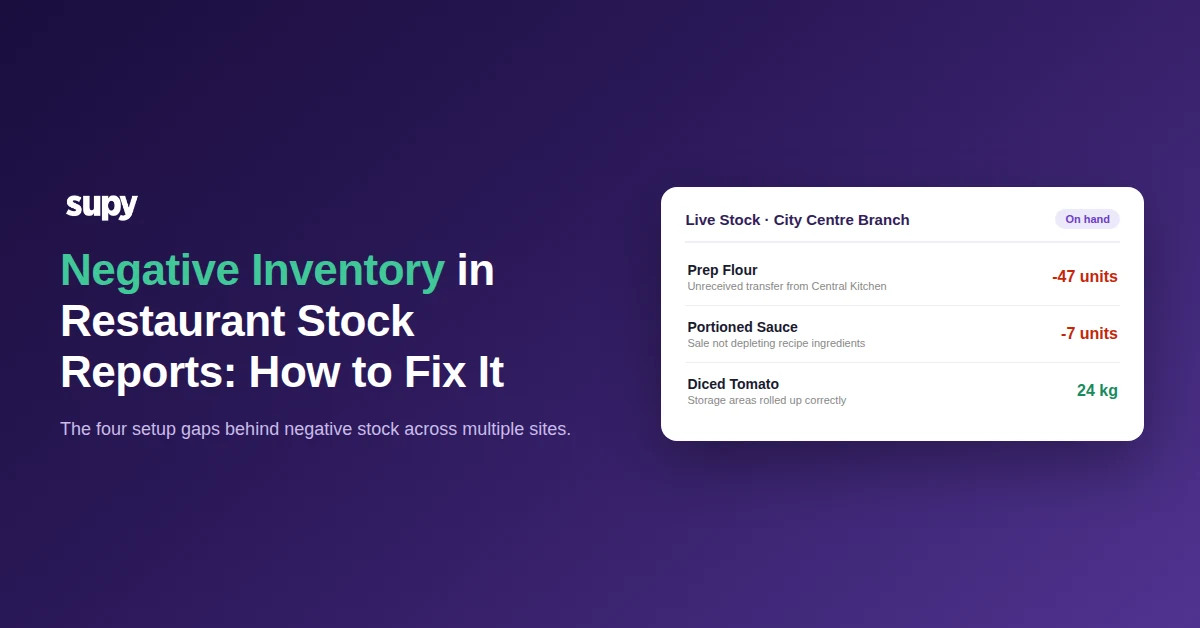
Negative inventory is a stock report showing less than zero of an item on hand, such as minus 47 units of an ingredient. It is not a counting error at the shelf. In a multi-site restaurant group it almost always means the system recorded usage, a sale, or an outbound movement that its matching inbound movement never balanced, so the deficit exists on paper while the shelf may be fine.
That distinction is what makes negative stock worth chasing rather than editing away. Overwriting the number to zero hides the broken movement, and it comes straight back next period. Good restaurant inventory management software ties every movement to a stock change, which is what lets you trace a negative to its cause instead of guessing.
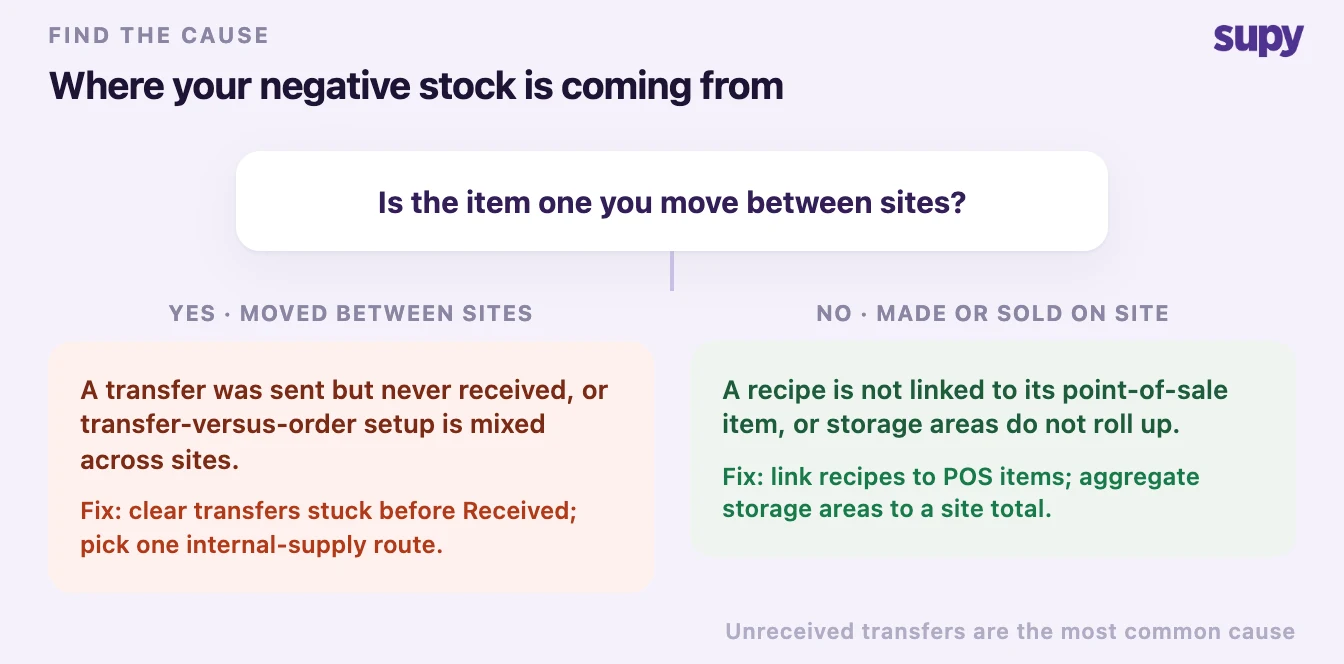
The four causes below account for nearly every case in a multi-branch operation. Match your report to a branch, apply that branch's fix, and the numbers reconcile because the underlying movement is finally complete, not because you forced the total.
Transfers That Were Sent but Never Received
This is the cause that turns up most often across multi-site groups. One site ships stock to another, the sending side shows the stock leaving, but the receiving side never confirms it arrived, so the books never balance. A 3-site pub group hit exactly this: reports showing minus 47 and minus 7 units because transfers between locations were never received. The same broken step also inflates stock, and one multi-site casual-dining group running a central kitchen saw single-item variances as large as 138 kg because its branches were not accepting the transfers the kitchen kept sending.
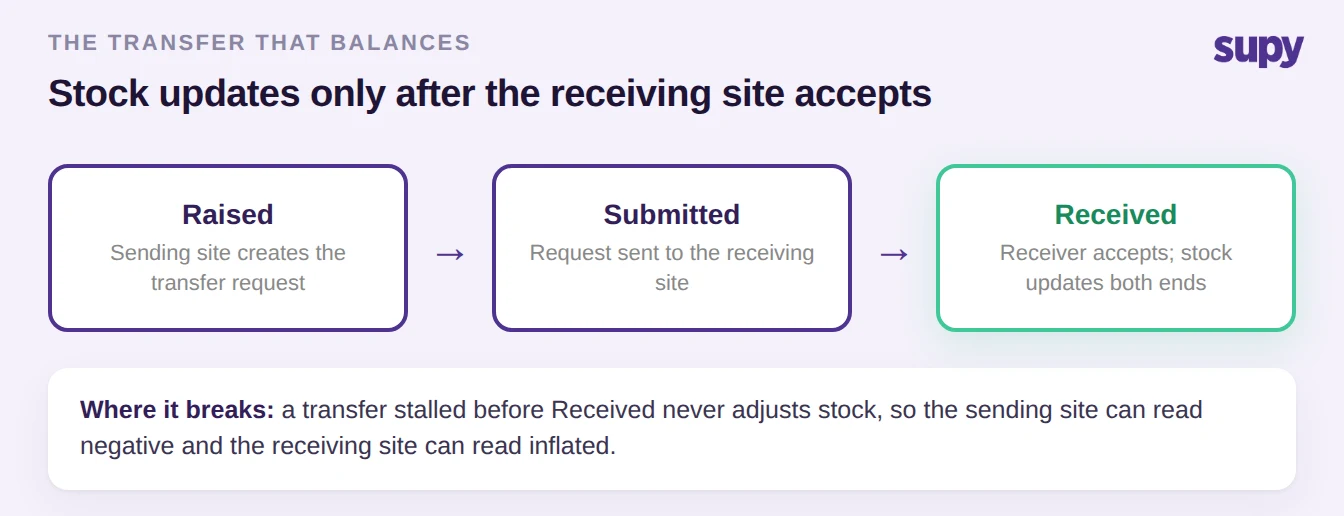
The fix is a transfer workflow where the receiving site must accept before stock updates at either end. An inter-branch transfer moves through three stages: Raised, Submitted, and Received. Until the destination confirms receipt, nothing changes on either side, which is exactly what stops an unreceived transfer from creating a phantom deficit or a phantom surplus. The receiver can partially accept or reject, stock adjusts automatically on both ends, and the movement shows up in variance, usage, and live stock with a full audit trail.
If your reports carry negative or inflated stock and you run inter-site movements, audit for transfers stuck before the Received stage first, because that is what clears most negative and inflated stock in a multi-site setup. Ask which sites have transfers sitting unaccepted right now.
Transfer or Purchase Order for Internal Supply
Once transfers are being received properly, the next question is whether an internal movement should be a transfer at all. Groups running a central kitchen or a warehouse-to-branch model face a genuine fork: move stock as an internal transfer, or have the branch raise a purchase order against the central kitchen, which confirms, ships, issues a delivery note, and the branch receives that note before stock lands. Picking the wrong route, or mixing the two inconsistently across kitchens and a central store, is why physical counts stop matching the system.
The order route gives cleaner tracking for a supply relationship that behaves like buying from a supplier, because it carries a confirmation and a delivery note at each step. The transfer route is right for a straight move of stock between two of your own sites. One prerequisite trips groups up: a semi-finished or prep item has to be set as stockable for production and transfer to work at all, otherwise the movement has nothing to act on.
| Question | Internal transfer | Purchase order to central kitchen |
|---|---|---|
| Who confirms the movement | Receiving site accepts | Kitchen confirms, then branch receives the delivery note |
| When stock updates | On receipt at both ends | On delivery-note receipt at the branch |
| Best for | A direct move between your own sites | A branch ordering from a central kitchen that fulfils it |
| Paper trail | Transfer record and audit trail | Purchase order, confirmation, and delivery note |
Decide which route each internal-supply relationship uses, then apply it the same way at every site so counts stop drifting.
Sales That Do Not Deplete Their Ingredients
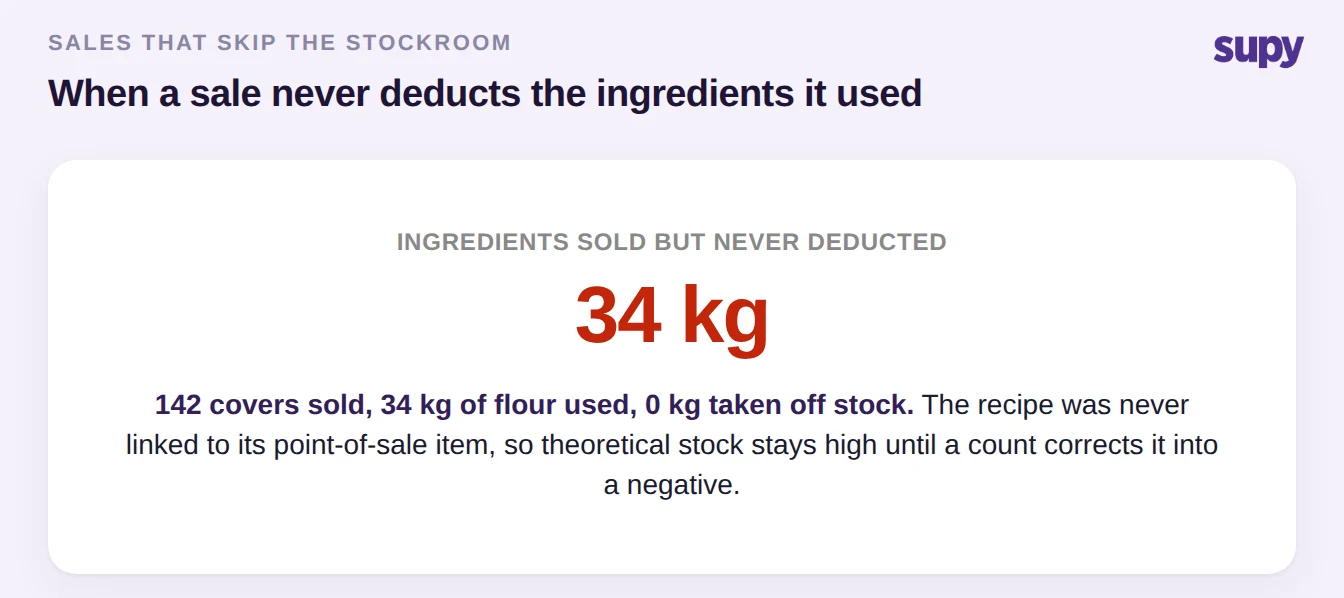
A different cause hides on the sales side. When a dish sells but its recipe is not linked to the matching point-of-sale (POS) menu item, the sale never deducts the raw ingredients it used. Theoretical stock stays high while the shelf empties, and the gap eventually surfaces as a negative once a count corrects it. The same thing happens when a batch or prep recipe is never backdated, so no depletion is recorded for production that already happened.
The fix is to link recipes, including their modifiers, to the POS items that sell them, so every sale depletes the correct ingredients automatically. Prep and semi-finished recipes get modelled the same way, with batch production tracked and backdated to the day it happened. Once the mapping is in place, a sale of 142 covers depletes the flour those covers actually used instead of leaving it sitting on the report, and theoretical-versus-actual usage becomes a number you can act on rather than one you distrust.
One Item Split Across Several Storage Areas
A quieter cause shows up in groups that hold one item in more than one place: a walk-in cooler, a freezer, and a dry store, for example. If those storage areas are not set to roll up into a single store-level total, the item can look wrong at the location even though every individual area is counted correctly. It reads as a discrepancy that is really just an aggregation gap.
Live stock is tracked by location, category, and storage unit, and the storage areas for an item should aggregate into one store-level figure. Configure the item's storage areas so their counts sum to the site total, and confirm this on setup rather than after a count fails.
| Storage area | On hand |
|---|---|
| Walk-in Cooler | 12 kg |
| Freezer | 8 kg |
| Dry Store | 4 kg |
| Store total | 24 kg |
Before you trust a single-item count, check whether that item is held in more than one storage area and whether those areas roll up to the store total.
A Fast Self-Check for Negative Inventory Across Sites
Negative inventory in multi-site restaurant stock reports is a diagnosis, not a number to overwrite. Name the branch you are in before you touch the count. If the negative sits on an item you move between sites, look for transfers stuck before the Received stage. If your physical counts drift everywhere, decide once whether internal supply is a transfer or a central-kitchen order and apply it consistently, checking that semi-finished items are set as stockable. If theoretical stock runs high on ingredients that clearly sold, check that the selling recipes are linked to their POS items and that batches were backdated. And if a single item looks off at one site, confirm its storage areas roll up to a store total.
Fix the movement, and the report reconciles on its own. For the wider setup behind counts you can trust, see our guide to restaurant stock management software, and once your numbers are accurate you can pressure-test margins with our free food cost calculator.