.jpg)


Bulk Menu Price Updates: One Rollout Across Every Location
Roll One Price Change Across Every Location
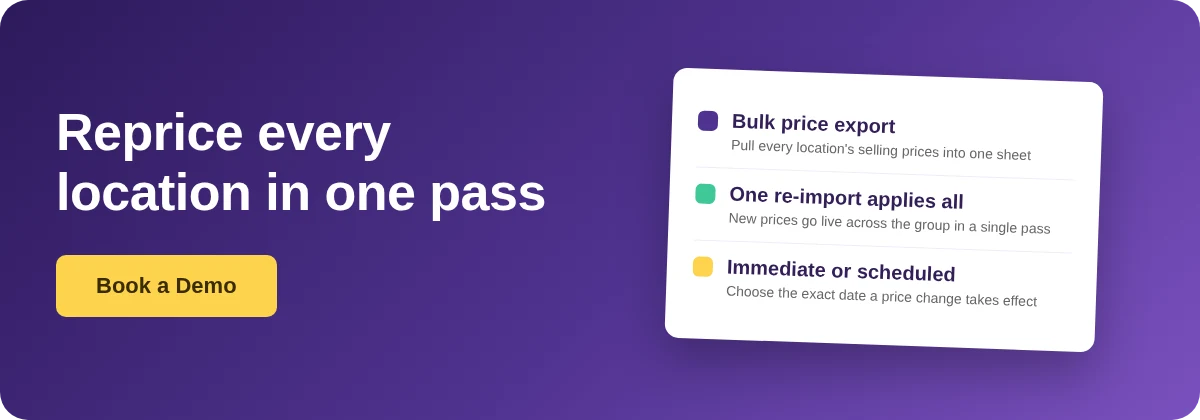
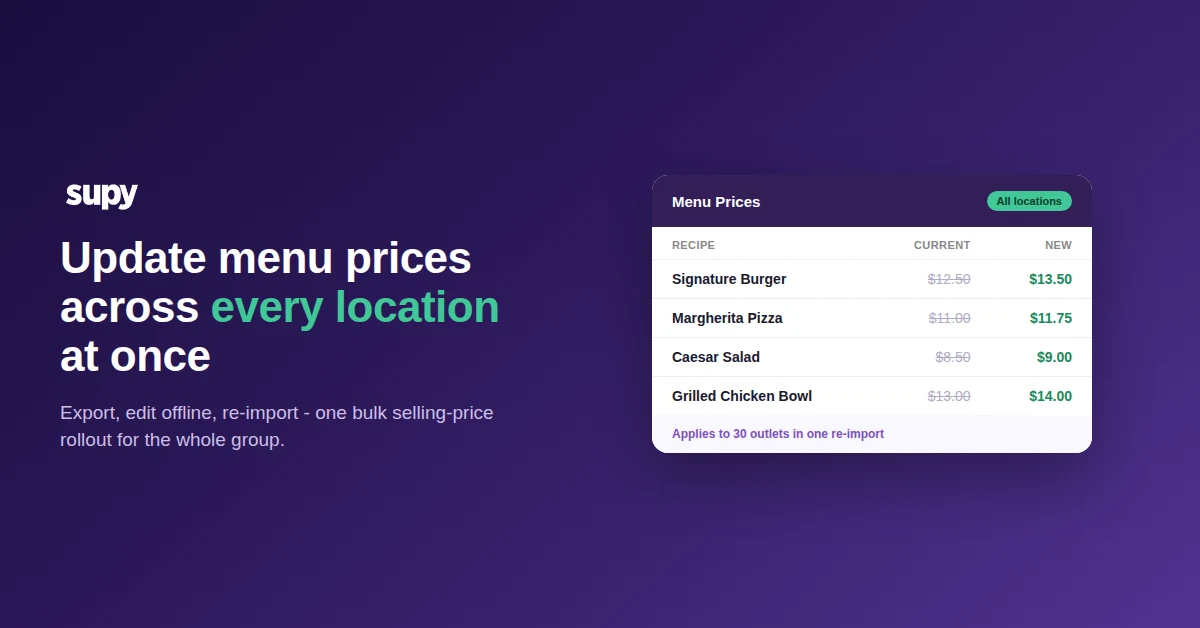
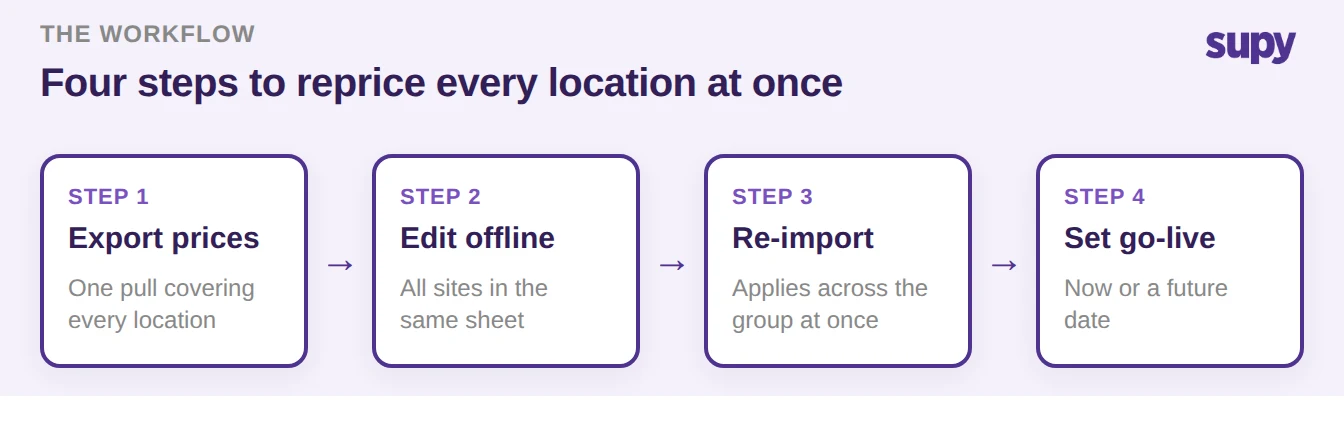
To change a menu selling price across a whole group in one pass, export every recipe's current selling price to a single spreadsheet, edit the prices offline for all locations at once, then re-import the sheet to apply the change group-wide. You choose whether the new price takes effect immediately or on a future date. One file, one pass, every outlet in step.
That is the whole workflow, and it replaces the job most multi-site operators still do by hand: opening each location, finding the item, and retyping the price outlet by outlet. For a group with 30 or more locations, a routine monthly reprice done that way turns into a multi-day slog, and the moment one branch gets missed the same dish is live at two different prices. The export-edit-import loop removes both problems, because the price for every location is edited in the same sheet and applied in the same action.
The rest of this guide walks the four moves in order: pull the prices out, edit them on the correct basis, push them back, and set the moment they go live. Each step is a real capability, not a workaround, so you are configuring a rollout rather than fighting a tool.
Export Every Selling Price Into One Sheet
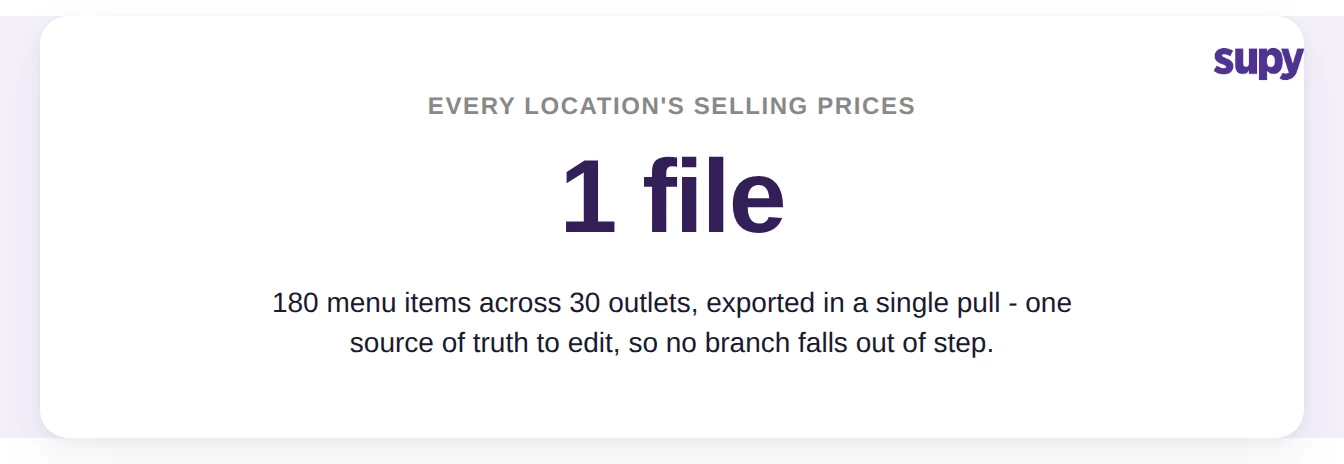
Start by exporting your recipe selling prices to a spreadsheet in a single pull. The export covers every location you operate, so a group running 180 menu items across 30 outlets lands one file that already holds every price for every site, rather than 30 separate downloads you would have to stitch together.
This single sheet is what keeps the estate in sync. When the source of truth for the reprice is one file, there is no per-branch version to fall out of step, and no outlet quietly left on last quarter's price because someone forgot to open it. You are working from the same rows the group is actually running, so the edit you make is the edit that ships.
Before you touch a number, scan the sheet for items you did not expect to see, or prices that already look wrong. A bulk export is the first clear, side-by-side view many groups get of what every location is really charging, and it is common to find drift that predates the reprice you came to do.
Edit Offline on the Right Price Basis
Edit the prices in the sheet for all locations in the same pass. Because you are working in a spreadsheet rather than clicking through screens, you can sort, filter, apply a percentage uplift down a column, or paste a new price band across a whole category in seconds, then sanity-check the whole menu before anything goes back into the system.
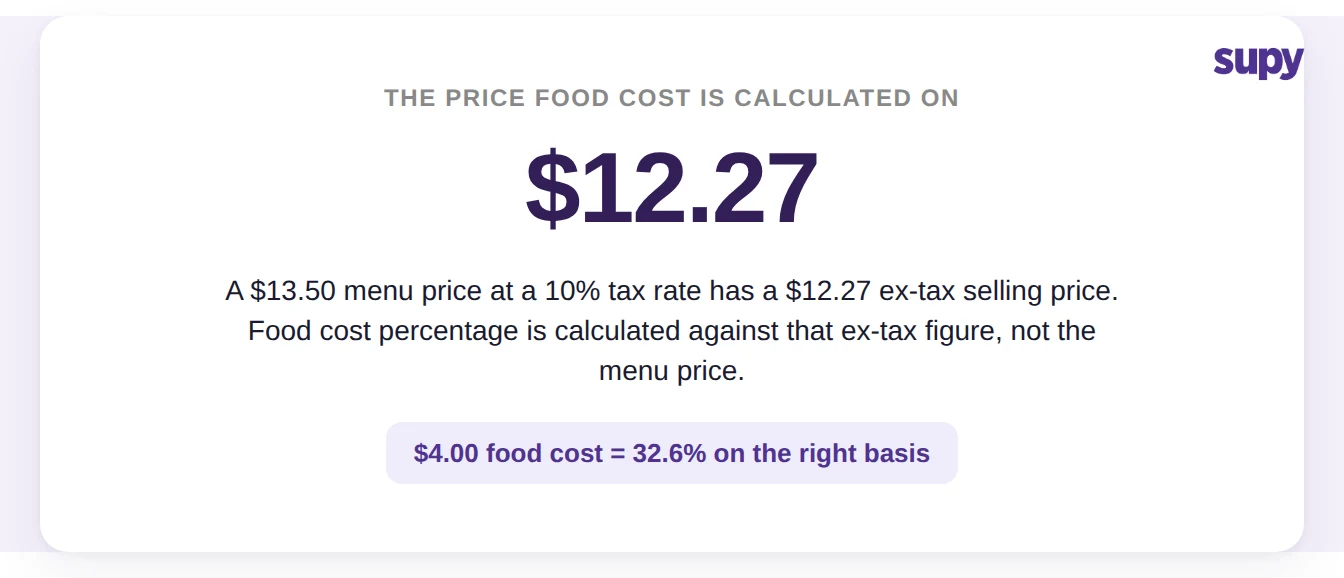
One detail decides whether your food cost percentages stay correct after the reprice: the basis you enter the price on. Supy calculates food cost percentage against the selling price excluding tax, not the tax-inclusive figure printed on the menu. So a Signature Burger you list at $13.50 including a 10% tax is costed against its $12.27 ex-tax price. With a $4.00 food cost, that is a 32.6% food cost on the correct basis. If you type the $13.50 menu price into a field that expects the ex-tax figure, every margin the system reports on that dish will read low. Decide up front which basis the sheet is in, keep the whole file consistent, and the numbers reconcile the moment you re-import.
If you want to model the margin impact of a new price before you commit it, our food cost calculator lets you test a price against its cost in a couple of minutes.
Re-Import and Choose When It Goes Live
Re-import the finished sheet to apply the new prices across the group in one action. Large groups do not sit watching a spinner: the import is processed in the background, so a file covering thousands of item-location prices applies without holding up your screen. When it completes, every location is on the new price, together, with no branch left behind.
The last decision is timing, and it is the part single-outlet how-tos never cover. You can apply the change immediately from today, or schedule it to activate on a future date, so a price rise you agreed this week can be set now and go live on the first of next month without anyone logging in that morning to flip it. Scheduling is also how you keep a promotional price honest: set the start, and, if you are running a companion post on end dates, scheduling recipe changes for a future date covers how the activation window behaves across an estate.
Use the table below to decide which timing fits the change in front of you. For repricing that touches how recipes and menus are built and costed, the underlying recipe and menu costing tools are where these prices live and recalculate.
| Timing choice | Apply immediately | Schedule for a future date |
|---|---|---|
| When the new price goes live | The moment you re-import | On the activation date you set |
| Best for | A correction or an urgent reprice you want live now | A planned rise agreed ahead of its start date |
| Who logs in on the day | No one, it is already live | No one, it activates on its own |
| Main risk to check | The old price is gone at once, so verify the sheet first | Confirm the date, an early or late start is the usual slip |
Before you run a group-wide reprice for the first time, confirm three things from this guide. First, that the sheet you are about to import is the single latest export, not last month's copy, so you are not overwriting newer prices. Second, that every price in it is on the ex-tax basis Supy costs against, so your food cost percentages stay true. Third, that you have set the effect date deliberately, immediately or scheduled, rather than letting it default. Get those three right and a reprice that used to take days across 30 outlets is one sheet, one import, and one moment when the whole estate moves together.