.jpg)


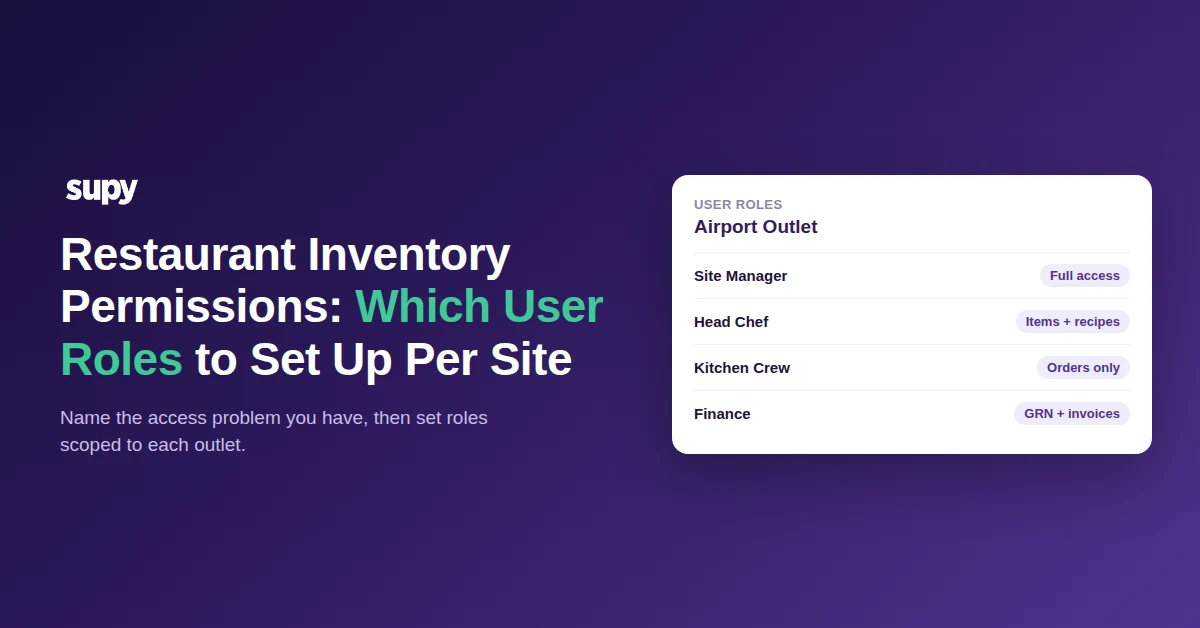
Restaurant Inventory Permissions: Which User Roles to Set Up Per Site
First, Name Which Access Problem You Have
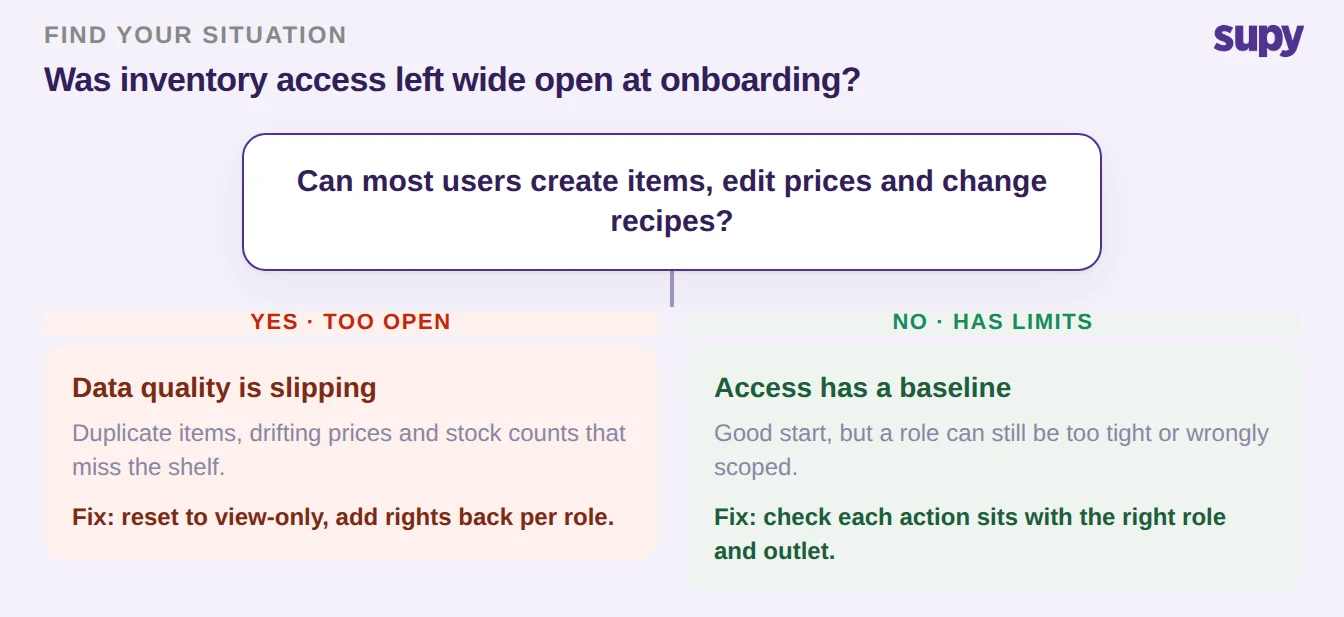
Restaurant inventory system user roles and permissions decide who can create items, edit prices, post goods-received notes and run counts across your sites. Leave them wide open and data quality slips fast: duplicate items, drifting prices, counts that miss the shelf. Most groups have one of three problems, and each one has a different fix.
Access is too open, so anyone can change items, prices and recipes. Access is too tight, so one person holds a right the whole team needs. Or the scope is wrong, so a sensitive action sits with the wrong role. Name yours first. If more than one is true, start with the too-open case. An open system damages data faster than a bottleneck slows work.
Too Open: Lock Roles Down Before Data Quality Slips
Did your group onboard with open access for speed and never tighten it? This is the most common problem. The account gets stood up quickly, everyone is made an admin to unblock the launch, and the temporary setup becomes permanent. Every user who can create an item can create a duplicate. Every user who can edit a price can put two outlets on two costs for the same product.
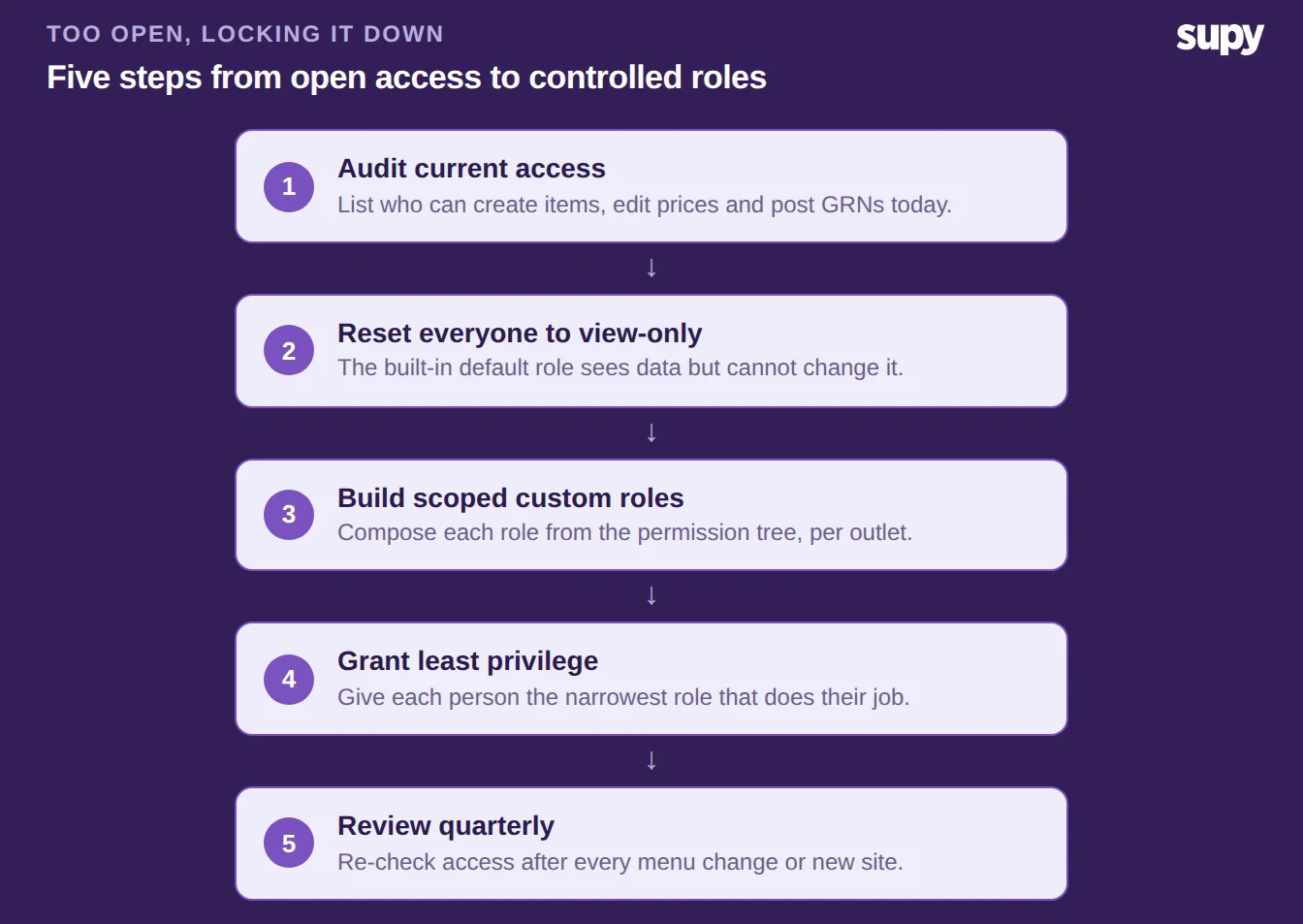
Start from least privilege and add back only what each person needs. Built-in default roles are view-only, so a new user sees the data without being able to change it. Build the roles you want from the permission tree. Assign each person the narrowest role that does their job. Reserve item creation, price edits and recipe changes for the people who own that data. A single user can hold several roles at once, so you can compose access from small pieces instead of handing out a broad admin role.
Too Tight: Widen Who Can Create Items, Safely
The opposite failure is just as expensive. Say only one person holds item-creation access. A full menu change that adds 400 new ingredients then waits behind that one person, and the whole project stalls. Locking a system down is only half the job. Lock it so hard that normal work cannot happen, and people route around it with spreadsheets. The data problem comes back another way.
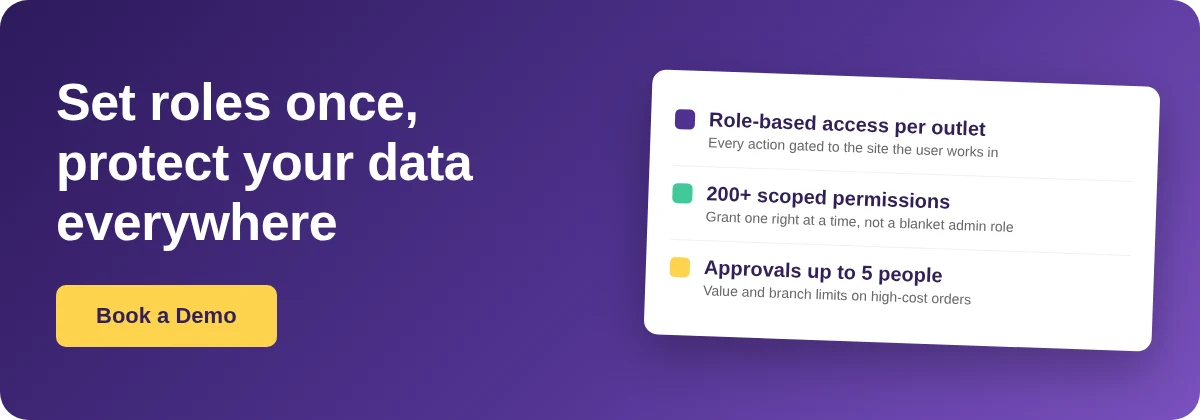
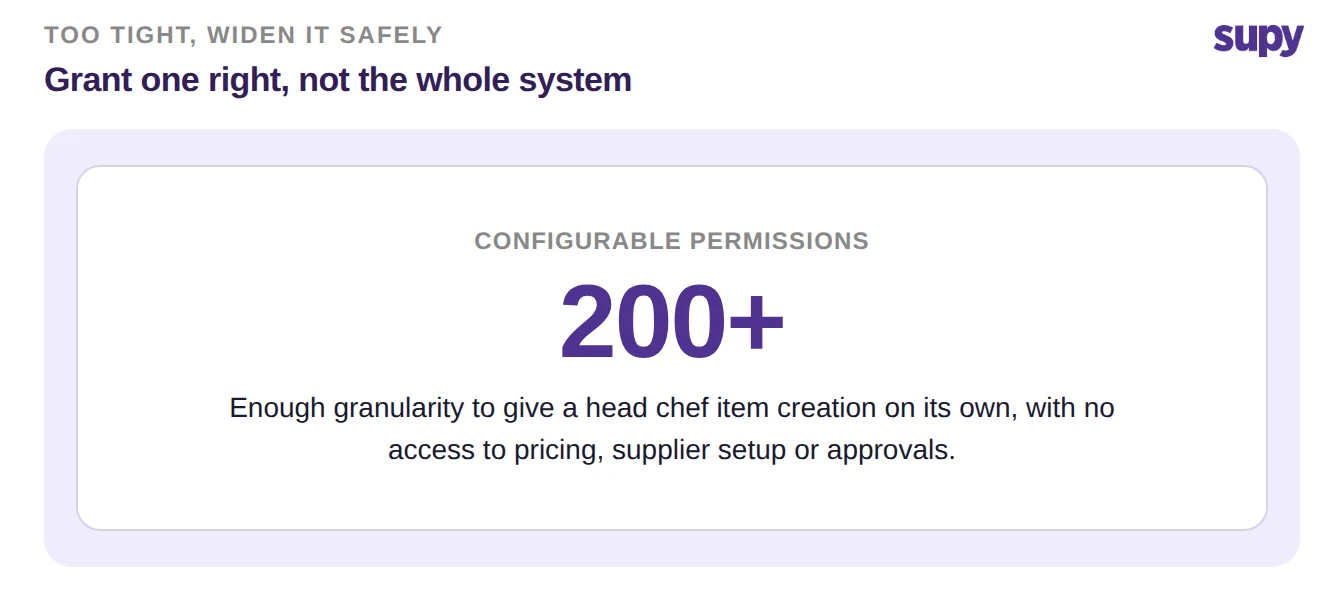
The answer is not to reopen the system. Grant the one right that is blocking work, and nothing more. There are more than 200 configurable permissions, so you can give a head chef the ability to create and edit items without handing over pricing, supplier setup or approvals. Scope that right to the outlet or brand the person works in. Widening access in one venue then does not expose the rest of the group. The menu change moves, and the controls that protect your data stay in place everywhere else.
Wrong Scope: Match Each Action to a Role and Outlet
The wrong action in the wrong hands still causes damage. Leave goods-received note posting open to everyone, and operational staff can push receiving transactions into the books by accident. Kitchen crew who can submit stock counts, enter wastage or confirm invoices can quietly move the numbers your reports depend on. The real decision is action-level, not a simple admin, manager or staff tier.
With restaurant inventory management software that gates every action by a role check at the user level, that check is scoped to the outlet the person is operating in. So the same role can mean different things in different parts of the group. A beverage manager can be limited to their own category's recipes rather than seeing every brand's. Finance-sensitive figures such as food cost percentages can be hidden from users who do not need them. Counts are their own control problem, and deciding who can submit, lock and correct stock counts deserves the same deliberate setup. The table below is a sensible starting configuration for a multi-site group; adjust it to how your teams actually work.
| Action | Head Chef | Kitchen Crew | Finance |
|---|---|---|---|
| Create and edit items | Yes | No | No |
| Post goods-received notes | No | No | Yes |
| Submit stock counts | Yes | No | No |
| Enter wastage | Yes | No | No |
| Confirm supplier invoices | No | No | Yes |
| Place supplier orders | Yes | Yes | No |
| View food cost percentages | Yes | No | Yes |
Layer Approvals on High-Value Orders Across Branches
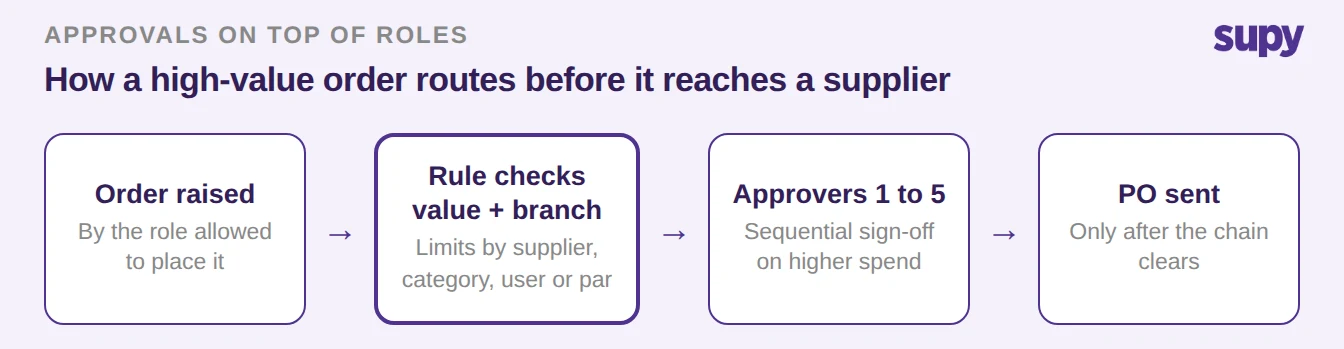
Roles decide who can do a thing. Approvals decide when a thing still needs a second pair of eyes. For purchase orders above a value you set, add an approval step rather than trusting the placing role alone. A large or unusual order then gets checked before it reaches a supplier.
Approvals run as a sequence of up to five approvers, triggered by the branch and the order value. A routine order at a small site passes straight through. A $2,000 order at a larger one routes to the people who should see it. You can set purchase-order value limits by supplier, branch, category, user or par, so the control fits the risk instead of forcing every order through the same gate. This is the layer that lets you widen day-to-day access without losing grip on spend.
Set the Roles for the Branch You Are In
Start from the situation you named at the top. If access is too open, set everyone to the view-only default first, then build scoped roles and add back only what each person needs. If it is too tight, grant the single blocking right, scoped to one outlet or brand, and leave the rest closed. If the scope is wrong, move the sensitive actions onto the roles that own them: goods-received note posting, invoice confirmation and stock counts. Hide cost figures from anyone who does not need them. Whichever branch you are in, the next move has the same shape. Least privilege by default, one right added at a time, scoped to the outlet, with approvals on top for the orders that carry real money.