.jpg)


Food Supplier Invoice Totals: Reconcile Inventory, Accounting Software
Reconcile the Total by Finding Where It Split First
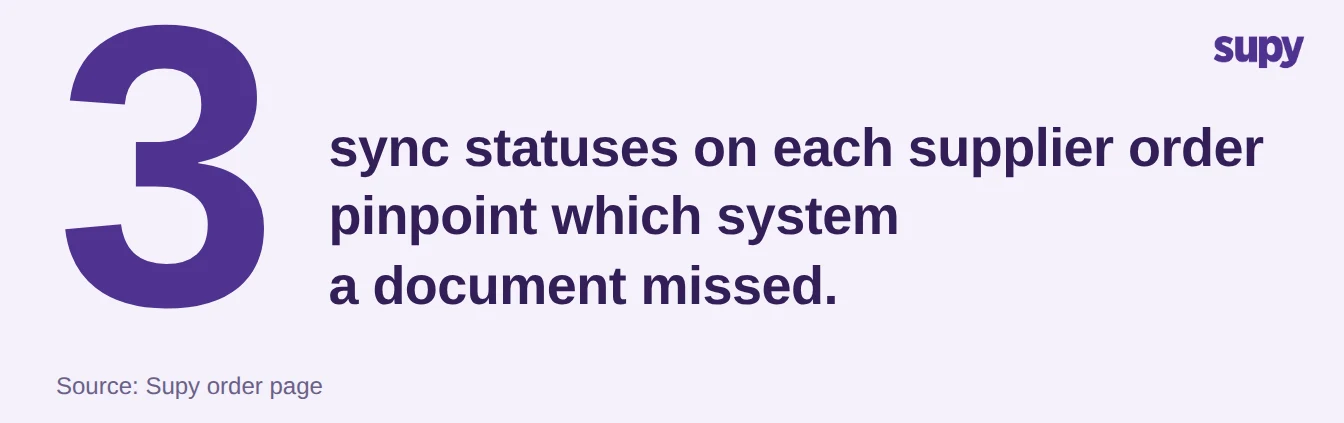
Your supplier invoice total and your accounting software disagree because the figure changed in one system and not the other. To reconcile the gap between your inventory record and your accounting software, find where the two split, name the cause, and apply the one fix that cause needs. Supy shows three sync statuses on every supplier order, so you see which system a document failed to reach.
Those three statuses sit on each order's detail page, one for the supplier integration, one for the accounting system, and one for the point of sale. A total that is right in your inventory record but wrong in your accounting software tells you the document stalled on the way to accounting, not on the way in. You stop guessing which line moved and start at the system that never got the update.
Supy reads live sync status straight from your connected accounting software. Each document Supy sends to Xero or QuickBooks reports back as done or failed, so you do not check the other system by hand. It connects directly to QuickBooks, Xero, Zoho Books, Wafeq and 75+ platforms and sends invoices and credit notes to your accounting software for you.
Not every platform has a native connector. Where one does not, the path is a document export rather than a live push. Confirm which case you are in before figures move on their own. The invoices and credit notes feature is where these documents and their statuses live.
Once you know which system holds the wrong number, the cause is almost always one of a few recurring ones. Work through them in order.
When a Price or Quantity Changed at Receiving
The most common gap opens at the door. When a delivery is short or a case arrives at a different price, the receiver corrects the quantity or price on the goods received note (GRN). The inventory record now carries the corrected figure, while the original invoice total still sits in your accounting software. The two were equal until receiving changed one of them.
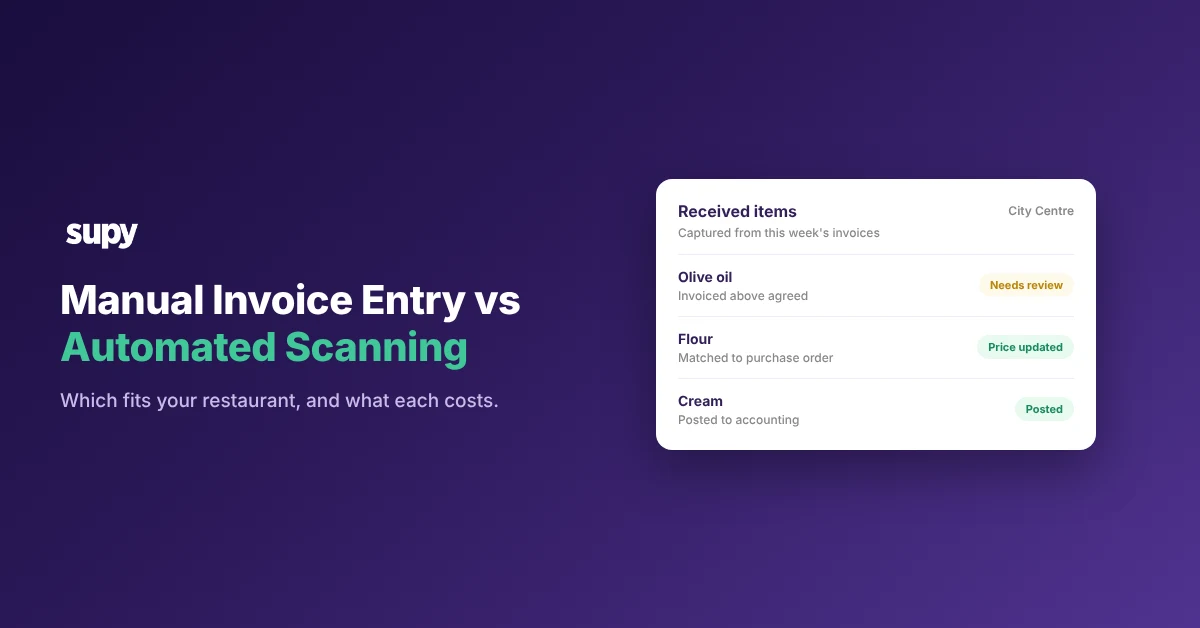
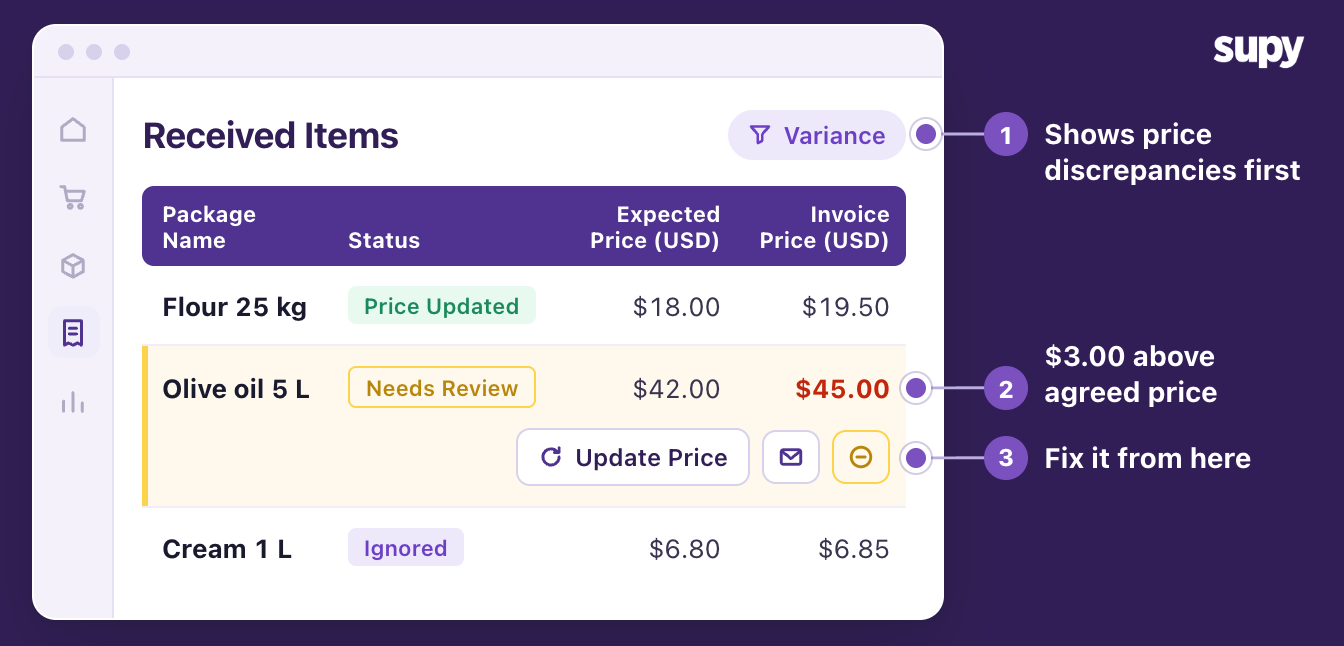
Supy collects every corrected line in one place so you do not hunt for it. The Received Items page lists each received item as its own row and opens on the price-discrepancy filter, so the lines that moved are the first thing you see. Each row carries a status that tells you where it stands:
- Needs review. The received price does not match the expected price and no one has dealt with it yet.
- Price updated. Someone accepted the new price, so the inventory record and your accounting software should now agree.
- Credit issued. A credit note covers the difference, which resolves the gap once that credit syncs.
- Ignored. A reviewer judged the difference too small to chase.
- Discount. The lower price was an agreed discount, not an error.
Filter to the rows that still need review, and update the expected price or request a credit note from each row. The inventory figure and the posted total then match again. Catching a supplier overcharge before you pay is a separate job with its own workflow, covered in spotting supplier overcharges.
When the Same Invoice Posted Twice
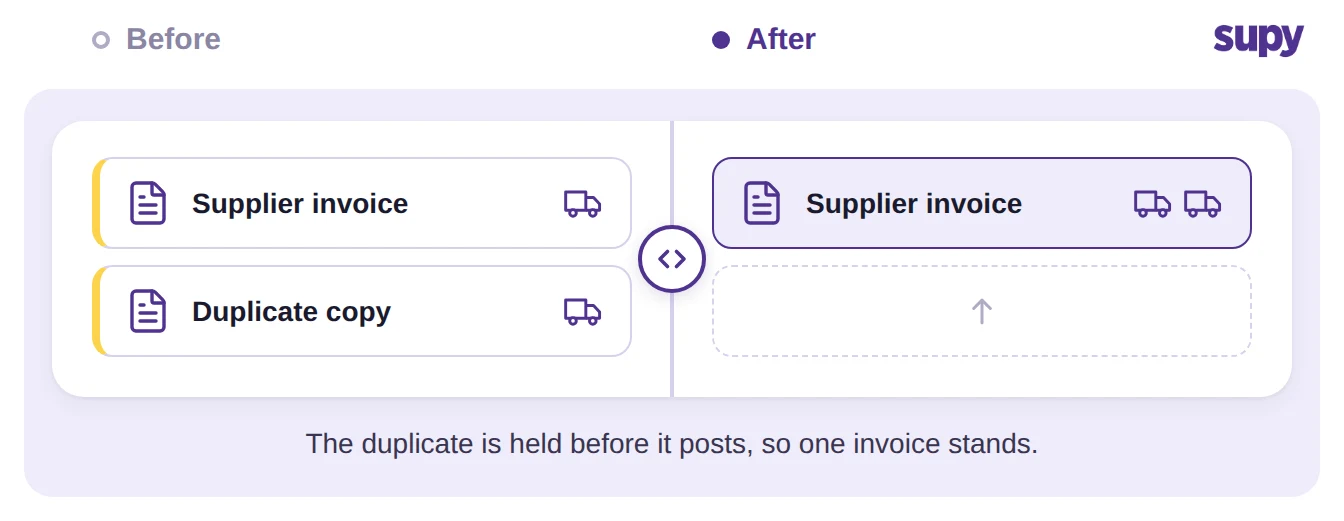
A duplicated invoice inflates the total in your accounting software while the inventory record, which counted the delivery once, stays correct. This is the gap that runs the wrong way: accounting is higher than receiving, not lower. It happens when a supplier re-sends a copy or a manual entry lands on top of an automatic one.
Supy stops most duplicates at the door rather than leaving you to unwind them later. When the AI invoice inbox flags a document as a possible duplicate, it holds that document for review instead of posting it. The second copy never reaches your accounting software. You confirm or dismiss the hold, and only one copy posts.
If a duplicate did post before the hold caught it, you cannot edit the posted figure in place. Delete the extra copy in your accounting software and keep the original invoice. How the inbox matches and reads each invoice is covered in the invoice email inbox.
When a Credit Note or Extra Charge Never Reached Your Accounting Software
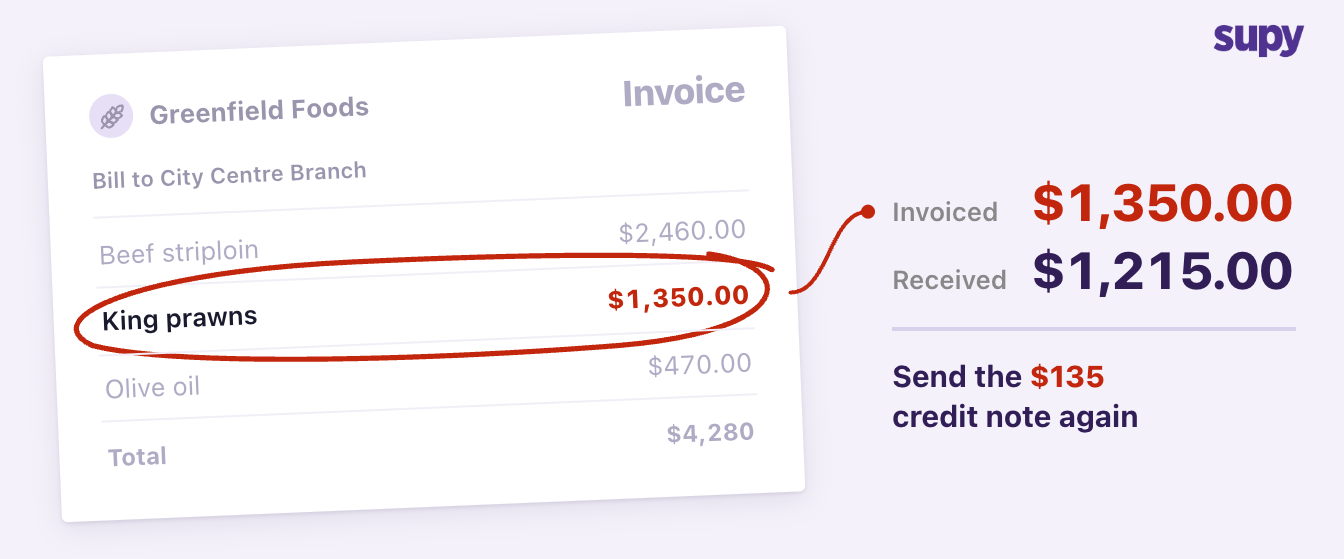
A credit note that never synced is the classic system-to-system gap. Say an invoice arrives at $4,280, a case is short, and you raise a credit note for $135. The corrected payable is $4,145, which is what your inventory record shows.
The original invoice posted to your accounting software before the credit note synced, so it still shows $4,280. The $135 gap is the missing credit note, not a counting error.
Supy sends credit notes to your connected accounting software the same way it sends invoices, so a credit note you raise reaches accounting without a second manual entry. Check the accounting sync status on the credit note itself: if it says failed, send it again, and your accounting software will show the corrected total. Credit notes raised against receiving discrepancies have their own handling in credit notes for receiving discrepancies.
Extra charges open the same gap from the other direction. A delivery, service, or handling charge of $35 often has no obvious line in your inventory record and no dedicated general ledger (GL) code. It gets dropped or remapped by hand, and the totals drift apart.
Supy accounts for an additional charge on the invoice so the posted total reflects the full amount you were invoiced. Give the charge its GL code once and the figure carries through on its own.
When the Invoice Already Posted and the Numbers Are Locked
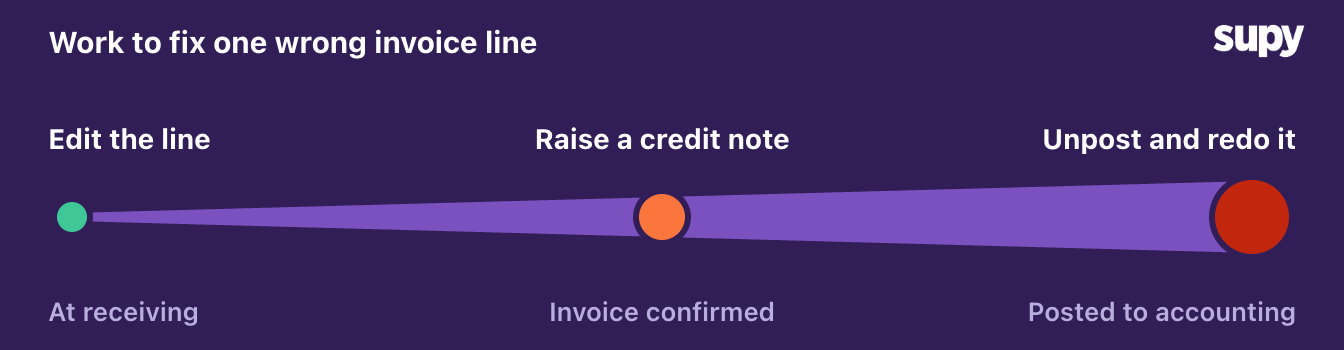
Once an invoice posts to the connected accounting system, you cannot edit it in place. A correction means unposting or deleting the document first, then re-entering the right version. This is the rule that traps operators who try to patch a posted figure directly and watch the two systems drift further apart.
Work the correction in order so you never post the same document twice:
- Unpost or delete the wrong document in the accounting system first, which releases the locked figure.
- Fix the source in Supy: accept the corrected price, send the credit note again, or give the extra charge its GL code.
- Post the corrected document again so your accounting software shows the right total.
When several documents need the same treatment, post them together. Supy lets you select and post multiple documents to the connected accounting system in one bulk action. A backlog across three venues clears in a single pass rather than one invoice at a time. Keeping that backlog from building in the first place is what accounts payable automation is for.
Match What You See to the Fix
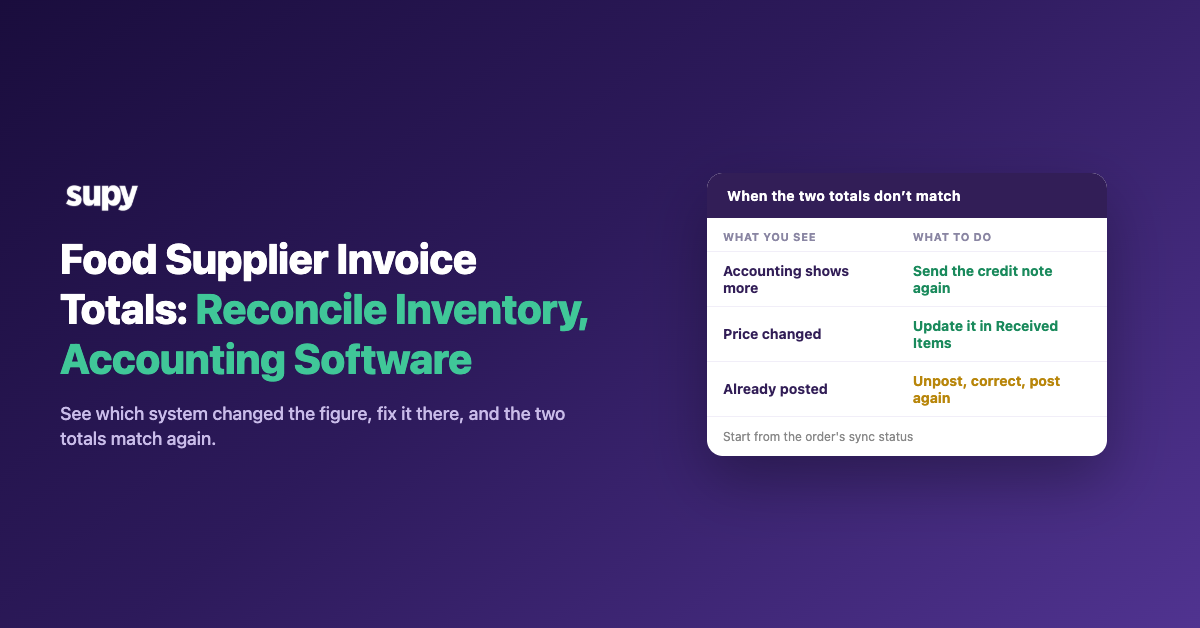
Match what the gap looks like to its cause, then apply its fix. The symptom tells you which system holds the wrong number, which is the whole reconciliation in one line.
| What you see | Why | What to do |
|---|---|---|
| Supy shows the right total, but your accounting software shows more | The credit note never reached your accounting software | Check the credit note’s accounting status in Supy and send it again if it failed |
| Supy shows the right total, but the invoice appears twice in your accounting software | The same invoice was posted twice | Delete the extra copy in your accounting software |
| Supy shows less than your accounting software | The price or quantity changed when the delivery arrived | Update the line in Received Items, or request a credit note |
| Both totals are out by the same small amount | A delivery or service charge has no GL code | Give the charge its GL code in Supy once |
| You can’t save a fix on an invoice | It’s already posted to your accounting software, so it’s locked | Unpost it, correct it in Supy, then post it again |
Start with the sync status on the order, because it names the system before you read a single line. Fix what that status points to, post the document again, and the two totals match. The one move that prevents most of this is to clear credit notes and discrepancies the day they arrive, before the invoice posts and the figures lock.