Procurement
Food cost

Restaurant VAT Categories: Get Menu Item Tax Codes Right at Upload
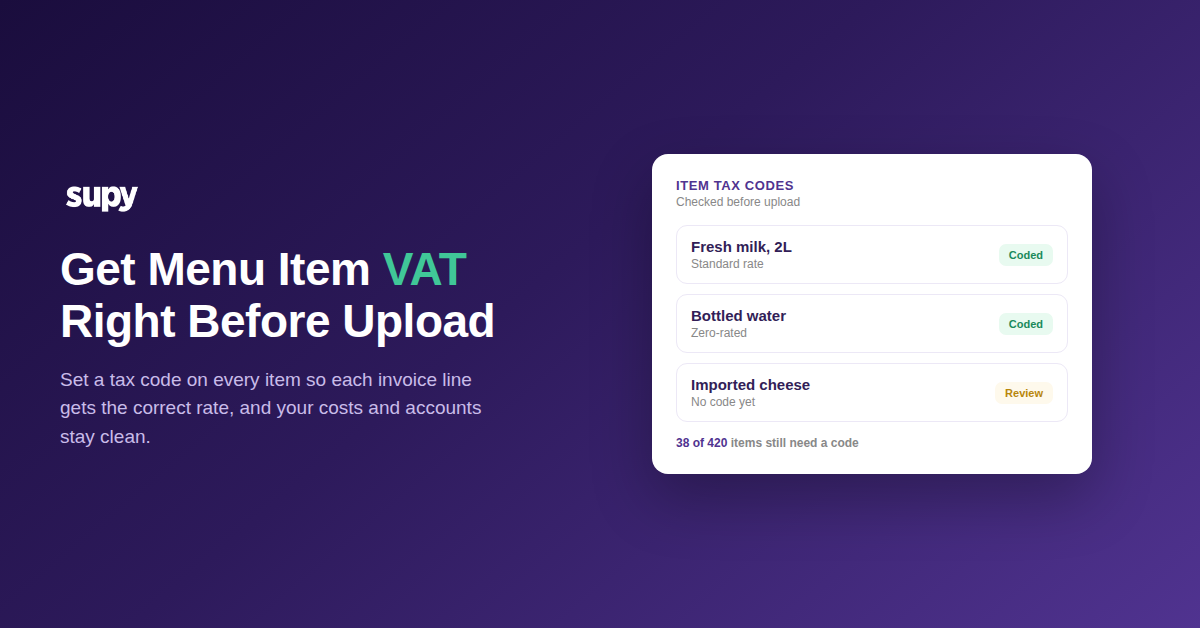
Item tax codes checked before upload, with menu items coded standard, zero-rated, or flagged for review

What a Menu Item's VAT Category Actually Controls

A menu item's VAT category is the tax treatment attached to that item in your system. It sets the rate applied when you receive stock and when you sell, and it controls what VAT posts to your accounts. Get it wrong and the same error repeats on every transaction for that item.

Think of the tax code as a setting that travels with the item. Your team sets it once. After that, the system uses it every time the item is received, sold, or reported. The diagram below traces the path from a single item's tax code to the numbers your finance team signs off.
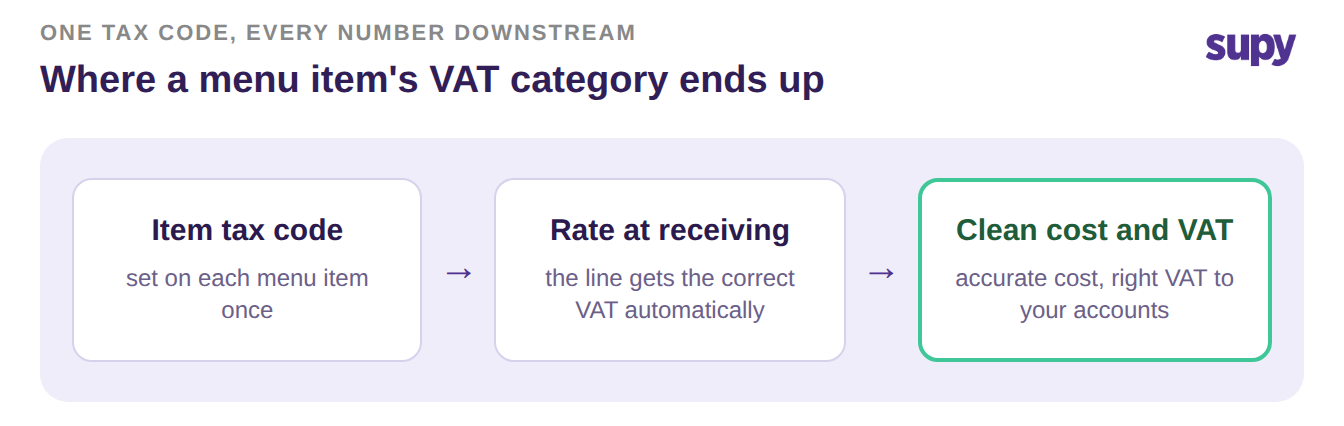
Process flow showing a menu item's tax code setting the rate at receiving, then a clean recorded cost and correct VAT to accounts

Where Inherited Menu Tax Codes Go Wrong

Most restaurant groups do not start with a clean slate. The item master is inherited, and much of it was typed in by people focused on getting items live, not on tax rules. So codes get guessed, left blank, or copied from the wrong item.

In one review of a six-branch restaurant group's list, 38 of 420 menu items carried a wrong or missing VAT category. That is 9% of the menu waiting to mis-cost itself.
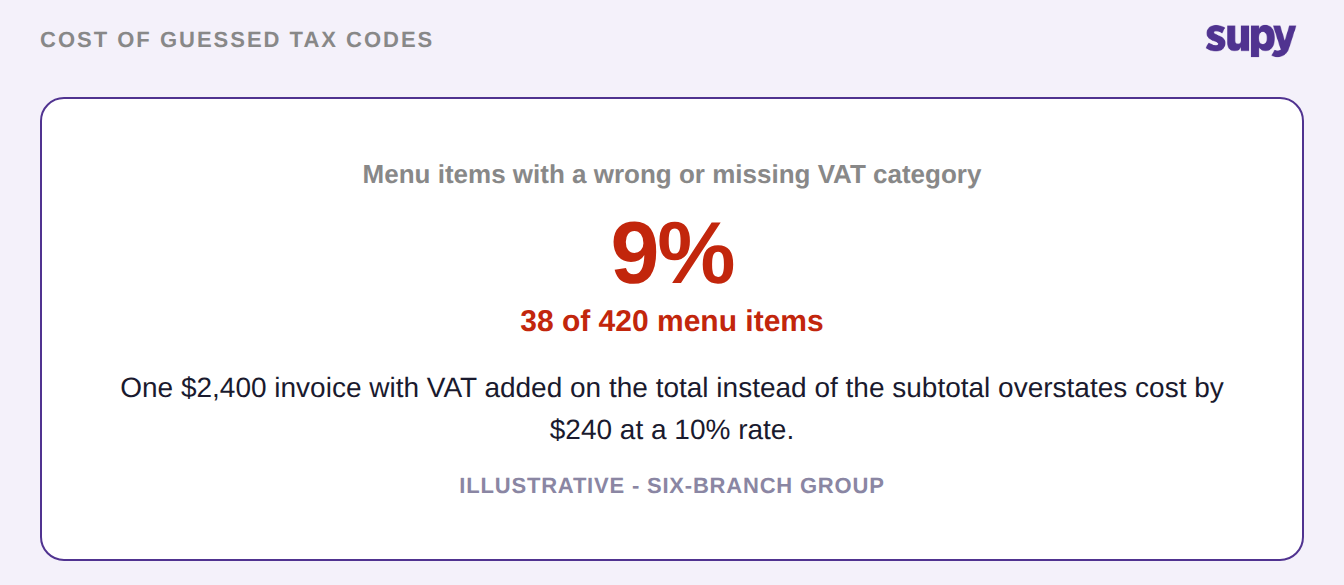
Stat card showing 9 percent, or 38 of 420 menu items, with a wrong or missing VAT category

The damage is quiet. A blank code means the line falls back to whatever default is set, which may be wrong. A standard-rate item marked zero-rated understates the tax you owe. A zero-rated item marked standard overstates both your cost and your price.

A second failure hits the total itself. If VAT is added on top of a gross total instead of worked out from the subtotal, the cost inflates. On a $2,400 invoice at a 10% rate, that is $240 added that should never have been there. Rates vary by market, so treat that 10% as illustrative and use your own.

Internal Transfers vs External Sales: One Item, Two VAT Treatments

The same item does not always carry the same VAT. Move stock from your central kitchen to your own branch and it is an internal transfer, usually on a proforma document with no VAT. Sell that same item to an outside business and it is a tax invoice with VAT. Treat every movement the same and you either add VAT that should not be there or drop VAT that should.

MovementDocumentVAT appliedWhere you set it
Internal transfer to your own branchProformaNoneCustomer group
External sale to another businessTax invoiceStandard rateCustomer group

Supy handles this with customer groups and price lists. An internal branch and an external customer can buy the same item under different tax rules. Set the group once and the right document follows every time.

How to Set Tax Codes So They Survive to Your Accounts

Getting this right is a setup job, not a monthly chore. Do it once, in order, before you upload.

  1. Set a tax code on every item. No blanks. Standard, zero-rated, or exempt, item by item.
  2. Set a default receiving tax for each supplier, so a missing rate has a sensible fallback.
  3. Map the tax and other-charge fields from your POS, so service charges and local fees are not counted as VAT.
  4. Assign customer groups for internal transfers and external sales, so transfers stay VAT-free.
  5. Run an upload audit: sort the item master by tax code and check every blank before you import.

When an invoice arrives, the rate is resolved in a fixed order. The rate stated on the invoice line wins first. If there is none, the item's own tax code is used. If that is missing, your default receiving tax applies. Exempt is the last resort. The diagram below shows the decision at the door.
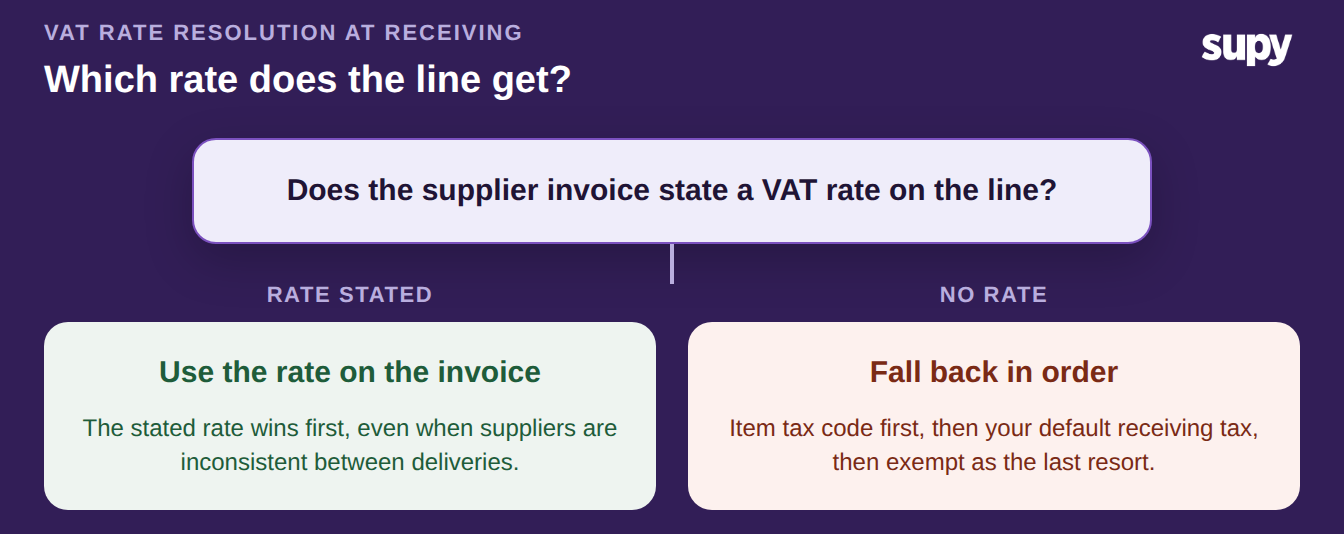
Decision tree showing how the VAT rate is resolved at receiving: the invoice rate first, then the item tax code, default receiving tax, and exempt

This is what Supy's invoice receiving does on every delivery, so a line is rated correctly even when suppliers use inconsistent tax codes. Because the rate is fixed at receiving, the cost that reaches your accounting integration is already right. If you scan supplier invoices, the same codes flow through invoice scanning without re-keying, and then post to whichever of Supy's 75+ accounting connections you use.

Start With the Blanks

You do not need to audit every item in the restaurant to know if this is a problem. Sort your item master by tax code and count the blanks. If more than a handful of items have no code, or if internal transfers show VAT, fix those first. The single highest-value move is setting a tax code on every item before your next upload, because that is the setting every downstream number depends on.
Book a Demo with Supy - get every menu item's VAT category right before upload

Ready to optimize your restaurant operations?

Blog

Our operational insights

No items found.

Your questions 
answered

Everything you need to know about Supy — from setup to integrations, pricing, and daily use. If it’s not covered here, just ask.

What is a VAT category on a restaurant menu item?
+

A VAT category is the tax treatment attached to a menu item, telling your system whether the item is standard-rated, zero-rated, or exempt. That single setting decides the VAT applied when you receive stock against a supplier invoice and when you sell the item. It also controls what tax posts to your accounts. Because the category travels with the item, you set it once and the system reuses it on every transaction. Getting it right at the item level is what keeps your recorded costs, your prices, and your tax return consistent across every branch you run.

Why do inherited menu item tax codes end up wrong?
+

Why they go wrong comes down to how the item master is built. Most groups inherit a long list of items, and much of it was entered by staff focused on getting products live rather than on tax rules. Codes get guessed, copied from a similar item, or left blank. A blank code then falls back to a default that may not fit the item. None of this is loud, so the errors sit quietly until a cost looks off or a VAT return does not reconcile. That is why an audit before upload catches far more than a spot check later.

How does an inventory system decide which VAT rate to apply when receiving stock?
+

How the rate is resolved follows a fixed order, so a line is never left guessing. The rate stated on the supplier invoice line is used first, which matters because suppliers are often inconsistent between deliveries. If the invoice gives no rate, the item's own tax code is applied. If that is missing too, your default receiving tax takes over, and the exempt rate is the last resort. This order means each received line carries the correct VAT automatically, even across messy supplier data. In Supy, that resolution runs on every delivery, so the recorded cost reaching your accounts is already right.

Should internal transfers between your own branches carry VAT?
+

Should they carry VAT depends on who the stock is going to. Moving stock from your central kitchen to one of your own branches is an internal transfer, which usually goes out on a proforma document with no VAT, because no sale has happened. Selling the same item to an outside business is a tax invoice that does carry VAT. Treating every movement the same way is a common mistake that either adds VAT that should not be there or drops VAT that should. Setting up customer groups lets the same item follow different tax rules depending on the destination.

What happens if VAT is added to the invoice total instead of the subtotal?
+

What happens is your recorded cost inflates on every affected invoice. VAT should be worked out from the subtotal and shown as a separate line, not added on top of a gross total that already includes it. When it is added to the total, you pay tax on tax in your own records. On a $2,400 invoice at an illustrative 10% rate, that is $240 of cost that was never real. Multiply that across a month of deliveries and your food cost percentage drifts upward for no operational reason. The fix is to base VAT on the subtotal at receiving.

How do you check a menu item master for missing VAT categories before upload?
+

How you check it is quicker than a full audit. Export or open your item master and sort it by tax code, which pushes every blank to the top where you can see it at a glance. Review each blank and each item where the code looks copied rather than chosen. Pay special attention to items that should be zero-rated or exempt, since those are the ones most often left on the standard default. Do this before you import, not after, because a wrong code fixed at upload never gets the chance to mis-cost a single transaction. It is a one-time setup task.

Which VAT category applies to zero-rated or exempt menu items?
+

Which category applies depends on the item and your market's rules, so the safe path is to code deliberately rather than accept a default. Zero-rated items carry a zero percent rate but are still reportable, which is different from exempt items that sit outside VAT entirely. Standard-rated items take your market's normal rate. The important move is to never leave the field blank, because a blank falls back to whatever default is set and that is rarely correct for the item. When you are unsure of a specific item, confirm its treatment with your accountant, then set the code once so it holds.

Ready to transform your operations?

Join 3500+ restaurant operators cutting costs, streamlining operations and making smarter decisions with Supy.