.jpg)


Restaurant Stock Count Templates: Split Cross-Venue Items by Section
Why One Stock Count Template Breaks Across Venues
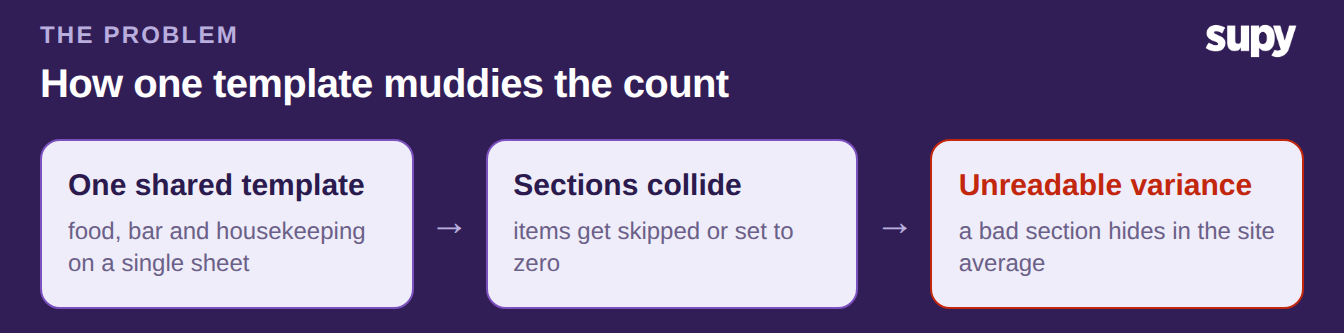
A stock count template is the ordered list a counter works through, shelf by shelf. When a single template covers a whole site, it pulls food, bar and housekeeping items onto one sheet. The count takes longer, items get skipped, and the variance it produces is hard to trust. Splitting the template by section fixes all three at once.
The specific failure is cross-venue items. A template built around the kitchen buries the bar and housekeeping stock at the bottom, or leaves it off the sheet entirely. So a whole section goes uncounted, or gets set to zero by mistake. If your counts keep drifting from the system, a mixed template is a common place it starts. The rest of this guide helps you find which version of that problem you have, then gives the exact fix for it.
Which Cross-Venue Problem Are You Solving?
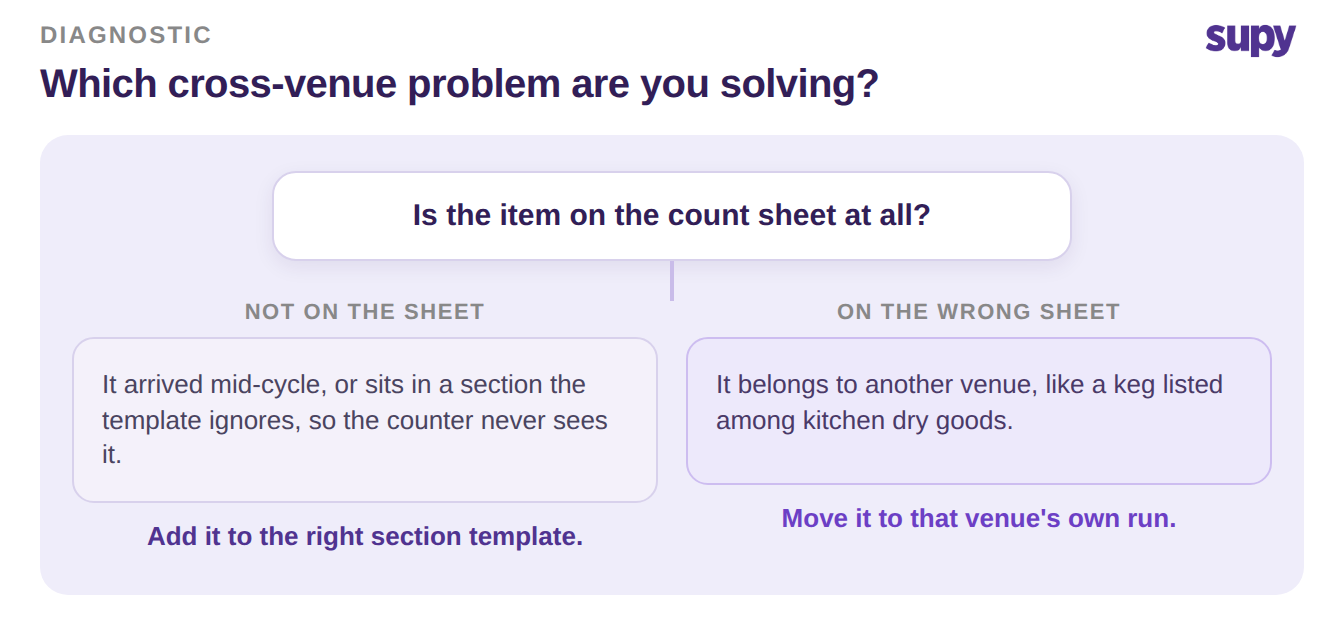
Start with one question about the item that is causing trouble: is it on the count sheet at all? Your answer points to the fix.
If the item is not on the sheet, it either arrived mid-cycle or belongs to a section the template ignores. A template only shows the items it was built with, so anything new is invisible to the counter. Add that item to the right section's template, so it is counted next cycle rather than remembered by hand.
If the item is on the sheet but sitting under the wrong section, it belongs to another venue. A keg listed among kitchen dry goods, or a cleaning supply mixed into food, is a cross-venue item on the wrong template. Move it onto that venue's own template, and count that venue as its own run. Both branches lead to the same place: one template per section, not one for the whole site.
Build Section Templates and Read Variance by Section
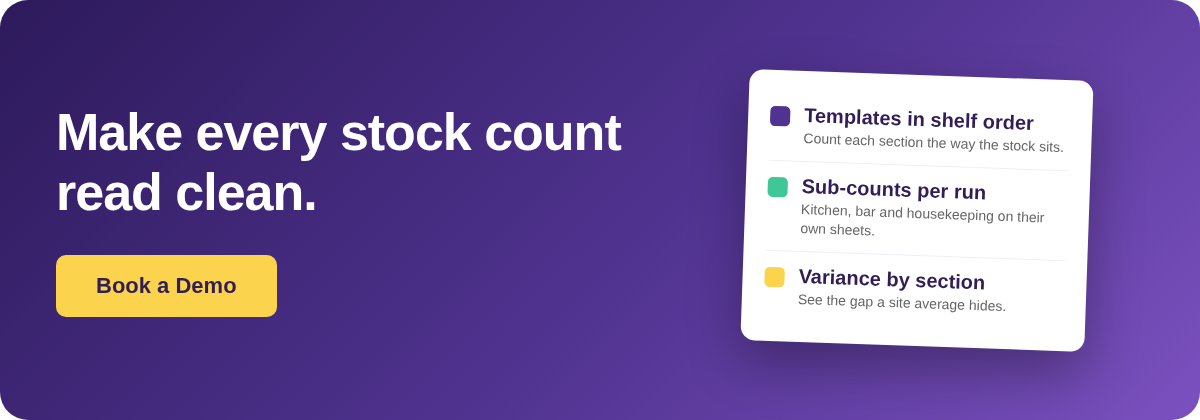
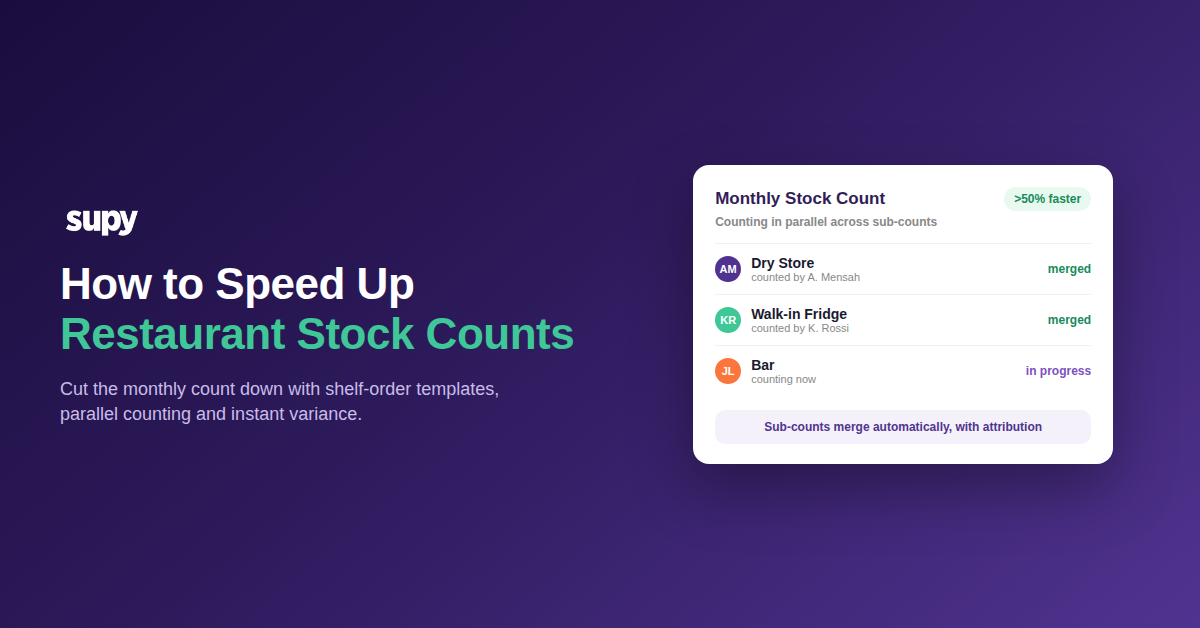
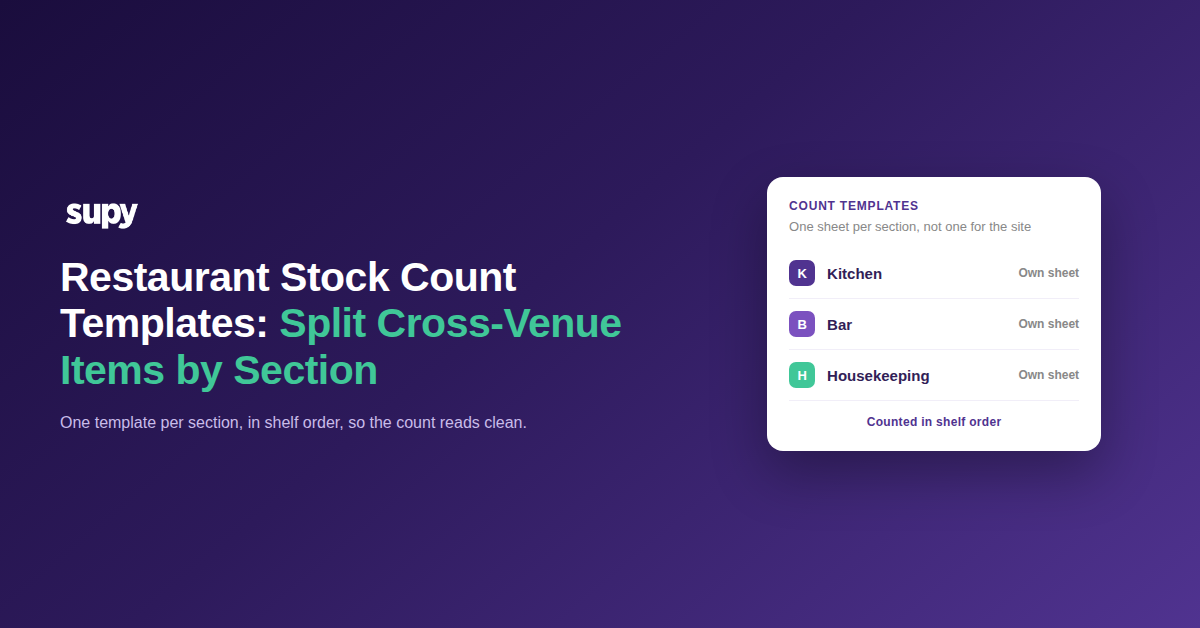
Once you know the branch you are in, the build is the same. Create a separate count template for each section, in shelf order, so a counter walks the room in the order the stock sits. Supy's stock counting stores reusable custom count templates in shelf order. A single scheduled count can then be split into sub-counts per section, so the kitchen, the bar and housekeeping each get their own sheet inside one run.
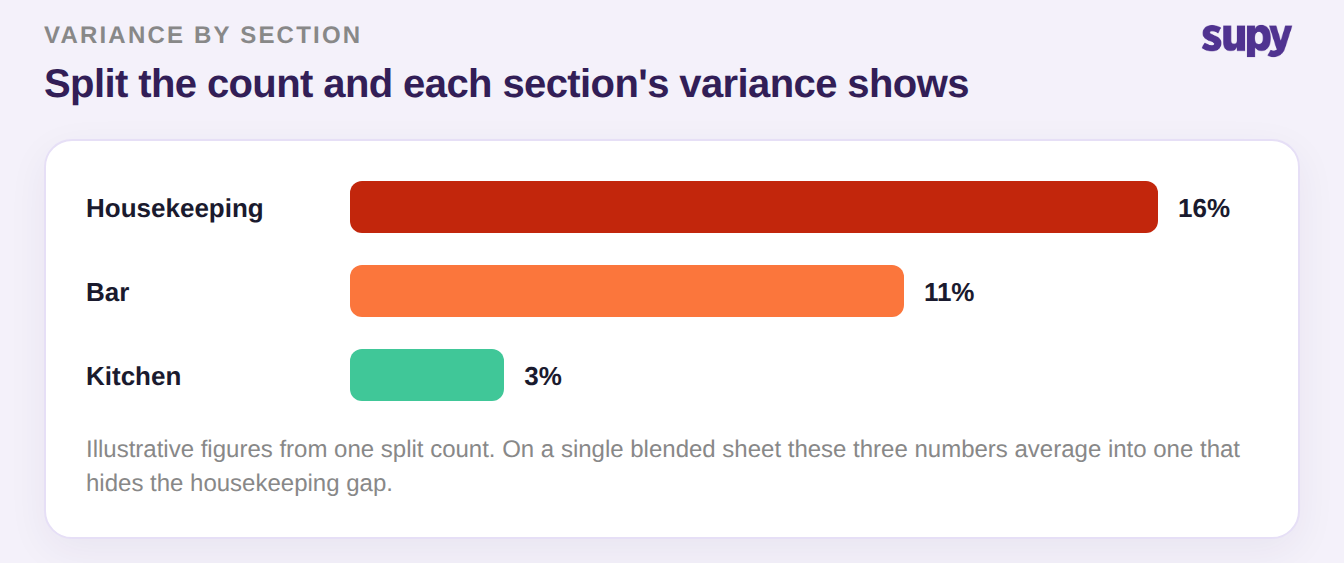
Splitting the count is what makes the numbers usable. When every section is counted on its own template, the system produces a variance report that flags each item against its last count, section by section. A bar running high variance no longer hides inside a site-wide average. In one split count, the housekeeping section showed the widest gap, the bar sat in the middle, and the kitchen held tight. That is exactly the read you cannot get from one blended sheet.
So name the branch you are in and take the one action for it. If items are missing from the sheet, add them to the right section template today. If items are on the wrong sheet, move them and give that venue its own run. Either way, the next count returns variance you can act on instead of a number you have to explain away.