.jpg)


Hide Prices on Restaurant Purchase Orders: Control What Suppliers See
Why Cost Prices on a Purchase Order Are a Control Risk
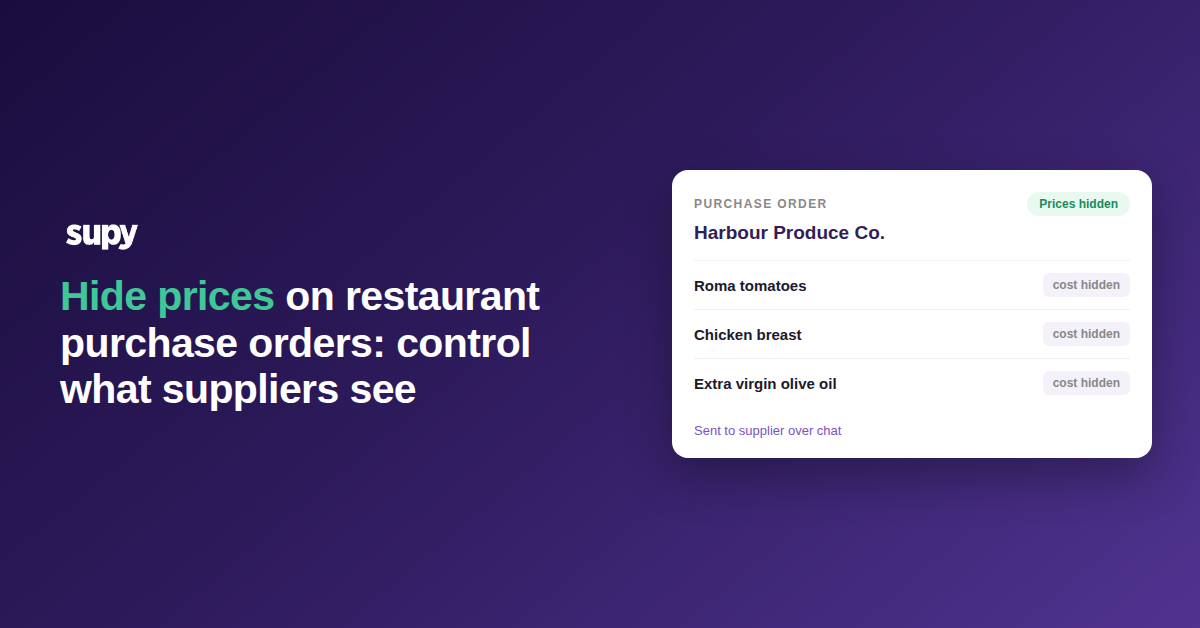
A cost price on a purchase order is negotiating information. Send it to a supplier on every order, and you hand over your buying position and your margins by item. You also lose any record of who chose to share it.
The exposure is worse over chat. An order sent as a message or a shared file cannot be recalled. One branch manager can forward it, and nobody signed off. The control question is not whether ordering is fast. It is whether every price that reaches a supplier reached them on purpose.
Price visibility is an internal concern too. One multi-branch bakery wanted branch counters to work without seeing item costs, while managers kept full visibility. The requirement has two sides. One is what the supplier sees on the order. The other is what each of your own roles sees inside the system.
When to Hide Prices, and When Suppliers Need Them
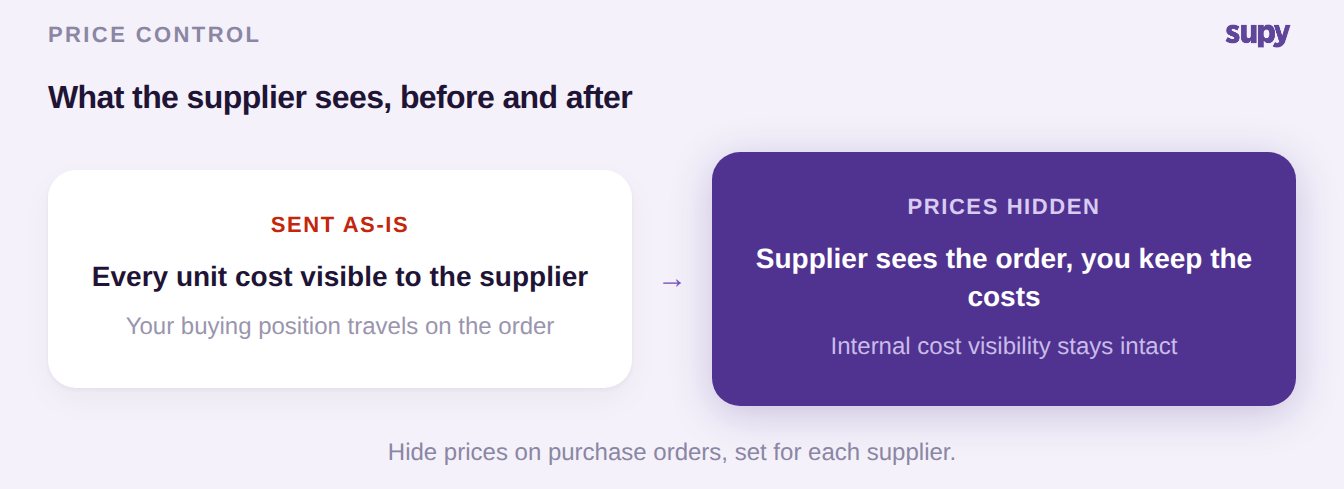
Hiding prices is a per-supplier decision, not a blanket switch. A supplier on an agreed price list usually needs the price on the order, so they can confirm what they are fulfilling. A supplier who quotes fresh each week is different. So is one who takes orders over chat, where the document can spread. In those cases the cost belongs off the page.
The channel matters as much as the supplier, because how you send purchase orders to suppliers decides how far the document can travel. Use the order type and the channel to decide, then apply it consistently. The table below maps the common cases to a decision, so you set the rule per supplier once rather than argue it order by order.
| Supplier or channel | Prices on the order | Why |
|---|---|---|
| On a contracted price list | Show | They confirm the agreed rate they are fulfilling |
| Quotes fresh each week | Hide | No agreed price for them to confirm |
| Orders over chat or WhatsApp | Hide | The document can be forwarded beyond the supplier |
| New or one-off supplier | Hide | No basis yet to share your cost position |
How to Control Price Visibility by Role in Supy
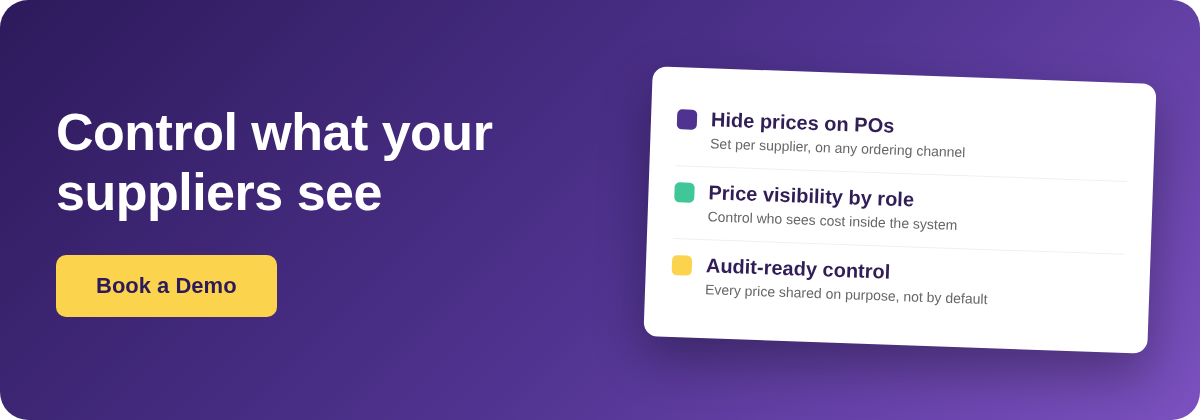
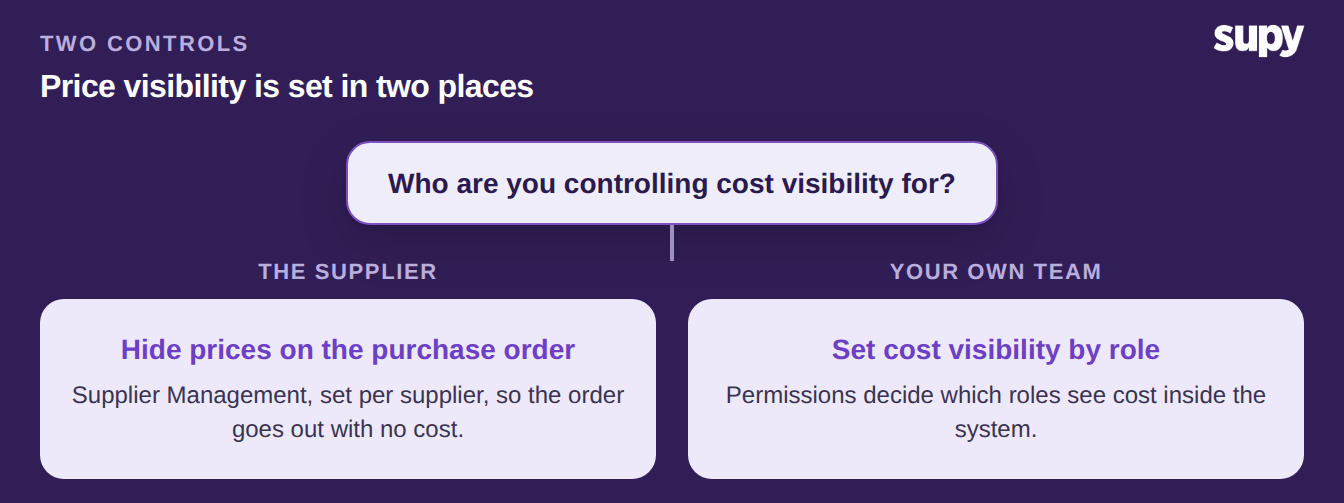
Supy treats price visibility as two separate controls. That split is what lets you satisfy audit without slowing anyone down. On the supplier side, Supplier Management carries a hide-prices setting on purchase orders. You apply it per supplier, so a contracted vendor still sees agreed prices and a chat-based one receives an order with none. On the internal side, permissions decide what each role sees. Supy runs a role check on every page and item, so a counter role can work without costs while a purchasing manager keeps full sight.
Setting it up runs in a short sequence.
- Confirm which suppliers order over chat or quote fresh, and hide prices for those.
- Set the roles that should never see cost, such as branch counters, and leave cost on for buyers and finance.
- Send one test order to a hidden supplier, and open it as they would, to check the document shows no cost.
- Review the setup as a control, because purchasing rules should sit with the purchasing manager.
One caution before you roll it wide. A price-visibility permission reaches further than the order document. Enabling it on a role can also strip that role's access to cost-based dashboards and reports. Scope the permission to the roles you actually mean. After you switch it on, have someone in each affected role open their reports and confirm they still see what the job needs. This failure is quiet. Nothing breaks loudly; a manager simply stops seeing a number they relied on.
Name the branch you are in and act on it. If your branches order over chat, hide prices on those suppliers today, and lock cost to buyers and finance. If you work to contracted price lists, leave prices on the order, and put your control into who can change them instead.