.jpg)


Restaurant Invoice Export to Accounting Software: How to Stop Retyping
Getting Restaurant Invoices Into Your Accounting Software
Exporting restaurant invoices to accounting software means sending each coded supplier invoice straight from the tool that captures it into your accounting platform. Done properly, the invoice is captured once and posts through as a ready-coded entry. Nobody re-keys it. The numbers in your books match the numbers on the invoice.
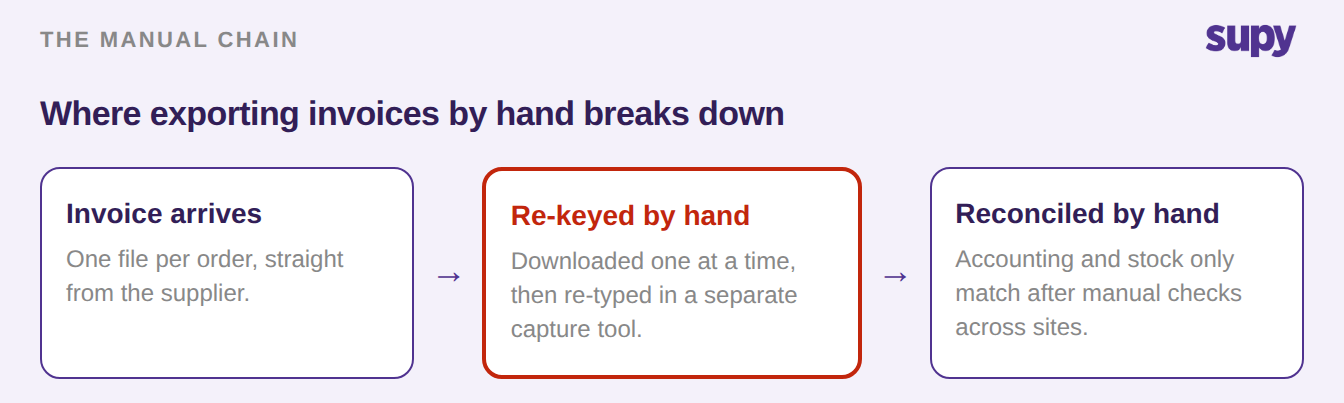
The manual version is where this breaks down. Many operators can only download invoices one order at a time. Each one then goes through a separate capture tool before it reaches the accounts. Across six sites, that becomes a daily reconciliation job somebody has to own.
Most kitchens run this the long way around: a standalone scanner captures the invoice, the accounting platform holds the ledger, and a separate stock system tracks what came in. None of them talk to each other, so someone checks the figures by hand at every handoff. At one or two sites that is tedious. Across a growing group it becomes a job on its own.
The fix is to connect your accounting system to the tool that already captures your invoices. You set the mapping once. After that, each invoice posts through on its own. Here is how to set it up.
Connect the Accounting System You Already Use
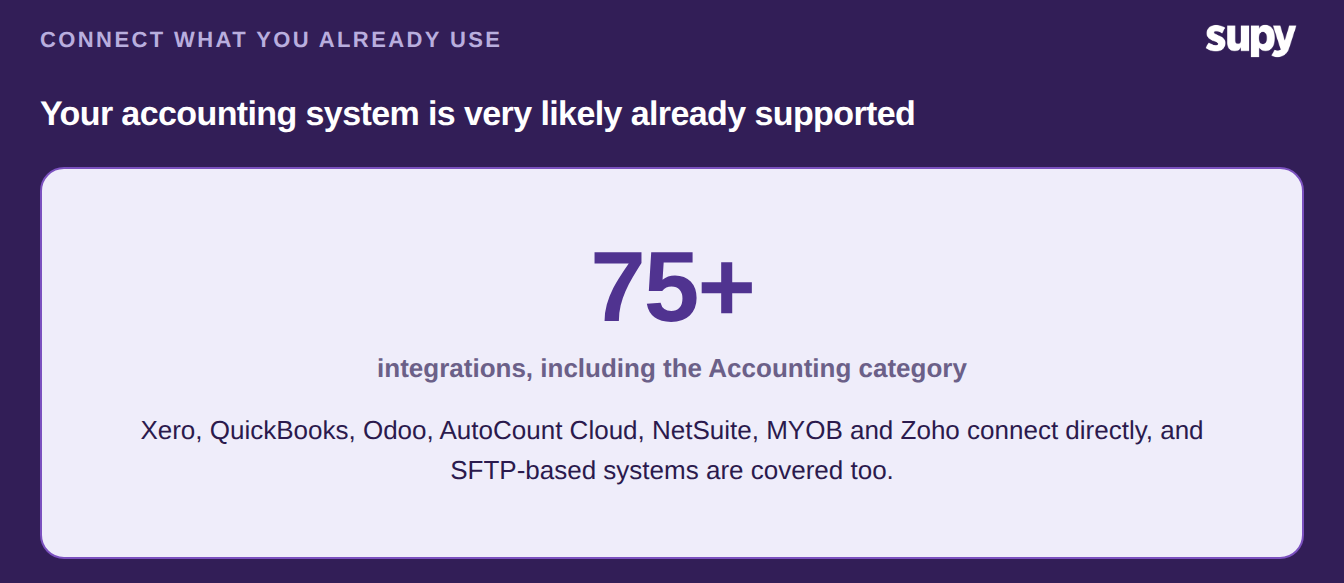
Start with the platform your finance team already runs on. Supy connects to the major accounting systems used across hospitality. You post into the ledger you already keep, not a new one.
The direct integrations cover:
- Xero
- QuickBooks
- Odoo
- AutoCount Cloud
- NetSuite
- MYOB
- Zoho
What flows across is more than a single invoice type. Posted goods receipts, supplier returns and central kitchen orders all push through to the connected system, so credits and internal transfers land in the ledger alongside your purchases. You are not exporting a file at month-end; each document moves as soon as it is confirmed.
If you run several entities, each one connects to its own accounting platform. Each site's purchases then post to the correct entity. A group that keeps separate books per brand can route every location to the right organisation from one account. If that is your setup, see how to post restaurant invoices to Xero across multiple entities without the books drifting.
If your accounting software is not on the direct list, you are not stuck. Systems that receive files over SFTP still take your posted receipts, on a schedule or through an on-demand re-sync. For anything else, you pull a structured export and load it across.
Map Your Branches, Suppliers and Ledger Codes Once
Before anything posts, you connect what lives in Supy to what lives in your accounting system. This is a one-time setup. Supy blocks the sync with a clear message when a mapping is missing. Nothing ever lands half-coded.
You map each branch, each supplier, and each item category to the right destination record. After that, every purchase, receipt and credit note files itself under the correct profit-and-loss line. No one re-codes anything when the data reaches the accounts.
Tax settings map the same way. Each category carries its own destination tax code, so every line posts under the right rate without anyone deciding it by hand. A credit note follows the same route as the invoice it corrects, which keeps each supplier balance honest across every outlet.
| What you set up in Supy | Where it lands in your accounting system |
|---|---|
| Branch or outlet | Cost centre or location |
| Supplier | Supplier or vendor record |
| Item category | General ledger (nominal) account |
| Tax setting | Destination tax code |
Post Invoices, Then Watch Them Land
Before you switch the posting on, check the data you are about to send. Supy captures supplier invoices and credit notes against your purchase orders and flags price and quantity variances. Confirm those are resolved first. Pushing unverified invoices into your books corrupts them, so verify the data before you enable the push.
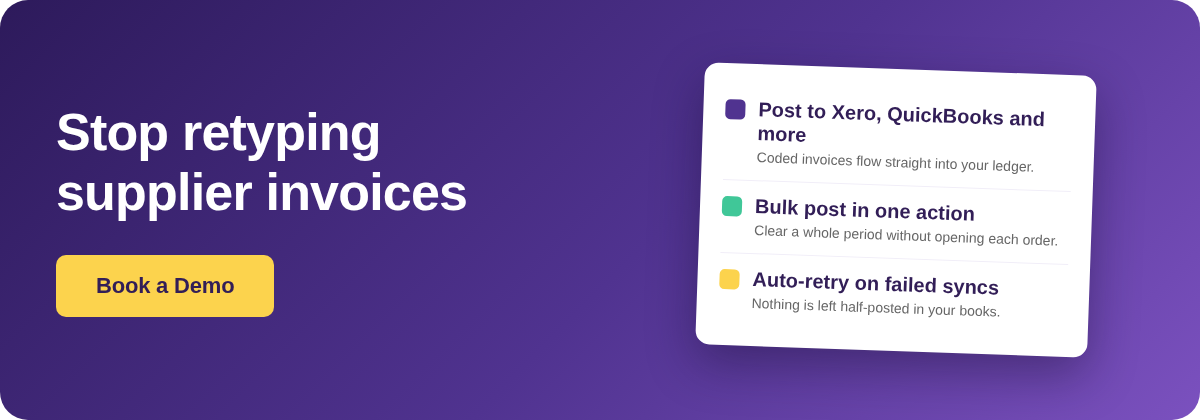
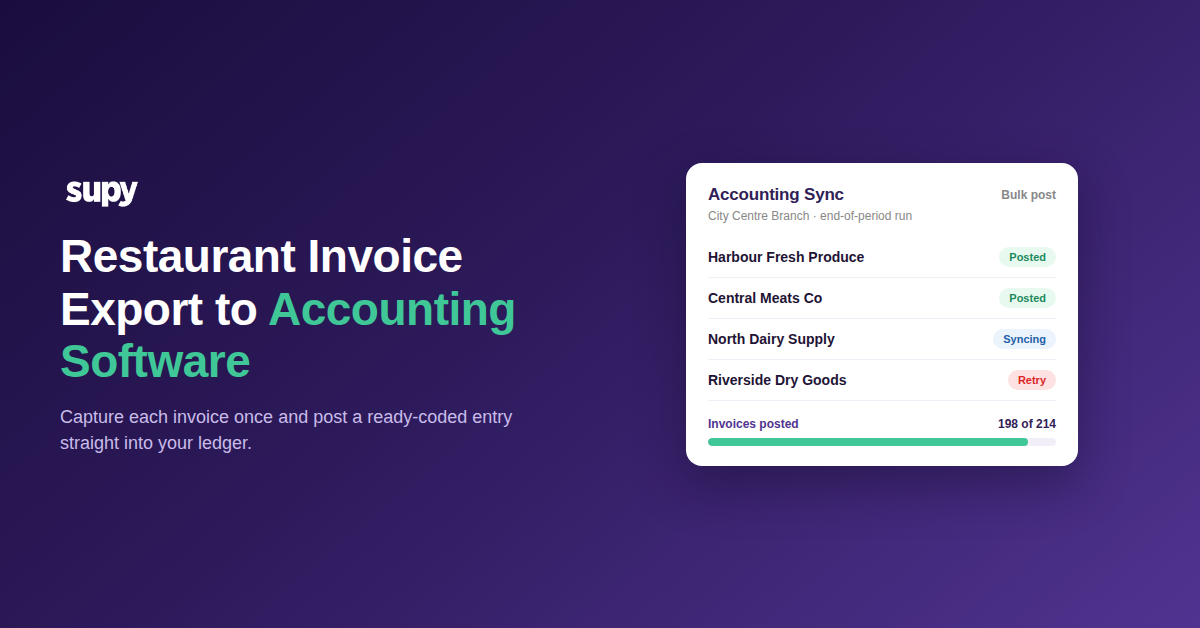
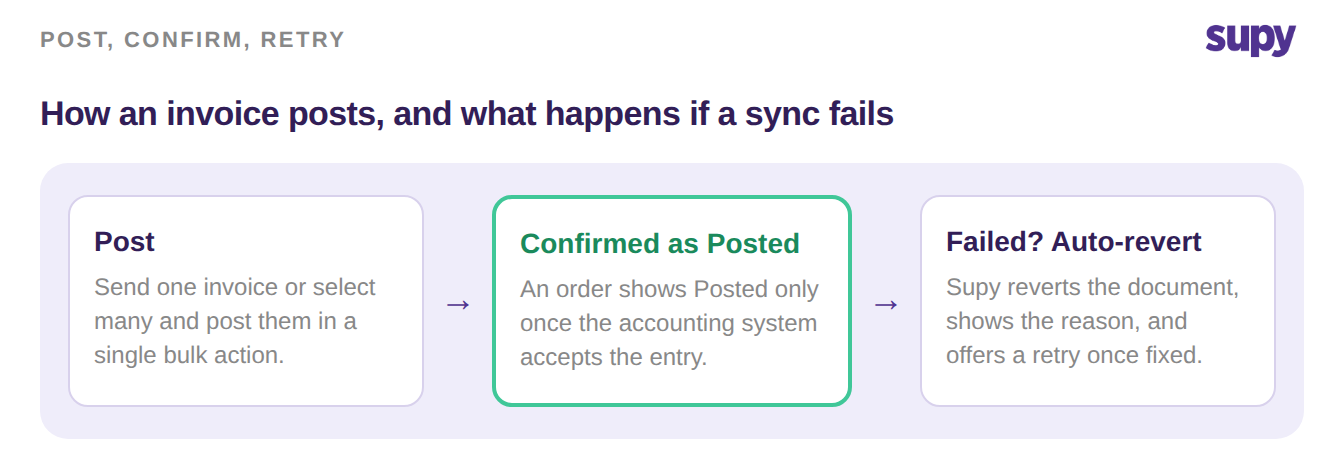
When you are confident, post. You can post a single invoice, or select many and post them in one bulk action. Real-time progress shows each one as it syncs. An order shows as Posted only once the accounting system confirms it received the entry. That status is proof of a booked record, not just an attempt.
If a sync fails, Supy reverts that document to unposted and shows the reason on the order. You fix the cause, then retry. Nothing is left in a half-posted state, and you never chase a ghost entry through the accounts.
Bulk posting is what makes this workable at volume. Select a whole period of documents, post them in one action, and watch the progress run instead of opening each order. For a system connected over SFTP, you can trigger an on-demand re-sync of posted receipts for a date range, so a missed window is a quick fix rather than a re-entry job.
If you are setting this up, start small. Connect one accounting entity, then map a single site. Verify a week of invoices, post that week as one batch, and confirm every line landed. Once one site is clean, the same mapping rolls out to the rest. Month-end stops being a retyping exercise.