.jpeg)

Zentralküche B2B-Bestellung: So geben Sie jedem Standort und externem Kunden den richtigen Katalog und die richtigen Preise
Eine Zentralküche kann jedem ihrer Kunden, jedem internen Standort und jedem externen Kunden, seinen eigenen Bestellkatalog zu eigenen Preisen übergeben und zwanzig davon in einem einzigen Import online bringen. Jeder Kunde sieht nur das, was er bestellen darf, zahlt den für seine Gruppe festgelegten Preis und gibt Bestellungen selbst auf, während die Küche einen klaren Überblick darüber behält, wer was bestellt hat.
Die meisten Zentralküchen beginnen nicht dort. Sie beginnen damit, Standort- und Kundenbestellungen über ein Kassensystem oder eine gemeinsam genutzte Tabelle abzuwickeln, die nie dafür entwickelt wurde, einen Kunden von einem anderen zu unterscheiden. Eine Gruppe mit sechs Standorten, deren Zentralküche rund 135 verpackte Produkte für ihre eigenen Standorte herstellte, verfügte über keinerlei echte Zentralküchen-Tools, sodass die Betriebsleitung alle Bestellungen über das Kassensystem abwickelte, ohne die Möglichkeit, einem Standort eine andere Liste oder einen anderen Preis zu geben. Diese Lücke schließt dieser Workflow. Supy behandelt die Zentralküche als eigenständigen Lieferanten, als Erweiterung desselben Bestellungs- und Anforderungsablaufs, den Ihre Standorte bereits nutzen: Standorte bestellen bei der Küche, die Küche bestätigt, liefert und stellt ihnen Rechnungen aus, und dieselbe Infrastruktur bedient externe Business-to-Business (B2B)-Kunden zu ihren eigenen Preislisten.
Warum ein gemeinsamer Katalog in dem Moment zusammenbricht, wenn Sie einen zweiten Kunden hinzufügen
Die kundenbezogene Katalogsteuerung bedeutet, für jeden Kunden genau festzulegen, welche Artikel beim Bestellen angezeigt werden. Das Hinzufügen eines Artikels stellt ihn in der Liste des Kunden wieder her; das Ausschließen entfernt ihn. Die Änderung gilt nur für diesen einen Kunden und betrifft niemanden sonst, sodass ein Standort und ein externer Kunde aus demselben Hauptkatalog schöpfen und dennoch völlig unterschiedliche Artikel sehen können.
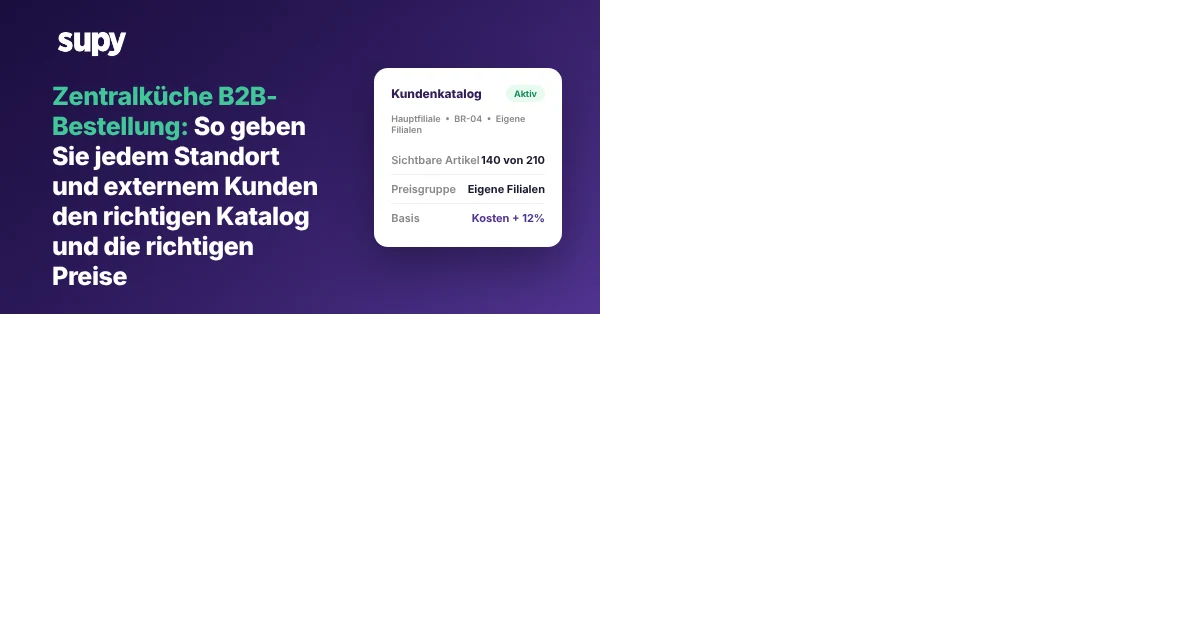
In dem Moment, in dem Sie mehr als einen Kunden aus einer gemeinsamen Liste bedienen, wird diese Liste zu einem Risiko. Ein Standort bestellt ein Halbfertigprodukt, das nur für einen anderen Standort bestimmt ist. Ein Großhandelskunde sieht einen Artikel, den Sie ihm nie zu verkaufen beabsichtigt haben. Jeder Fehler wird zu einem Telefonanruf, einer Korrektur oder einer Gutschrift. Mit kundenbezogener Steuerung kuratiert die Küche jede Liste einmalig: Der Hauptstandort sieht seine 140 Artikel, ein kleiner Café-Kunde sieht seine 45, ein kleiner Bäckereikunde sieht seine 32, alle aus einem 210 Artikel umfassenden Hauptkatalog. Niemand bestellt, was er nicht sollte, weil er es nie sieht.
| Kunde | Typ | Sichtbare Artikel | Preisbasis |
|---|---|---|---|
| Hauptstandort | Eigener Standort | 140 | Kosten + 12% |
| Café-Gruppe | Großhandelskunde | 45 | Feste Liste |
| Handwerksbäckerei-Kunde | Großhandelskunde | 32 | Feste Liste |
| Hauptkatalog | Küche | 210 | - |
Einführung einer Gruppe neuer Standorte ohne einen Tag Dateneingabe
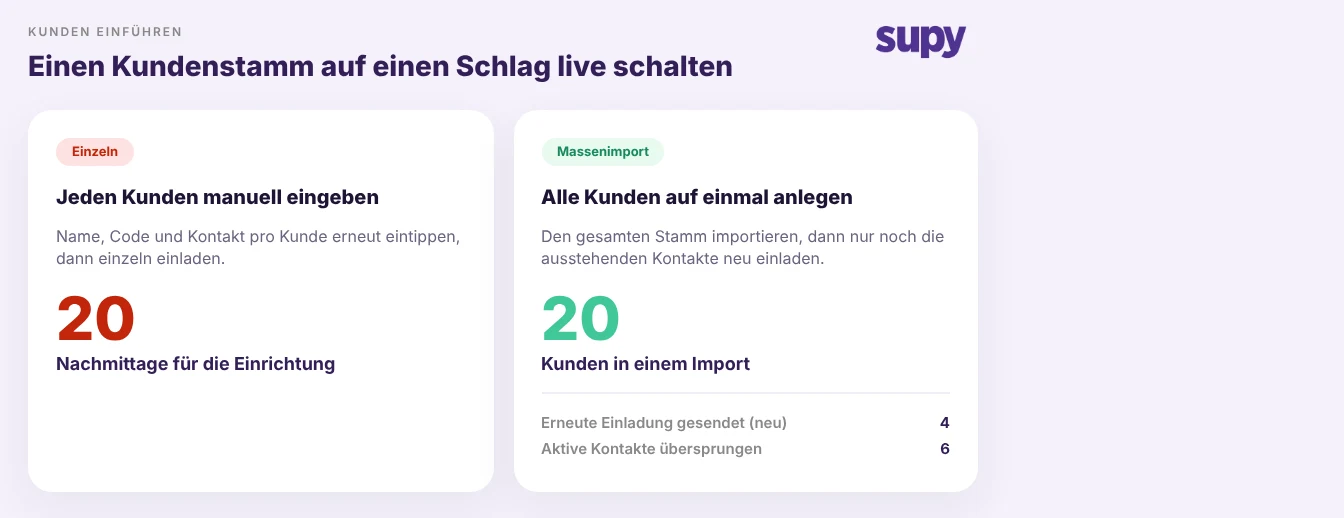
Die Massenerstellung von Kunden bringt viele Kunden in einem Schritt ins System, anstatt sie einzeln hinzuzufügen. Wenn eine Gruppe Standorte eröffnet oder neue Großhandelskonten abschließt, importiert die Küche das gesamte Paket auf einmal, anstatt jeden Namen, Code und Kontakt einzeln einzutragen.
Kunden live zu schalten bedeutet dann, ihre Kontakte einzuladen, und eine Massenwiedereinladung ist dabei sorgfältig: Sie sendet Nachrichten nur an Kontakte, die noch nicht zugestimmt haben, und überspringt alle bereits aktiven. Wenn Sie eine Runde von zehn Einladungen senden, bei der sechs Kontakte bereits verbunden sind, werden nur die vier ausstehenden kontaktiert; die sechs aktiven Verbindungen bleiben unberührt. Die Aktivierung des B2B-Workflows für die Zentralküche führt die zugrunde liegende Einrichtung für Sie durch, sodass die Einrichtung von Standort-zu-Küche- und Kunden-zu-Küche-Bestellungen ein Schalter ist, den Sie umlegen, und keine manuelle Konfiguration, die Sie Schritt für Schritt zusammenstellen.
Unterschiedliche Preise für Franchise-Partner und Großhandelskunden
Kundengruppen ermöglichen es Ihnen, Kunden in Segmente einzuteilen und jedem Segment eine eigene Preisliste zuzuweisen. Ihre eigenen Standorte befinden sich in einer Gruppe mit einem Preis von Kosten plus 12%, Franchise-Partner in einer anderen mit Kosten plus 18%, und externe Großhandelskunden haben eine feste Preisliste. Filtern Sie nach einer beliebigen Gruppe und Sie können alle auf einmal anzeigen oder darauf reagieren, anstatt Kunden einzeln zu öffnen.
Hier hört eine Zentralküche auf, ein Kostenzentrum zu sein, und beginnt, sich wie ein Unternehmen zu verhalten. Dasselbe Sauerteigbrot kann die Küche für einen internen Standort zu 2,10 $ und für einen Großhandelskunden zu 2,85 $ verlassen, weil die Preisgestaltung der Gruppe folgt, nicht dem Artikel. Die Abrechnung basiert auf derselben Struktur: Proforma-Rechnungen und Steuerrechnungen, Kosten, Aufschlag oder feste Preisgestaltung sowie Kontoauszüge pro Kunde. Wenn ein Franchise-Partner eine Gebühr in Frage stellt, ist der Preis, den er zahlt, eine Regel, die Sie einmal für seine Gruppe festgelegt haben, keine Zahl, die jemand am Tag eingetragen hat.
| Kundengruppe | Preisbasis | Sauerteigbrot |
|---|---|---|
| Eigene Standorte Interne Standorte | Kosten + 12% | 2,10 $ |
| Franchise-Partner Gleiche Marke, separate Eigentümer | Kosten + 18% | 2,21 $ |
| Externe Großhandelskunden Externe Konten | Feste Preisliste | 2,85 $ |
Kunden der Zentralküche ermöglichen, selbst zu bestellen, ohne die Kontrolle zu verlieren
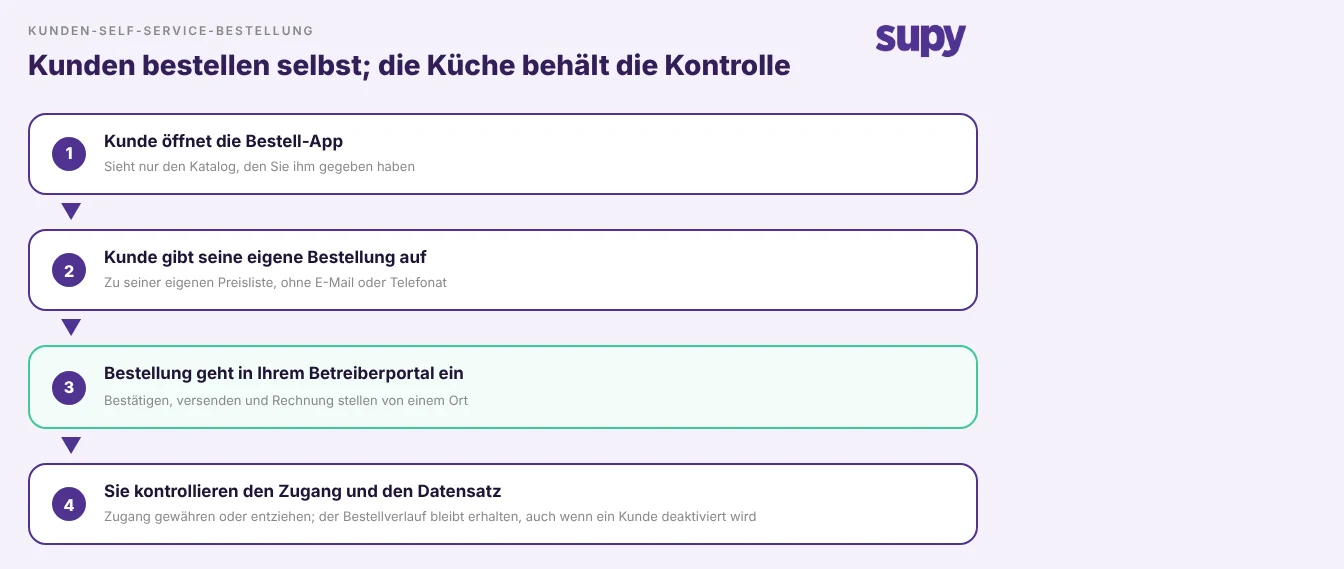
Supy Connect ist eine dedizierte Bestellanwendung, die Ihre externen B2B-Kunden verwenden, um Ihren aktuellen Katalog zu durchsuchen und eigene Bestellungen aufzugeben. Diese Bestellungen fließen direkt in Ihr Betreiberportal, Kunden sehen und laden ihre eigenen Rechnungen herunter, und Sie entscheiden, wer Zugang erhält. Sie ist für externe Kunden konzipiert, nicht für interne Standortbestellungen, sodass sie die Küche für Großhandelskonten öffnet, ohne Ihr Back-Office für diese zugänglich zu machen.
Die Kontrolle endet nicht bei der Bestellung. Sie können jeden Kunden sofort nach Anzeigename, internem Code oder rechtlichem Namen finden, da alle drei gleichzeitig durchsucht werden und Sie selten alle Bezeichner zur Hand haben. Wenn die Finanzabteilung die Kundenliste benötigt, wird sie mit bereits angewendeter Währungs- und Zeitformatierung exportiert, sodass sie als eine Datei ankommt, die die Leute verwenden können, anstatt eine, die sie neu formatieren müssen. Und wenn eine Kundenbeziehung endet, entfernt die Deaktivierung dieses Kunden ihn aus allen Arbeitsansichten, während die vollständige Bestellhistorie erhalten bleibt, sodass der Prüfpfad erhalten bleibt und nichts verloren geht.
Beginnen Sie damit, Ihre Kunden von Ihrem Hauptkatalog zu trennen: Listen Sie jeden Standort und externen Kunden auf, den Sie beliefern, und entscheiden Sie dann, welchen Ausschnitt der vollständigen Artikelliste jeder tatsächlich sehen soll. Diese einmalige Übung, einmal durchgeführt, ist es, was jeden späteren Schritt, Preisgestaltung, Onboarding und Self-Service-Bestellungen, in die richtige Reihenfolge bringt. Sie ist auch die Grundlage, auf der der Rest Ihrer Zentralküchen-Verwaltungssoftware aufbaut.
Wenn Sie ein System dafür bewerten, bitten Sie in einer Demo darum, drei Dinge zu sehen. Fügen Sie einen Artikel für einen einzelnen Kunden hinzu und entfernen Sie ihn, und bestätigen Sie, dass kein anderer Kunde geändert wird. Platzieren Sie zwei Kunden auf zwei verschiedenen Preislisten und bestellen Sie dasselbe Produkt von jedem. Geben Sie dann eine Live-Bestellung über die Kunden-App auf und beobachten Sie, wie sie im Betreiberportal ankommt. Wenn alle drei vor Ihnen funktionieren, kann Ihre Zentralküche B2B-Bestellungen als echter Lieferant abwickeln, nicht als Behelfslösung, die an ein Kassensystem angehängt ist.