.jpeg)

Restaurant-POS-Integrationen: Die eine Frage, die Sie vor der Unterschrift stellen müssen

Warum ein „POS-Integration“-Häkchen fast nichts aussagt
Eine POS-Integration existiert für ein Warenwirtschaftssystem nur zu einem Zweck: jeden abgeschlossenen Verkauf in eine Lagerbewegung zu verwandeln, sodass der Verkauf eines Gerichts automatisch die verwendeten Zutaten aus dem Live-Bestand abbucht. Funktioniert es, klingelt die Kasse, und das System bucht das Rezept gegen den Live-Bestand ab – ohne dass jemand nachträglich etwas eintippen muss. Dieses eine Ergebnis ist das, was „Integration“ versprechen sollte.
Das Problem ist, dass das Wort auf einer Featureliste mehrere sehr unterschiedliche Arrangements verdeckt, von denen nur eines dieses Ergebnis liefert. Manche Verbindungen importieren Verkäufe; andere exportieren nur Daten. Manche sind inklusive, andere sind ein sechsstelliges Entwicklungsprojekt. Manche Kassensysteme haben einen fertigen Connector; viele regionale und Nischenprodukte haben keinen. Ein Häkchen sagt Ihnen nichts davon, weshalb Betreiber, die dem Häkchen vertraut haben, sich später getäuscht fühlen. Der Rest dieses Leitfadens beantwortet die eine Frage, die ein Häkchen nie beantwortet: ob diese Verbindung Ihren Bestand tatsächlich aktualisiert, wenn Sie verkaufen – durch die drei verborgenen Aspekte: Richtung, Kosten und den Fallback.

Zuerst die Richtung: Importiert die Integration Verkäufe oder exportiert sie nur Daten?
Die Richtung ist das Wichtigste, was zu prüfen ist – und das Einzige, das in Verkaufsgesprächen am häufigsten übergangen wird. Eine Import-Verbindung (eingehend) ist das, was Sie brauchen: Ihr Kassensystem oder Ihr Online-Bestellaggregator sendet jeden abgeschlossenen Verkauf automatisch in die Plattform, die ihn in eine Verkaufstransaktion umwandelt, die den Bestand abbaut und die Nachbestellung speist. Eine Export-Verbindung (ausgehend) macht das Gegenteil: Sie sendet Daten an ein anderes System und berührt Ihre Bestandszählungen nie. Beide werden als „POS-Integration“ bezeichnet.
Genau hier klafften ein echtes Versprechen und ein echtes Produkt für einen Einzelstandort-Betreiber auseinander, dem im Verkaufsprozess gesagt wurde, dass die neue Plattform Live-Verkäufe automatisch in die Warenwirtschaft einspeist, der aber nach der Unterschrift feststellte, dass die Verbindung nur Daten exportierte und nichts importierte. Nichts wurde abgebucht. Die Prüfung ist einfach und in einer Demo durchführbar: Bitten Sie den Anbieter, einen Testverkauf einzubuchen, und zeigen Sie Ihnen den Bestandrückgang für diesen Artikel kurz danach auf dem Bildschirm. Können sie Ihnen nur einen Bericht zeigen, der aus der Plattform exportiert wird, ist das nicht der Live-Verkaufsfeed, für den Sie Warenwirtschaftssoftware kaufen. Stellen Sie die Frage in genau diesen Worten, bevor Sie unterschreiben, denn „Wir integrieren mit Ihrem Kassensystem“ trifft auf beide Richtungen zu.

Was eine POS-Integration wirklich kostet: nativer Connector, individuelle Entwicklung oder manuell
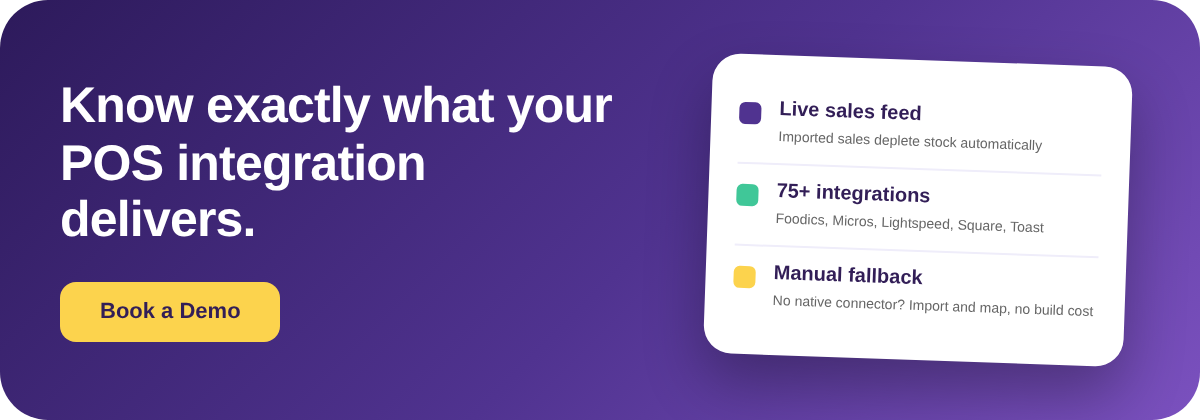
Die Kosten verteilen sich auf drei Wege, die weit auseinanderliegen. Ein nativer Connector, wenn Ihr Kassensystem bereits auf der unterstützten Liste der Plattform steht, ist mit großer Marge die günstigste Option: Es gibt keine Entwicklungsgebühr, Sie verbinden und mappen, und Supy veröffentlicht 75+ Integrationen für die wichtigsten Kassensysteme (darunter Foodics, Oracle Micros, Lightspeed, Square und Toast) sowie Buchführings-, ERP- und Online-Bestellaggregator-Systeme. Eine individuelle API-Entwicklung für ein Kassensystem ohne nativen Connector ist eine ganz andere Größenordnung – oft ein sechsstelliger Einmalaufwand im Bereich von 8.000 bis 25.000 Dollar, je nach Kassensystem und Umfang. Ein manueller täglicher Import kostet bei der Einrichtung nichts außer wenigen Minuten pro Tag.
Die Lücke zwischen diesen Wegen erklärt, warum die günstigste Option oft die richtige ist. Einer Gruppe von Feinrestaurants an mehreren Standorten wurde eine sechsstellige Summe für eine direkte POS-zu-Warenwirtschaft-API-Entwicklung angeboten, und sie entschied sich stattdessen für einen manuellen täglichen Import – für viele Betreiber eine solide Entscheidung und kein Kompromiss. Der Fehler ist nicht, manuell zu wählen; der Fehler ist anzunehmen, dass eine individuelle Entwicklung die einzige Alternative zu einem nativen Connector sei, dafür zu zahlen und erst danach zu erfahren, dass es den manuellen Weg gab. Lassen Sie alle drei Optionen kalkulieren, bevor Sie unterschreiben, damit Sie wählen und nicht in eine Option hineinfallen.

Kein nativer Connector? So funktioniert der manuelle Import als Fallback in der Praxis
Wenn Ihr Kassensystem keinen nativen Connector hat, ist ein nicht-natives oder regionales System nicht das Hindernis, das es zunächst aussieht, denn es gibt einen konkreten manuellen Weg, der Verkäufe dennoch in die Plattform bringt. Er läuft in drei Schritten ab. Erstens exportieren Sie die Artikelliste oder Speisekarte aus Ihrem Kassensystem. Zweitens importieren Sie diese Verkäufe über die Import-Verkaufsartikel-Vorlage in die Plattform. Drittens mappen Sie jeden importierten Kassensystem-Artikel dem zugehörigen Rezept unter Integrationen und dann Artikelmapping, damit die Plattform weiß, welche Zutaten ein verkaufter Artikel abbuchen soll.
Sobald dieses Mapping besteht, bucht jeder importierte Verkauf die richtigen Zutaten exakt so ab, wie ein nativer Feed es täte – der tägliche Import wird zu einer kurzen Routine statt einem Projekt. Dies ist der Weg, den eine Zentralküche eines Coffeeshops einschlug, als ihr Kassensystemanbieter nicht reagierte und kein nativer Connector existierte: Speisekarte exportieren, über die Vorlage importieren, Artikel mappen, fertig. Es lohnt sich zu wissen, dass dieser Weg existiert, bevor Sie unterschreiben, denn ein Kassensystem ohne nativen Connector liest sich oft als „kann nicht integriert werden“, obwohl die ehrliche Antwort lautet: „integriert manuell, nahezu kostenfrei.“ Bitten Sie den Anbieter, Ihnen den manuellen Fallback zu zeigen – nicht nur die Connector-Liste.

Es lohnt sich auch zu fragen, wer beim Anbieter die Integrationen nach Vertragsabschluss am Laufen hält. Bei Supy liegt das bei einem dedizierten Integrations-Team, das neue Connectors entwickelt, die bestehenden pflegt und verbessert und kontinuierlich daran arbeitet, den Datenfluss zwischen Ihrem Kassensystem und Ihren Bestandszählungen präzise zu halten. Deshalb wächst die unterstützte Liste weiter, statt stillzustehen: Ein Kassensystem ohne nativen Connector heute kann später einen haben, und eine bestehende Verbindung wird betreut statt sich selbst überlassen. Viele Warenwirtschaftstools übergeben Integrationen an Dritte oder verlassen sich auf das, was ein generischer Connector zufällig abdeckt – wer die Integration tatsächlich besitzt und pflegt, ist eine faire Frage, die Sie bei jeder Plattform stellen können, die Sie vergleichen.
Vor der Unterschrift: Vier Checks, die Ihnen zeigen, was Sie wirklich bekommen
Vier Checks trennen eine POS-Integration, die liefert, von einem Häkchen, das es nicht tut – und Sie können alle vier in einer einzigen Demo klären. Erstens die Richtung: Bitten Sie darum, einen Verkauf einzubuchen, und zeigen Sie den Bestandrückgang, um zu bestätigen, dass der Feed importiert und nicht nur exportiert. Zweitens native Abdeckung: Fragen Sie, ob Ihr spezifisches Kassensystem auf der unterstützten Liste steht, statt ein allgemeines „Ja, wir integrieren“ zu akzeptieren. Drittens der Fallback und seine Kosten: Wenn Ihr Kassensystem nicht nativ ist, fragen Sie, welchen Weg es gibt und was er kostet, um eine individuelle Entwicklung mit dem manuellen Import abzuwägen, bevor Sie sich festlegen. Viertens Datenvollständigkeit: Fragen Sie, ob sie Artikel-genaue Verkäufe mit Modifikatoren abrufen können, denn eine native Integration scheitert noch immer, wenn Ihr Kassensystemanbieter den API-Zugang verweigert oder die SKU- und Modifikatordaten nicht liefern kann, die die Plattform benötigt, um die richtigen Zutaten abzubuchen.
Führen Sie diese vier Checks durch und Sie ersetzen ein einzelnes mehrdeutiges Häkchen durch ein klares Bild dessen, was Sie kaufen: in welche Richtung die Daten fließen, ob Ihr Kassensystem abgedeckt ist, was der Fallback kostet und ob die Verkaufsdaten vollständig genug sind, um überhaupt importiert zu werden. Die Verbindung richtig einzurichten ist nur die erste Aufgabe; die Daten sauber zu halten, sobald sie fließen, ist die nächste, und hier zahlt sich eine gut eingerichtete Integration entweder aus oder driftet still ab. Klären Sie die vier Checks vor der Unterschrift, und der Rest wird zu einer operativen Routine statt einer Überraschung nach Vertragsabschluss.

Eine POS-Integration ist genau so viel wert, wie sie in Ihre Bestandszählungen einbringt – nicht das, was eine Featureliste behauptet. Bestätigen Sie die Richtung, kalkulieren Sie den Fallback und prüfen Sie, ob die Daten vollständig sind, dann wissen Sie vor der Unterschrift, ob die Verbindung ihren Platz verdient, egal welches Kassensystem Sie betreiben.