.jpg)

What 'POS Integration' Actually Delivers: Direction, Cost, and the Manual Fallback for Non-Native Systems
Why a 'POS Integration' Checkmark Tells You Almost Nothing
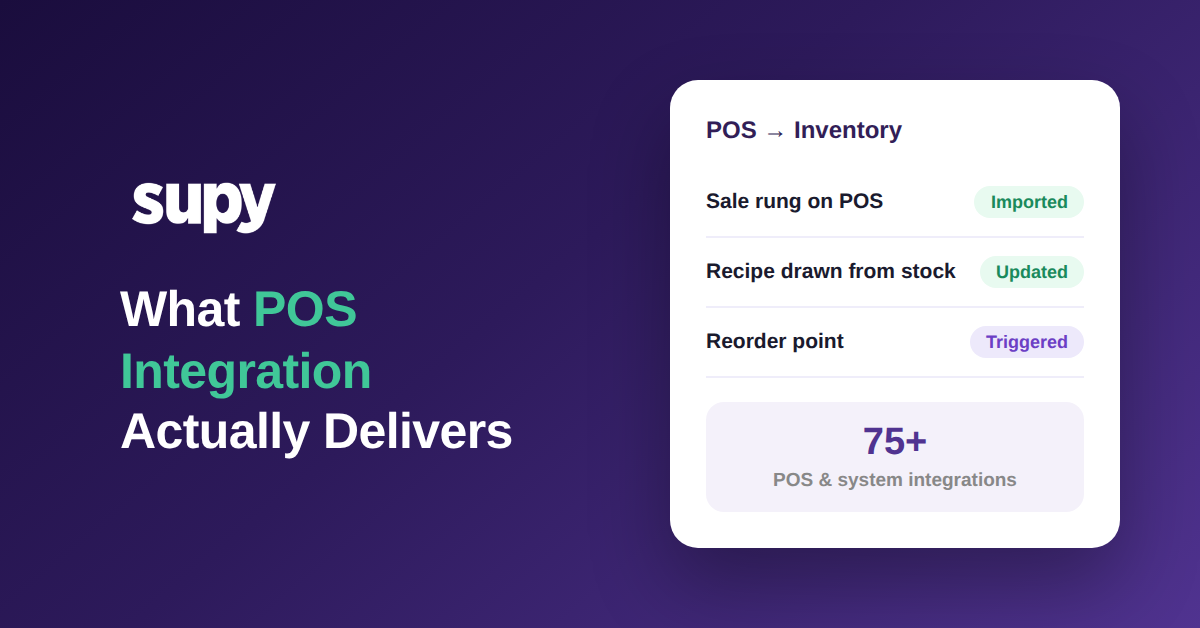
A POS integration, for an inventory platform, exists to do one thing: turn each completed sale into a stock movement, so that selling a dish automatically depletes the ingredients it used. When it works, you ring a sale on the till and the platform draws the recipe down against live stock without anyone re-keying anything. That single outcome is what "integration" should mean.
The problem is that the word on a feature list covers several very different arrangements, and only one of them delivers that outcome. Some connections push sales in; others only pull data out. Some are included; others are a five-figure build. Some POS systems have a ready-made connector; plenty of long-tail and regional ones do not. A checkmark tells you none of this, which is why operators who trusted the checkmark are the ones who feel misled later. The rest of this guide breaks the checkmark into the three questions it hides: direction, cost, and the fallback.

Direction First: Does the Integration Import Sales, or Only Export Data?
Direction is the single most important thing to verify, and it is the one most often glossed over in a sales conversation. An import (inbound) connection is the one you want: your POS or online-ordering aggregator sends each completed sale into the platform automatically, and the platform converts it into an inventory sales transaction that depletes stock and feeds reordering. An export (outbound) connection does the opposite, sending data out to another system, and it never touches your stock counts. Both get called "POS integration."
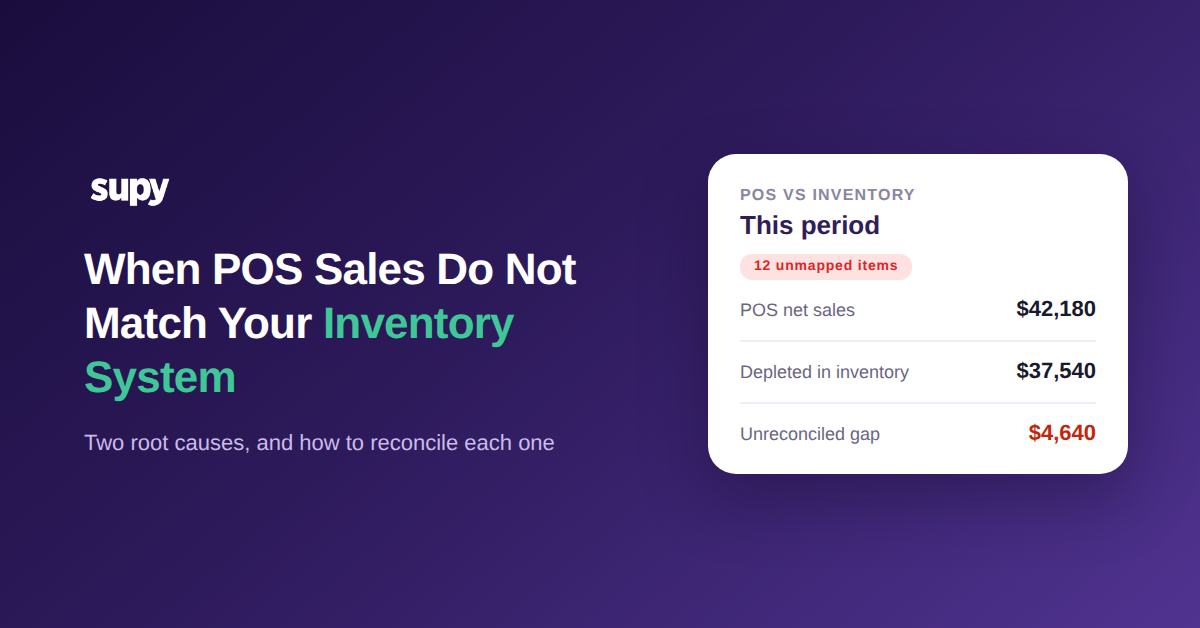
This is exactly where a real promise and a real product diverged for one single-site operator, who was told during the sales process that the new platform would automatically feed live sales into inventory, then found after signing that the connection only exported data and imported nothing. Nothing depleted. The verification is simple and you can do it in a demo: ask the vendor to ring a test sale and show you the stock level for that item drop on screen a moment later. If they can only show you a report exporting out of the platform, that is not the live sales feed you are buying inventory software to get. Ask the question in those words before you sign, because "we integrate with your POS" is true of both directions.

What POS Integration Really Costs: Native, Custom Build, or Manual
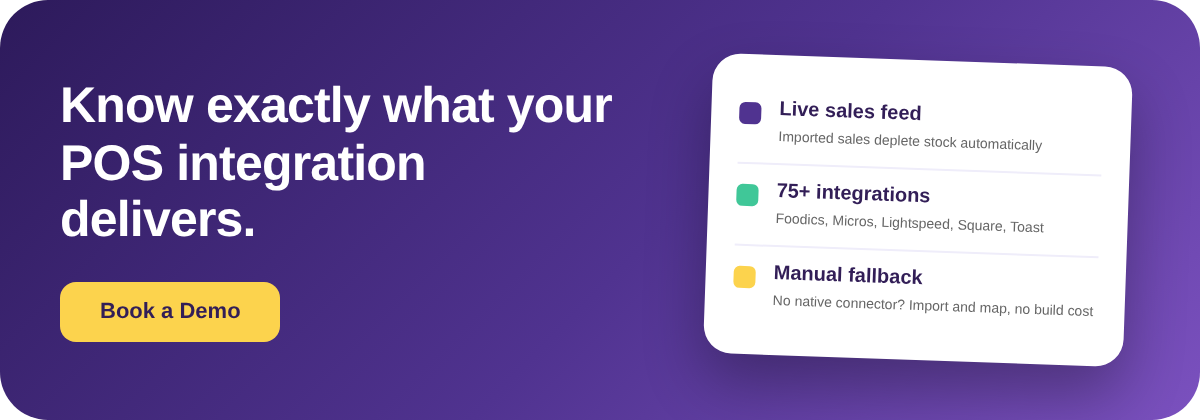
Cost splits into three paths, and they are far apart. A native connector, where your POS is already on the platform's supported list, is the cheapest by a wide margin: there is no build fee, you connect and map, and Supy publishes 75+ integrations covering the major POS systems (Foodics, Oracle Micros, Lightspeed, Square, Toast among them), plus accounting, ERP, and online-ordering aggregators. A custom API build, for a POS with no native connector, is a different order of cost, often a five-figure one-off in the region of $8,000 to $25,000 depending on the POS and the scope. A manual daily import costs nothing to set up beyond a few minutes of someone's time each day.
The gap between those paths is why the cheapest option is often the right one. One multi-site fine-dining group was quoted a five-figure sum for a direct POS-to-inventory API build and chose a manual daily import instead, and for many operators that is a sound decision rather than a compromise. The mistake is not choosing manual; the mistake is assuming a custom build is the only alternative to a native connector, paying for it, and only afterwards learning the manual path existed. Get all three costed before you sign so you are choosing, not defaulting.

No Native Connector? How the Manual Import Fallback Actually Works
When your POS has no native connector, a non-native or regional system is not the dealbreaker it looks like, because there is a concrete manual path that still lands sales in the platform. It runs in three steps. First, export the item list, or menu, from your POS. Second, import those sales into the platform through its Import Sales Item template. Third, map each imported POS item to the recipe it belongs to under Integrations then Item Mapping, so the platform knows which ingredients a sold item should draw down.
Once that mapping exists, every imported sale depletes the correct ingredients exactly as a native feed would, and the daily import becomes a short routine rather than a project. This is the path one coffee-shop central kitchen took when its POS vendor was unresponsive and no native connector existed: export the menu, import through the template, map the items, done. It is worth knowing this exists before you sign, because a POS that lacks a native connector often reads as "cannot integrate" when the honest answer is "integrates manually, at almost no cost." Ask the vendor to walk you through their manual fallback, not just their connector list.

Before You Sign: Four Checks That Tell You What You're Actually Getting
Four checks separate a POS integration that delivers from a checkmark that does not, and you can settle all four inside a single demo. First, direction: ask them to ring a sale and show you stock drop, confirming the feed imports and does not merely export. Second, native coverage: ask whether your specific POS is on the supported list, rather than accepting a general "yes, we integrate." Third, the fallback and its cost: if your POS is not native, ask what the path is and what it costs, so you can weigh a custom build against the manual import before committing. Fourth, data completeness: ask whether they can pull item-level sales with modifiers, because a native integration still fails if your POS provider refuses API access or cannot supply the SKU and modifier data the platform needs to deplete the right ingredients.
Run those four checks and you replace a single ambiguous checkbox with a clear picture of what you are buying: which way the data flows, whether your POS is covered, what the fallback costs, and whether the sales data is complete enough to be worth importing at all. Getting the connection right is only the first job; keeping the data clean once it flows is the next one, and it is where a well-set-up integration either pays off or quietly drifts. Settle the four checks before you sign, and the rest becomes an operational routine instead of a post-signature surprise.

A POS integration is worth exactly what it delivers into your stock counts, not what a feature list claims. Confirm the direction, price the fallback, and check the data is complete, and you will know before you sign whether the connection earns its place, whatever POS you run.