.jpeg)


Kostenlose Restaurant-Inventarvorlage (Excel, Google Sheets, PDF)

Der Betrieb eines profitablen Restaurants oder einer Bar setzt voraus, dass Sie jederzeit genau wissen, was Sie auf Lager haben – und was es kostet. Dennoch verlassen sich viele Betreiber noch immer auf Papierlisten oder unverbundene Tabellenkalkulationen, die keine Echtzeit-Lebensmittelbestandsüberwachung oder präzise Bestandsabweichungsanalyse unterstützen.
Das ändert sich heute mit Supys kostenloser Restaurant-Inventarvorlage, die speziell für die Restaurant-Warenwirtschaft entwickelt wurde. Sie hilft Ihnen dabei:
- Anfangs- und Endbestände sowie Einkäufe zu verfolgen
- den Wareneinsatz in Echtzeit (COGS) automatisch zu berechnen
- Bestandsabweichungen nach Kategorie zu identifizieren
- Lebensmittelkostenkontrollsysteme zu verbessern
- die Grundlage für vorausschauende Bestellungen und Restaurantautomatisierung zu schaffen
Verfügbar in Excel und Google Sheets bietet Ihnen dieses kostenlose Bestandskontrollsystem eine strukturierte, zutatenbasierte Verfolgung – ganz ohne Investition in vollwertige Warenwirtschaftssoftware.
Laden Sie die Vorlage herunter, indem Sie das untenstehende Formular ausfüllen. Weitere Informationen zur genauen Funktionsweise der Vorlage und deren effektiver Nutzung finden Sie in unserem Blog.
Was die Vorlage beinhaltet: ein 6-Reiter-System für den F&B-Betrieb
.png)
Anders als eine einfache Bestandsliste funktioniert diese Vorlage wie eine leichtgewichtige Restaurantbetriebssoftware. Jeder Reiter ist automatisch verknüpft – Sie geben Daten einmal ein und erhalten sofort Echtzeit-Berichts-Dashboards.
Die Vorlage enthält sechs strukturierte Reiter, die speziell für die Back-of-House-Nutzung konzipiert wurden.
Reiter 1 – Anleitung
Eine Schritt-für-Schritt-Anleitung ist direkt in die Vorlage integriert. Neue Teammitglieder können sich ohne Schulung durch Sie selbst einarbeiten. Die fünf Schritte führen Sie von der Erstellung Ihrer Kopie bis zum Lesen Ihres Zusammenfassungsberichts – alles wird in klarer Sprache erklärt.
Reiter 2 – Einstellungen
Konfigurieren Sie die Vorlage einmalig für Ihren Betrieb:
- Restaurant- oder Filialname
- Start- und Enddaten des Erfassungszeitraums
- Zeitraumbeschreibung (z. B. „Januar 2026" oder „Woche 4")
- MwSt.-Satz
- Ziel-Bruttogewinnmarge (berechnet automatisch Ihren Ziellebensmittelkostenprozentsatz)
- Währungssymbol (AED, $, £, €, usw.)
- Küchenkategorien – 8 anpassbare Slots (Meeresfrüchte, Fleisch & Geflügel, Obst & Gemüse, Milchprodukte & Eier, Backwaren, Trockenwaren & Konserven, Saucen & Würzmittel, Tiefkühlprodukte)
- Bar-Kategorien – 7 anpassbare Slots (Spirituosen & Liköre, Bier & Cider, Wein & Champagner, Softdrinks & Mixer, Säfte & Wasser, Sirupe & Bitters, Bier – Fassbier)
Alle gelb markierten Felder sind Eingabefelder. Alles andere wird automatisch berechnet. Der Reiter „Einstellungen" wird nur einmal pro Standort ausgefüllt – alle anderen Reiter verweisen darauf.
Reiter 3 – Stammdaten
Ihre Hauptliste aller Artikel, die Sie auf Lager haben. Tragen Sie jeden Artikel mit folgenden Angaben ein:
- Artikelname
- Kategorie (verknüpft mit Ihren Einstellungen)
- Maßeinheit (ME) – z. B. 1 kg, 750 ml, Stück
- Stückkosten
- Lieferantenname
- SKU / Code
- Anmerkungen
Die Stammdaten sind in Küchen- und Bar-Artikel unterteilt. Sobald Sie Ihre Artikel hier hinzugefügt haben, fließen sie automatisch in die Bestandszählungsreiter – kein Kopieren, keine Fehler durch doppelte Eingabe.
Die Vorlage wird mit über 50 vorgeladenen Beispielartikeln in Küchen- und Bar-Kategorien geliefert, darunter Proteine, Frischprodukte, Milchprodukte, Spirituosen, Weine, Biere, Softdrinks und Bar-Verbrauchsmaterial. Ersetzen Sie diese in wenigen Minuten durch Ihre eigenen Artikel.
Reiter 4 – Küchen-Bestandserfassung
Ihr monatliches (oder wöchentliches) Küchen-Zählblatt. Artikel werden automatisch aus den Stammdaten übernommen. Sie müssen nur drei Spalten ausfüllen:
- Anfangsbestand – wie viel Warenbestand Sie zu Beginn des Zeitraums hatten
- Einkäufe – wie viel Sie im Laufe des Zeitraums erhalten/eingekauft haben
- Endbestand – wie viel Warenbestand am Ende des Zeitraums noch vorhanden ist
Alles andere wird automatisch berechnet:
- Anfangswert, Einkaufswert, Endwert – alle zu Stückkosten bewertet
- Wareneinsatz in Echtzeit (Cost of Goods Sold) – Anfangswert + Einkaufswert – Endwert
- Abweichung (Wert) – die Differenz zwischen dem erwarteten und dem tatsächlichen Endbestand
- Abweichung % – ausgedrückt als Prozentsatz des Anfangsbestandswerts
Ergebnisse werden nach Kategorie mit Zwischensummen gruppiert, sodass Sie genau erkennen, wo Verluste entstehen.
Reiter 5 – Bar-Bestandserfassung
Die gleiche Logik wie bei der Küchenerfassung – jedoch speziell für Ihre Bar konzipiert. Bar-Artikel fließen automatisch aus den Stammdaten ein. Füllen Sie Anfangsbestand, Einkäufe und Endbestand aus; der Rest wird berechnet.
Die Bar ist in sieben Kategorien unterteilt: Spirituosen & Liköre, Bier & Cider, Wein & Champagner, Softdrinks & Mixer, Säfte & Wasser, Sirupe & Bitters und Bier – Fassbier. Jede Kategorie hat eine eigene Zwischensummenzeile.
Reiter 6 – Zusammenfassungsbericht
Ihr Überblick über den gesamten Betrieb – Küche und Bar zusammen – für den Erfassungszeitraum. Der Zusammenfassungsbericht zeigt:
- Anfangswert, Einkaufswert, Endwert und Wareneinsatz pro Kategorie
- Anteil am Gesamt-Wareneinsatz pro Kategorie – so erkennen Sie, welche Bereiche die meisten Kosten verursachen
- Gesamtzeilen für Küche und Bar
- Kombinierter Gesamt-Wareneinsatz (Küche + Bar)
Keine manuelle Zusammenfassung. Kein Kopieren und Einfügen von Zahlen aus einem Blatt in ein anderes. Der Zusammenfassungsbericht wird aktualisiert, sobald Sie Ihre Bestandszählungsreiter abgeschlossen haben.
So verwenden Sie die Vorlage: 5 Schritte zu Ihrer ersten Inventur
Schritt 1: Erstellen Sie Ihre Kopie
Gehen Sie in Google Sheets zu Datei > Kopie erstellen. Speichern Sie in Excel die Datei unter einem neuen Namen für Ihre Filiale oder Ihren Erfassungszeitraum. Bearbeiten Sie niemals das Original – arbeiten Sie immer mit einer Kopie.
Schritt 2: Konfigurieren Sie Ihre Einstellungen
Öffnen Sie den Reiter „Einstellungen" und füllen Sie die gelb markierten Felder aus: Restaurantname, Erfassungszeitraum, MwSt.-Satz, Zielgewinnmarge und Währung. Passen Sie Ihre Küchen- und Bar-Kategorien an die tatsächliche Organisation Ihres Betriebs an.
Schritt 3: Erstellen Sie Ihre Stammdaten
Ersetzen Sie die vorgeladenen Beispielartikel durch Ihre eigenen. Tragen Sie jeden Artikel ein, den Sie auf Lager haben – in der Küche und hinter der Bar – mit Stückkosten, Maßeinheit, Kategorie und Lieferant. Dieser Schritt ist das Fundament. Je genauer Ihre Stammdaten, desto genauer sind Ihre Inventuren und Ihr Wareneinsatz.
Schritt 4: Führen Sie Ihre Inventur durch
Öffnen Sie am Ende Ihres Erfassungszeitraums den Reiter „Küchen-Bestandserfassung". Geben Sie für jeden Artikel den Anfangsbestand (was Sie zu Beginn hatten), die Einkäufe (was eingegangen ist) und den Endbestand (was Sie physisch gezählt haben) ein. Wiederholen Sie dies für den Reiter „Bar-Bestandserfassung".
Schritt 5: Lesen Sie Ihren Zusammenfassungsbericht
Öffnen Sie den Reiter „Zusammenfassungsbericht". Ihr gesamter Wareneinsatz, die Kosten nach Kategorie sowie die kombinierte Küchen- und Bar-Leistung sind berechnet und zur Analyse bereit. Vergleichen Sie Ihre tatsächlichen Lebensmittel- und Getränkekosten mit Ihrer Zielmarge – festgelegt im Reiter „Einstellungen" – und untersuchen Sie alle Kategorien mit hoher Abweichung.
8 Best Practices, um das Beste aus Ihrer Inventarvorlage herauszuholen
Die Vorlage übernimmt die Berechnungen – Sie liefern die Disziplin. Hier sind die Praktiken, die Restaurants, die ihre Kosten kontrollieren, von denen unterscheiden, die sich fragen, wo das Geld geblieben ist.
1. Inventur zu einem festen Zeitplan – und ihn einhalten
Egal ob Sie wöchentlich, zweiwöchentlich oder monatlich zählen: Der Zeitplan ist wichtiger als die Häufigkeit. Ad-hoc-Inventuren liefern Ad-hoc-Daten. Legen Sie ein wiederkehrendes Inventurdatum fest – den letzten Tag jeder Woche oder den ersten Montag jedes Monats – und behandeln Sie es als unverzichtbar. Konsistente Zählintervalle machen Ihre Abweichungsdaten aussagekräftig und periodenübergreifend vergleichbar.
2. Immer alle drei Spalten ausfüllen
Die Wareneinsatzformel basiert auf Anfangsbestand, Einkäufen und Endbestand. Eines davon leer zu lassen – oder zu schätzen – unterbricht die Berechnung. Wenn Sie eine Zahl wirklich nicht kennen, ist das ein Signal, Ihren Wareneingangserfassungsprozess zu verbessern, und kein Grund, das Feld auszulassen. Schulen Sie Ihr Team, dass eine leere Zelle so kostspielig ist wie ein leerer Kühlschrank.
3. Stammdaten als einzige Informationsquelle nutzen
Jeder Artikel, den Sie auf Lager haben, sollte in den Stammdaten erfasst sein, bevor Sie mit der Zählung beginnen – nicht mitten in der Zählung hinzugefügt werden. Sobald Sie beginnen, Artikel zu zählen, die nicht aufgeführt sind, entstehen Lücken in Ihrem Wareneinsatz. Erstellen Sie zuerst vollständige Stammdaten, dann zählen Sie.
4. Küchen- und Bar-Inventuren trennen – und Verantwortlichkeiten zuweisen
Die Vorlage ist mit getrennten Reitern für Küche und Bar konzipiert, weil es sich um unterschiedliche Kostenstellen handelt, die von verschiedenen Teams geleitet werden, mit unterschiedlichen Verschwendungsmustern. Weisen Sie eine Person der Küchen-Inventur und eine andere der Bar-Inventur zu. Bereichsverantwortlichkeit liefert weit genauere Daten als eine einzelne Person, die alles zählt.
5. Einkäufe genau erfassen – nicht ungefähr
Die Spalte „Einkäufe" umfasst alles, was im Laufe des Zeitraums in Ihren Bestand eingegangen ist. Das bedeutet jede Lieferung, jede interne Umlagerung von einer anderen Filiale oder Zentralküche, jeden Spontankauf. Wenn Sie nicht alle Einkäufe erfassen, wird Ihr Wareneinsatz zu niedrig ausgewiesen und Ihre Abweichung erscheint künstlich gut. Bewahren Sie Lieferscheine auf und gleichen Sie diese ab, wenn Sie die Einkaufsspalte ausfüllen.
6. Abweichungen untersuchen – nicht einfach akzeptieren
Abweichung ist die Differenz zwischen dem, was Ihr Bestand wert sein sollte (basierend auf Anfangsbestand + Einkäufe – Wareneinsatz), und dem, was Sie tatsächlich gezählt haben. Eine positive Abweichung deutet auf nicht erfasste Bestandsbewegungen oder Zählfehler hin. Eine negative Abweichung – bei der der tatsächliche Bestand niedriger als erwartet ist – signalisiert Diebstahl, Schwund, Überportionierung oder nicht erfasste Umlagerungen. Nutzen Sie die Kategoriezwischensummen im Zusammenfassungsbericht, um zu ermitteln, welcher Bereich untersucht werden muss.
7. Stammdaten bei Kostenänderungen aktualisieren
Stückkosten schwanken. Wenn ein Lieferant die Preise erhöht, aktualisieren Sie die Stückkosten in den Stammdaten sofort – nicht am Monatsende. Veraltete Kosten in den Stammdaten bedeuten falsche Wareneinsatzzahlen, und auf Basis falscher Wareneinsatzdaten getroffene Entscheidungen sind schlimmer als gar keine Daten.
8. Die Vorlage während der Inventur auf einem mobilen Gerät verwenden
Papier-Zählblätter verursachen Übertragungsfehler, wenn Werte in die Tabellenkalkulation übertragen werden. Öffnen Sie die Vorlage während der physischen Inventur auf einem Tablet oder Smartphone und geben Sie Mengen direkt ein. Damit entfällt der Papier-zu-Bildschirm-Schritt vollständig und menschliche Fehler werden erheblich reduziert.
Verwandte Ressourcen
- Was ist Lebensmittelkostenschwankung & wie lässt sie sich kontrollieren – supy.io/blog/what-is-food-cost-variance-and-how-to-control-it
- So berechnen Sie Lebensmittelkostenprozentsätze – supy.io/blog/how-to-calculate-restaurant-food-cost-percentage
- Restaurant-Warenwirtschaft: Die 8 Tipps, die Sie kennen müssen – supy.io/blog/restaurant-inventory-management-tips
- 10 Tipps zur Reduzierung von Lebensmittelverschwendung im Restaurant – supy.io/blog/10-tips-to-reduce-restaurant-food-waste
- Die Features, auf die Sie bei einer Restaurant-Warenwirtschaftssoftware achten sollten – supy.io/blog/the-features-to-look-for-in-a-restaurant-inventory-management-software-in-2024
Bereit, Tabellenkalkulationen hinter sich zu lassen?
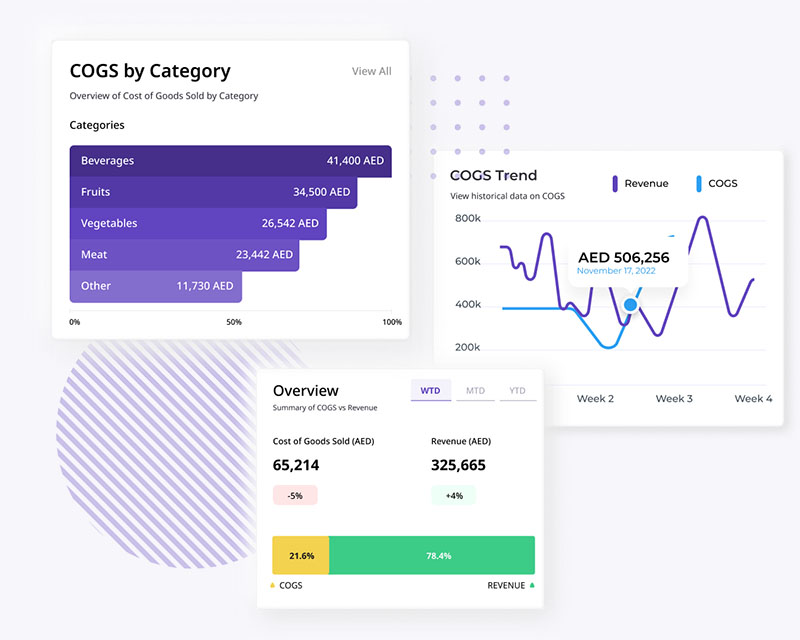
Diese Vorlage hilft Ihnen, heute smarter zu zählen. Wenn Sie bereit sind, den Wareneinsatz zu automatisieren, Ihr POS-System zu verbinden und den Einkauf über mehrere Filialen hinweg zu verwalten, ist Supys Warenwirtschaftsplattform der nächste Schritt.
Demo buchen unter supy.io/book-a-demo – und sehen Sie, wie führende Restaurant- und Bar-Betreiber in der Region Lebensmittelkosten senken und manuelle Arbeit eliminieren.